Getting started
Getting started: your first 30 minutes
A short setup plan for new workspaces: Configuration with its nine steps, the readiness check, a 30-minute checklist, quick navigation, help and Lora.
9 min read Updated October 23, 2026
On this page
Welcome to NextCRM. This article shows you the fastest way to a working workspace: every new lead lands in one place, your team can log in, and Lora can help from day one. Plan about 30 minutes. You can stop at any time and continue later.
After you sign in, NextCRM opens Today, your work list for the day. The sidebar is short: Overview (Today, Dashboard), Sales (Leads, Inbox, Tasks, Customers, Quotes), Growth & team (Campaigns, Automations, Team) and Workspace (Configuration, Help Center). Click your profile card at the bottom of the sidebar for Profile, Plan & billing and Settings. Which entries you see depends on your role.
Configuration: your workspace setup
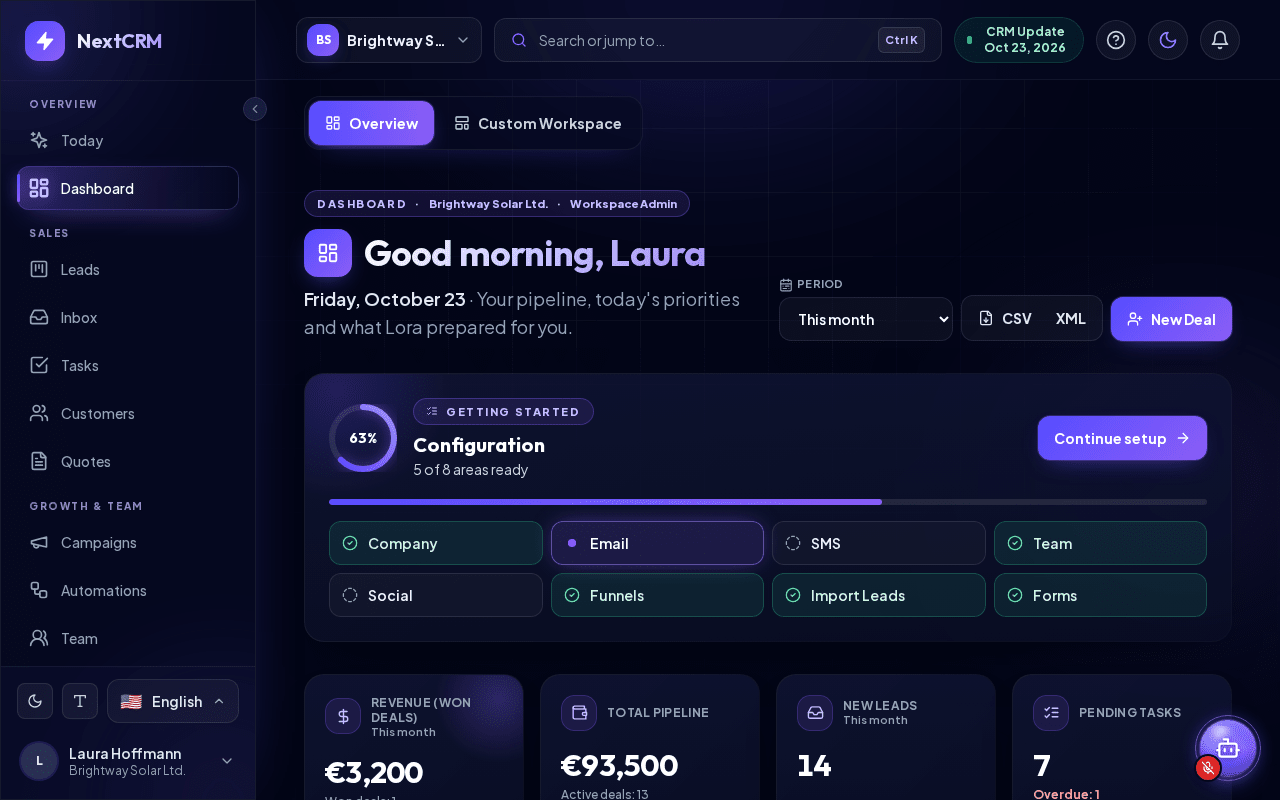
Configuration is the one place where you set up your workspace. If you are a Workspace Admin, it opens by itself on your first visit. Afterwards you open it any time with Configuration in the Workspace section of the sidebar. A small badge next to it shows how many areas are ready, for example 5/8; an orange dot means a setting needs your attention, and a green check means everything is ready.
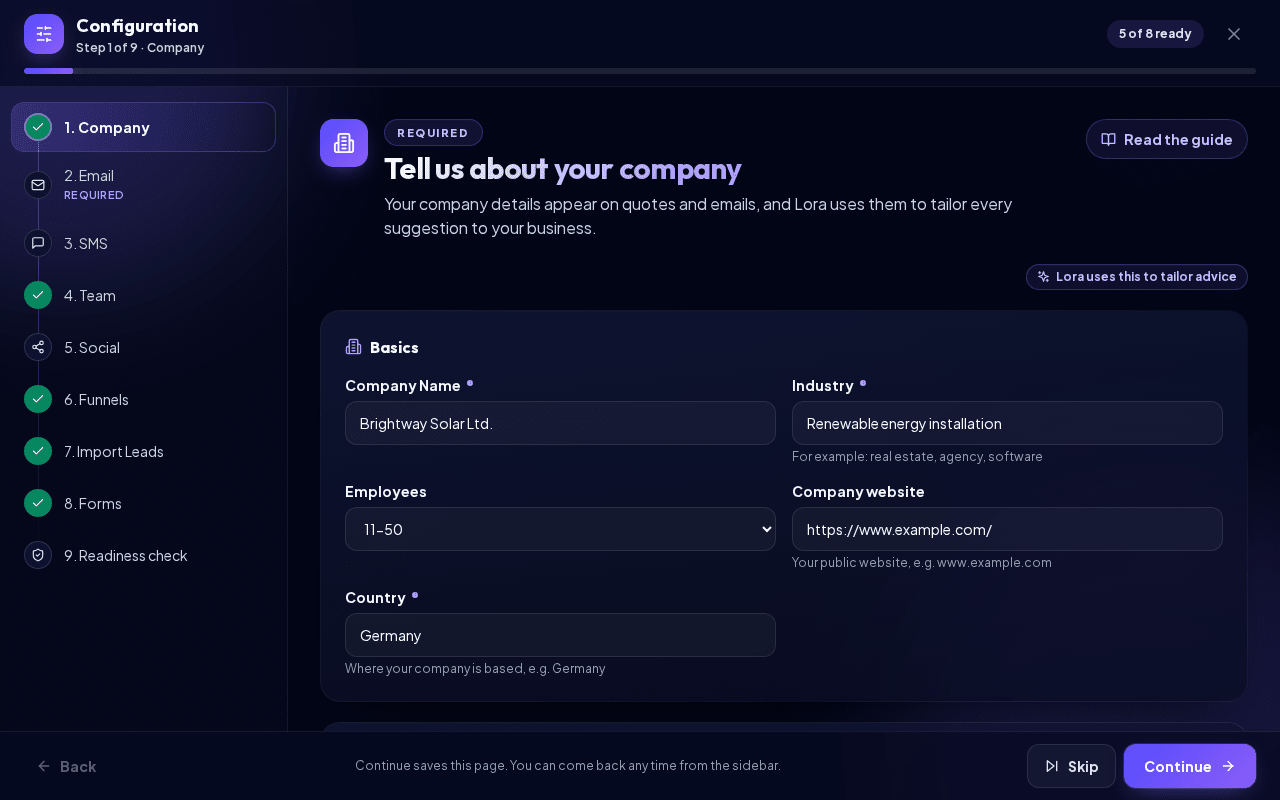
Configuration is a full page with nine steps:
- Company - company name, website, industry, country and size, plus Tell us more about your company: what your company does, products and services, ideal customers, what makes you different and where you sell. Lora uses these answers to tailor advice and emails to your business.
- Email - connect the address your emails are sent from: Gmail / Google Workspace, Microsoft 365 / Outlook, Yahoo Mail, IONOS, STRATO, SMTP (any server), SendGrid, Mailgun or Amazon SES. See Email setup.
- SMS - connect your Twilio account for texts and calls. See SMS setup.
- Team - one row per person: enter the email address and choose a role. Add person adds another row. See Team invitations.
- Social - connect WhatsApp, Facebook, Instagram, Telegram and more, so their messages land in the Social Inbox. See Social connections.
- Funnels - your sales funnel and its stages. See Funnels and stages.
- Import Leads - bring existing contacts from a spreadsheet or another CRM. Download sample CSV and Download sample Excel give you a ready-made file. See Importing leads.
- Forms - a form for your website; every submission becomes a lead. See Web forms.
- Readiness check - what really works, see below.
The left column lists the steps with their status; click a step to jump to it. At the bottom you find Back, Skip and Continue. Continue saves the page and moves on; if something is missing or wrong, you stay on the step and see what to fix. Read the guide opens the matching help article inside Configuration, so you never lose your place. Close Configuration with the X at the top right; your progress is kept.
Each role only sees the steps it may change:
| Role | Steps in Configuration |
|---|---|
| Workspace Admin | All nine steps |
| Sales Manager | Email, Team, Social, Funnels, Import Leads, Forms, Readiness check |
| Marketing | Funnels, Forms, Readiness check |
| Sales Team, Finances | No Configuration. They get a short "How NextCRM works" tour on their first visit instead. |
AI is not part of Configuration: Lora works with the AI included in your plan. To use your own AI provider key, open Settings > AI Config. See AI configuration.
Tip: Skipping is fine. Nothing breaks if a step stays open - for example, you can set up email later once you have your mailbox password at hand.
The readiness check
The last step, Readiness check, tests every setting for real. Only what actually works is marked Ready - a saved but failing email login, for example, shows Needs attention. Every area has one of these states: Ready, Needs attention, Skipped or Not set up.
- Required to start selling: Company, Email, Funnels and Forms. Without a sender address, a funnel and a form your workspace cannot sell yet.
- Recommended: SMS, Team, Social and Import Leads.
When all required areas work, the check says Ready to sell. Otherwise it says Not ready yet and tells you how many required steps are still open. Each row explains why, for example "Your form is not live: it must be active and deliver into a stage of an active funnel." Click Fix it (or Set up) on a row to jump straight to that step, and Check again to run the check once more. Finish closes Configuration.
| Area | Ready when |
|---|---|
| Company | The company name, industry, country and a short description are filled in. |
| A mail provider is switched on and its connection test passed. | |
| SMS | Twilio is connected and tested. |
| Team | Your team has members or delivered invitations. |
| Social | At least one channel is connected and verified. |
| Funnels | A funnel has open stages and a "Won" stage. |
| Import Leads | Your workspace has leads. |
| Forms | A form is live and delivers new leads into your funnel. |
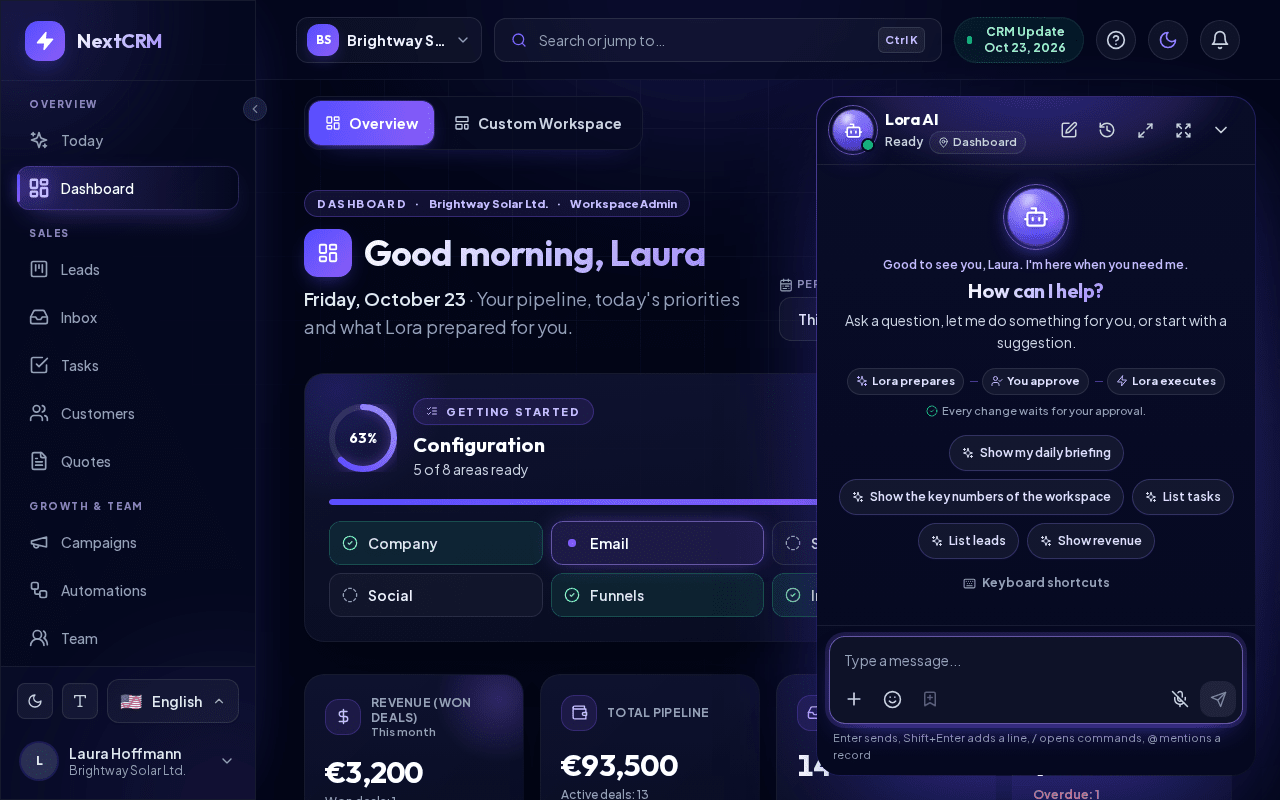
Workspace Admins also see a Configuration card at the top of the Dashboard with the same progress, for example "5 of 8 areas ready". Start setup (or Continue setup) opens the next open step, and each tile opens its step directly. When everything is done, click the X (Hide setup guide) to remove the card. In the Settings hub (Settings), Open Configuration in the Setup progress panel opens it as well.
Your 30-minute checklist
Work through the list from top to bottom. Each step builds on the one before it. All of them except AI happen in Configuration.
- Company (about 5 minutes). Fill in the Company step, including Tell us more about your company. Your company details are used in emails, forms and by Lora when it writes for you. Only Workspace Admins can edit them; other roles can view the Company Profile in Settings.
- Email (about 5 minutes). In the Email step, choose your provider, enter the sign-in details and run Test connection before you continue. See Email setup.
- Funnel (about 5 minutes). In the Funnels step, create one funnel with 5 to 7 stages that match how you really sell. Start with one funnel; add more only when a process is truly different. See Funnels and stages.
- AI (about 3 minutes). If your plan includes platform AI, Lora works without any setup. If you prefer, connect your own key from OpenAI, Anthropic, Google or xAI in Settings > AI Config. See AI configuration.
- Invite your team (about 3 minutes). In the Team step, add one row per colleague with the right role. See Team invitations and Workspace roles and permissions.
- Channels (about 5 minutes). Connect the channels your customers use: the Social step for WhatsApp, Facebook, Instagram, Telegram and more, and the SMS step for texts. These need accounts at the providers, so it is fine to only start here and finish later. See Social connections and WhatsApp setup.
- First form or import (about 5 minutes). Create a web form in the Forms step so website visitors become leads automatically, or bring in existing contacts in the Import Leads step. See Web forms and Importing leads.
Then run the Readiness check and fix what it reports until it says Ready to sell.
Note: Some steps depend on your role and plan. For example, Import Leads is only shown to Workspace Admins and Sales Managers, and channels like SMS or the Social Inbox must be included in your plan.
Where to find help
Help is always one click away:
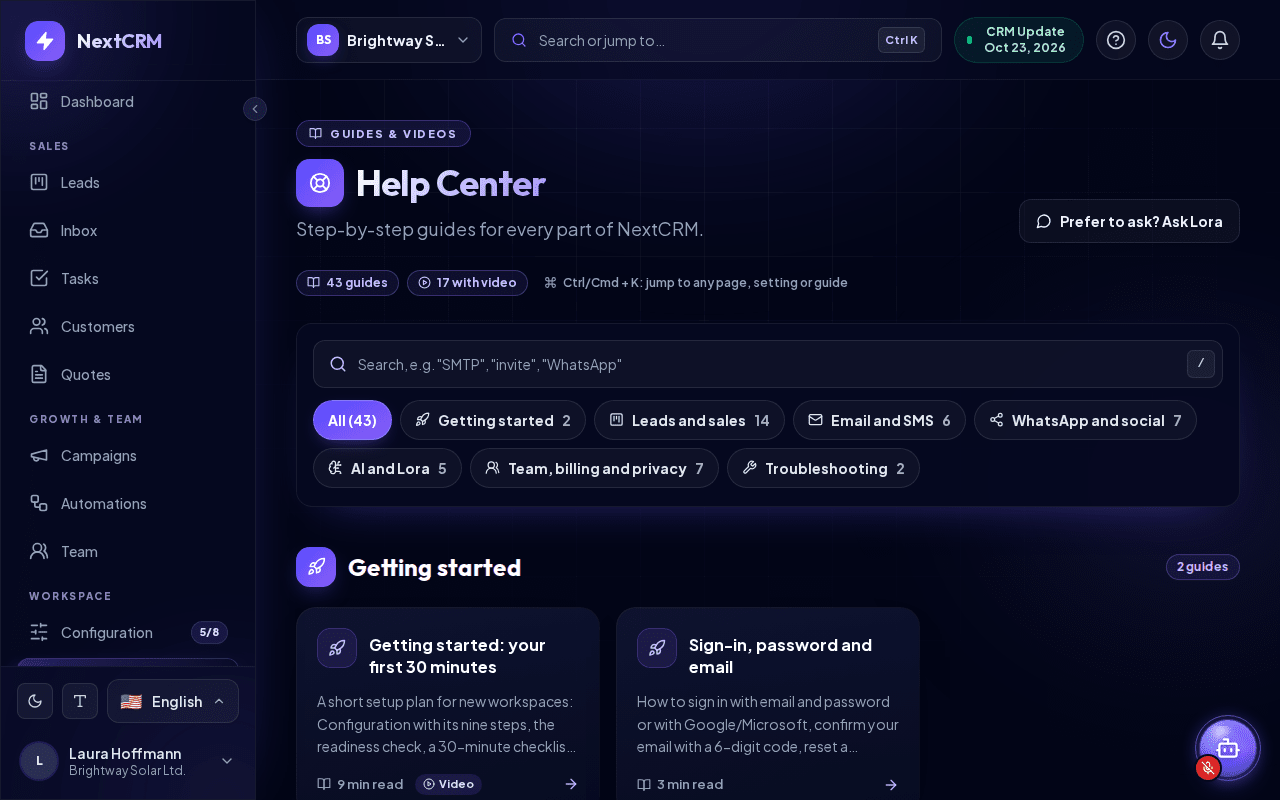
- Help Center in the sidebar (section Workspace) opens all help articles, with search and categories.
- The ? icon in the top bar opens the Help Center from any page.
- Search or jump to… in the top bar (or Ctrl+K / Cmd+K) finds any page or setting and can search the Help Center for you. See the next section.
- Settings in the profile card menu (bottom of the sidebar) opens the Settings hub: every settings page your role can open, each with its live status (for example Connected or Not set up), plus a search field and your Setup progress.
- Small ? links next to the titles of key pages open the matching article. In Configuration, Read the guide opens the article right next to the step.
- The Email, SMS, Social and AI settings have collapsible How to connect panels with step-by-step instructions.
- Every article has an Ask Lora about this button if you have a follow-up question.
Quick navigation (Ctrl/Cmd + K)
Quick navigation takes you to any page without clicking through the menu.
- Press Ctrl+K (Windows/Linux) or Cmd+K (Mac) on any page, or click Search or jump to… in the top bar. On narrower screens the top bar shows a magnifier icon instead.
- Type the name of a page or setting, for example "mailer" or "tasks".
- Use the ↑ and ↓ keys to move, Enter to open and Esc to close.
Besides Pages, the list has an Actions group: Talk with Lora, Open the Help Center and Switch light / dark mode. Once you type something, two more actions appear: Ask Lora: “…” sends your text to Lora, and Search the Help Center: “…” searches the help articles for it.
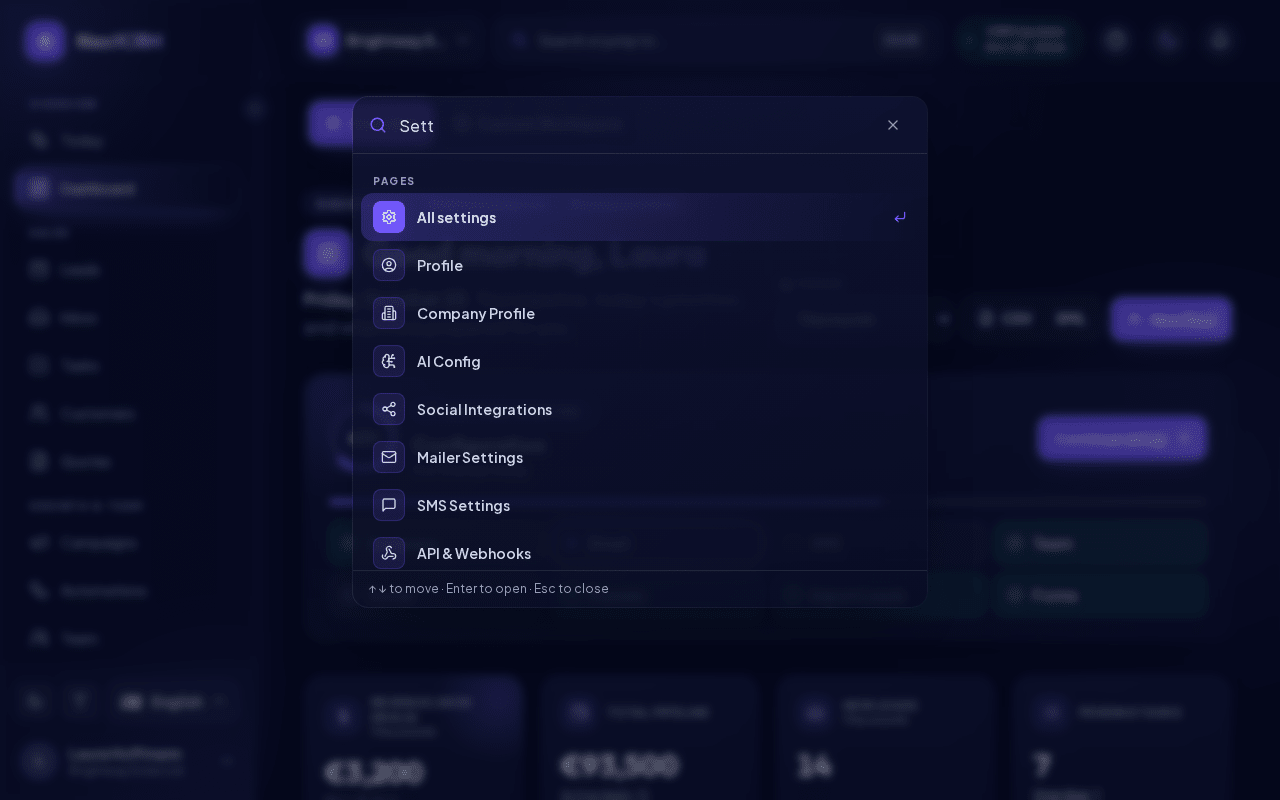
Quick navigation only lists the pages your role is allowed to open. Settings that now live in Configuration (for example Mailer Settings or Forms) open the matching Configuration step.
Ask Lora
Lora is the AI assistant built into NextCRM. Click the round Lora button at the bottom right of the screen to open the chat. You can ask Lora how something works in NextCRM, and it answers with links to the matching help articles (shown as "Help article: <title>"). Lora can also help with your daily sales work, for example drafting replies or summarizing a lead.
Tip: Lora answers better when it knows your business. Answer Tell us more about your company in the Company step first - it is the quickest win.