Team, workspaces & billing
Workspace roles and permissions
The five workspace roles in NextCRM - Workspace Admin, Sales Manager, Marketing, Finances and Sales Team - what each role sees in the sidebar and what it can change.
5 min read Updated October 23, 2026
On this page
Every person in a NextCRM workspace has one or more roles. The role decides which menu items they see in the sidebar and what they are allowed to change. Give each person the smallest role that lets them do their job - it protects your data and keeps the menu simple.
The five workspace roles
| Role | Typical person | In short |
|---|---|---|
| Workspace Admin | Owner, founder, operations lead | Full control of the workspace, including billing, plans, add-ons, company profile, AI and data export. |
| Sales Manager | Head of sales, team lead | Runs the sales team: invites people, assigns roles, imports data, sets up funnels, forms, email and social channels. No billing. |
| Marketing | Marketer, agency partner | Campaigns, forms and funnels, the Lead Inbox and lead work. No team management or settings. |
| Finances | Bookkeeper, finance lead | Can look at leads, customers and tasks, but cannot change lead details. |
| Sales Team | Sales rep, account manager | Daily work: leads, tasks, customers and the Social Inbox. |
The person who created the workspace is its first Workspace Admin.
Note: Platform admins are not a workspace role. They are the NextCRM operators who run the service from a separate control panel. They do not appear in your Team list and do not work inside your CRM pages.
What each role sees in the sidebar
- Workspace Admin: Overview (Today, Dashboard), Sales (Leads, Inbox, Tasks, Customers, Quotes), Growth & team (Campaigns, Automations, Team) and Workspace (Configuration with all nine steps, Help Center). The profile card menu at the bottom of the sidebar has Profile, Plan & billing and Settings.
- Sales Manager: the same sidebar as a Workspace Admin. Configuration shows only Email, Team, Social, Funnels, Import Leads, Forms and the Readiness check. The profile card menu has Profile and Settings - no Plan & billing.
- Marketing: Overview (Today, Dashboard), Sales (Leads, Inbox, Tasks, Customers, Quotes), Growth & team (Campaigns) and Workspace (Configuration with Funnels, Forms and the Readiness check, Help Center). Profile card menu: Profile and Settings.
- Sales Team: Today, Dashboard, Leads, Inbox, Tasks, Customers, Quotes and Help Center. Profile card menu: Profile and Settings. No Configuration.
- Finances: the same as Sales Team, but without Today. No Configuration.
Several entries are merged pages with tabs at the top: Dashboard (Overview | Custom Workspace), Inbox (Lead Inbox | Social Inbox), Customers (Customers | Customer success), Quotes (Quotes | Booking pages), Campaigns (My Campaigns | Sequences) and Plan & billing (Billing | Add-ons | Plan Upgrade). A role only sees the tabs it may open: for Sales Team and Finances, Inbox opens the Social Inbox directly, and their Dashboard has no Custom Workspace tab.
Settings opens the Settings hub. It only shows cards for pages the role can open: Workspace Admins see Profile, Sign-in & security, Mailbox & calendar, Company Profile, Lora knowledge, AI Config, the channel settings, API & Webhooks and the Plan & billing cards; Sales Managers see the same without AI Config, SMS, API & Webhooks and Plan & billing; Marketing, Finances and Sales Team see Profile, Sign-in & security, Mailbox & calendar and Company Profile (view only).
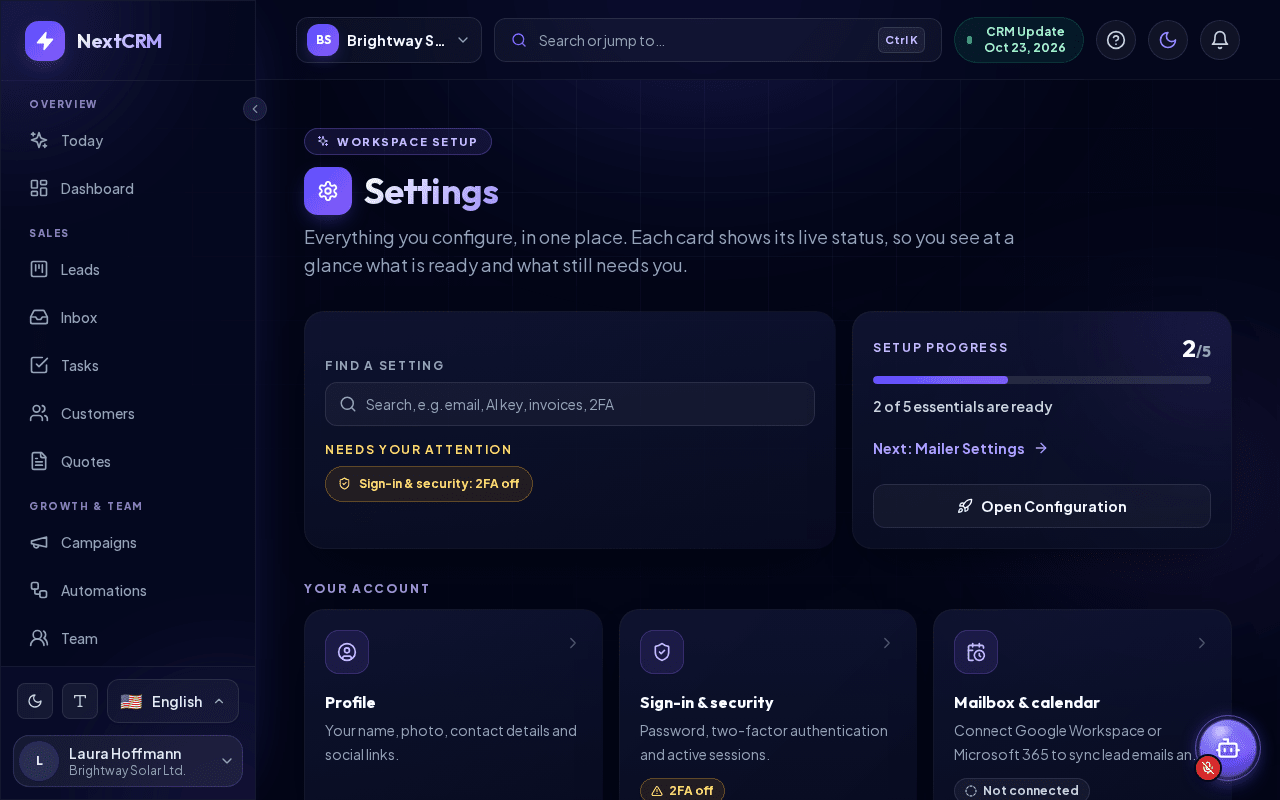
Everyone has the Help Center and the Lora button at the bottom right of the screen.
What each role can do
"Yes" means the role can do this. "View" means the role can open it but not change it.
| Action | Workspace Admin | Sales Manager | Marketing | Finances | Sales Team |
|---|---|---|---|---|---|
| Work with leads (edit, move between stages) | Yes | Yes | Yes | View | Yes |
| Open and manage the Lead Inbox (waiting leads) | Yes | Yes | Yes | - | - |
| Create and change funnels, stages and forms | Yes | Yes | Yes | - | - |
| Delete leads | Yes | Yes | Own leads | - | Own leads |
| Read and reply in the Social Inbox | Yes | Yes | Yes | Yes | Yes |
| Assign Social Inbox conversations | Yes | Yes | Yes | - | - |
| Create a lead from a conversation | Yes | Yes | Yes | - | Yes |
| Marketing campaigns | Yes | Yes | Yes | - | - |
| Build follow-up sequences | Yes | Yes | Yes | - | - |
| Enroll a lead in a sequence (from the lead) | Yes | Yes | Yes | - | Yes |
| Create and change automations | Yes | Yes | - | - | - |
| Import Leads (Configuration > Import Leads) | Yes | Yes | - | - | - |
| Invite people and change their roles (Team) | Yes | Yes | - | - | - |
| Connect social channels (Configuration > Social) | Yes | Yes | - | - | - |
| Change email settings (Configuration > Email) | Yes | Yes | - | - | - |
| Train Lora with workspace knowledge (Settings > Lora knowledge) | Yes | Yes | - | - | - |
| Change AI Config, SMS (Configuration > SMS) and API & Webhooks | Yes | - | - | - | - |
| Edit the company details (Configuration > Company) | Yes | View | View | View | View |
| Export workspace data (CSV, XML, full export) | Yes | - | - | - | - |
| Plan & billing (Billing, Add-ons, Plan Upgrade) | Yes | - | - | - | - |
"Own leads" means leads assigned to that person or created by them. Your plan can also switch features on or off - for example, SMS, the Social Inbox or marketing campaigns must be included in your plan, whatever the role.
People with more than one role
You can give one person several roles, for example Marketing and Finances. Their permissions add up: they can do everything any of their roles allows.
The sidebar and Configuration show everything any of their roles may open. Sales Team is the basic role and is removed automatically when another role is added.
Who can change roles
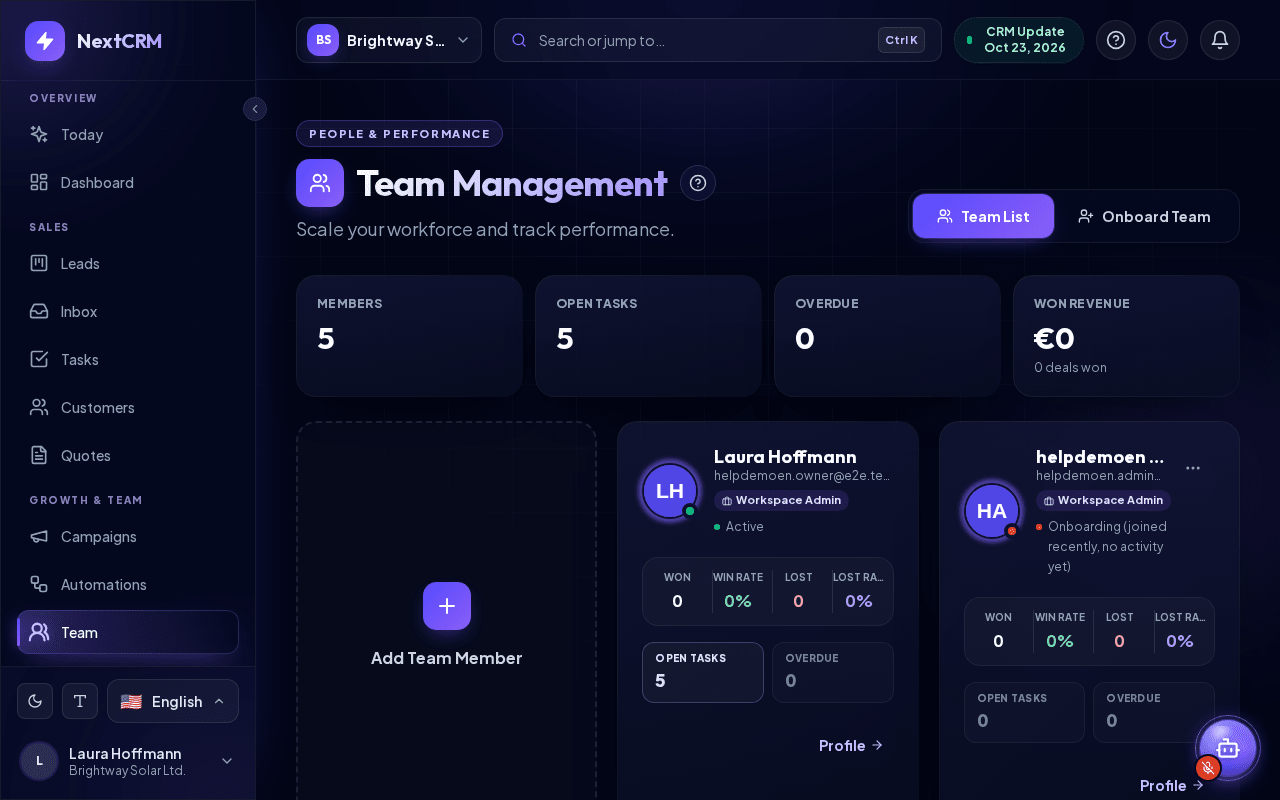
- Workspace Admins and Sales Managers can give or remove the roles Sales Team, Sales Manager, Marketing and Finances. Open Team, click the ... menu on a member card and tick the roles under Workspace access. The change is saved immediately.
- Sales Managers cannot change people who are Workspace Admins.
- The roles of a Workspace Admin can only be changed by a platform admin - other Workspace Admins and Sales Managers cannot change them.
- The Workspace Admin role cannot be given by invitation or from the Team page. If you need a second Workspace Admin, contact NextCRM support - only a platform admin can grant it.
Tip: Plan for at least two people who can manage the team (for example one Workspace Admin and one Sales Manager), so nobody is locked out when someone is on holiday.
::video[/help/videos/{lang}/workspace-switcher.webm]{caption="Video: switching between workspaces" captions="/help/videos/{lang}/workspace-switcher.vtt" poster="/help/videos/{lang}/workspace-switcher.jpg"}
Related articles
- Team invitations
- Getting started
- Billing, plans and add-ons
- Data privacy and GDPR basics
Related guides
- Inviting your team How to invite colleagues by email, choose their roles, resend or revoke invitations, how team seats are counted, what the invited person sees and how invitations work for people who already use NextCRM in another workspace. 6 min read
- Working with multiple workspaces One login for several workspaces: choosing one at sign-in, switching, creating a workspace for another company, invitations, roles per workspace and leaving. 3 min read
- Billing, plans and add-ons How NextCRM plans, add-ons and AI credits work, when upgrades and downgrades take effect, what happens to your data when you cancel, and where to download receipts. 7 min read