Team, workspaces & billing
Billing, plans and add-ons
How NextCRM plans, add-ons and AI credits work, when upgrades and downgrades take effect, what happens to your data when you cancel, and where to download receipts.
7 min read Updated October 24, 2026
On this page
Your workspace runs on one CRM plan. You can extend it with add-ons, for example more AI usage or more team seats. Only Workspace Admins see and manage Plan & billing; other roles never see prices or checkout. Payments are processed by Stripe.
Where to find everything
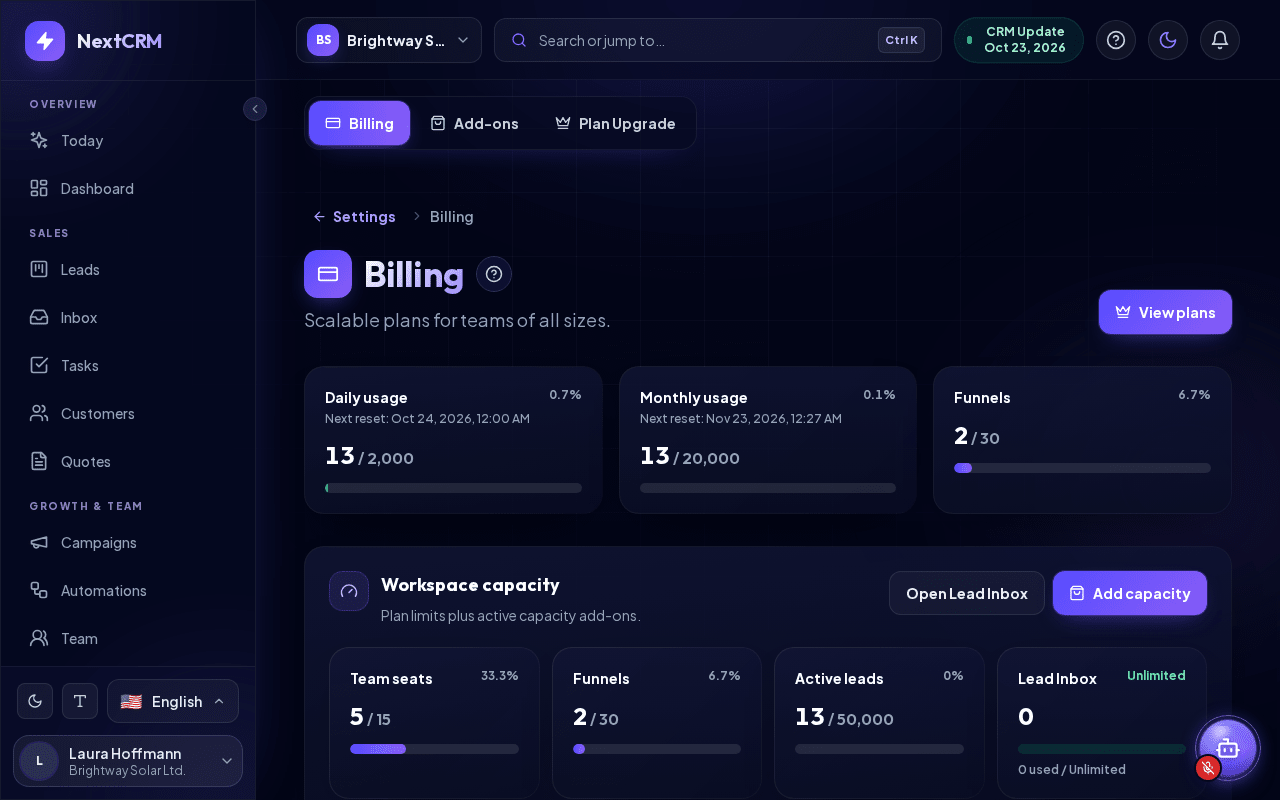
Click your profile card at the bottom of the sidebar and choose Plan & billing. The page has three tabs:
- Billing - your current plan, active add-ons, usage (AI credits, seats, funnels, lead cards), payment method, order history and cancellation.
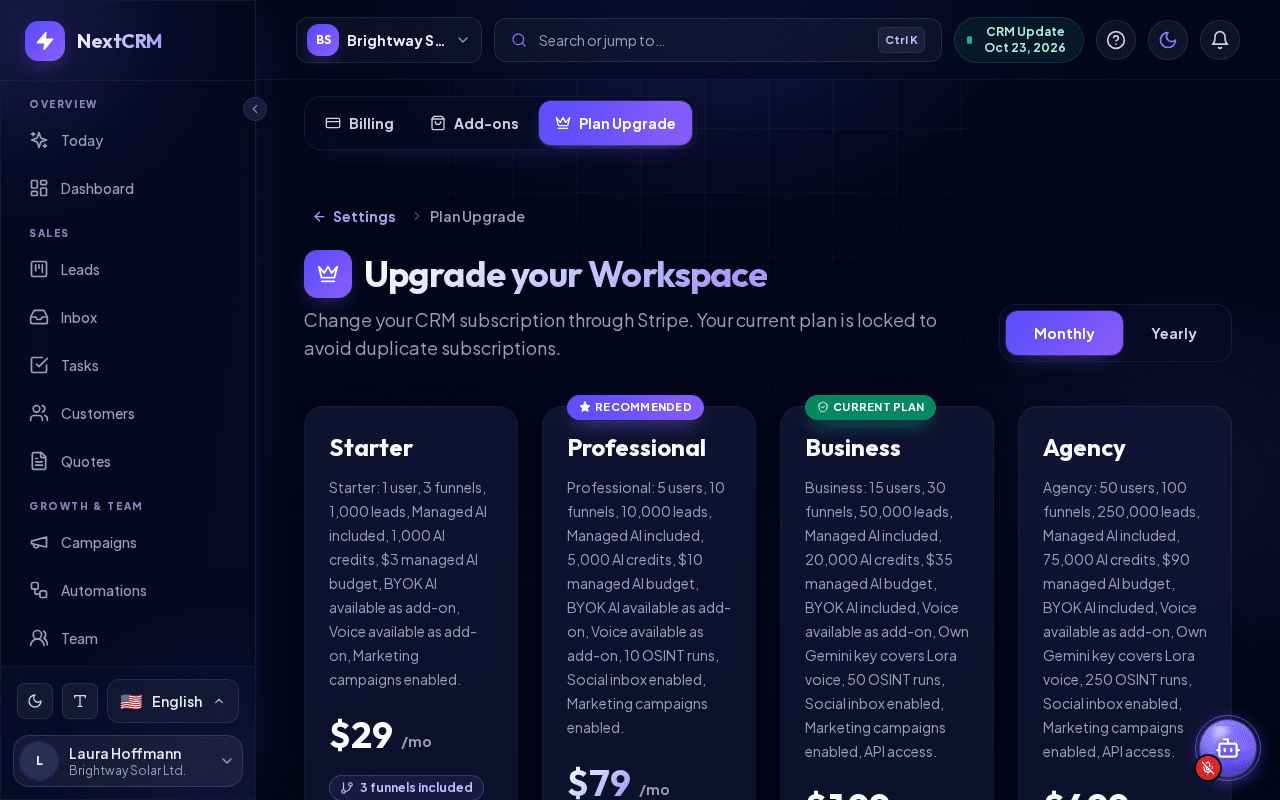
- Plan Upgrade - compare plans side by side and switch plans.
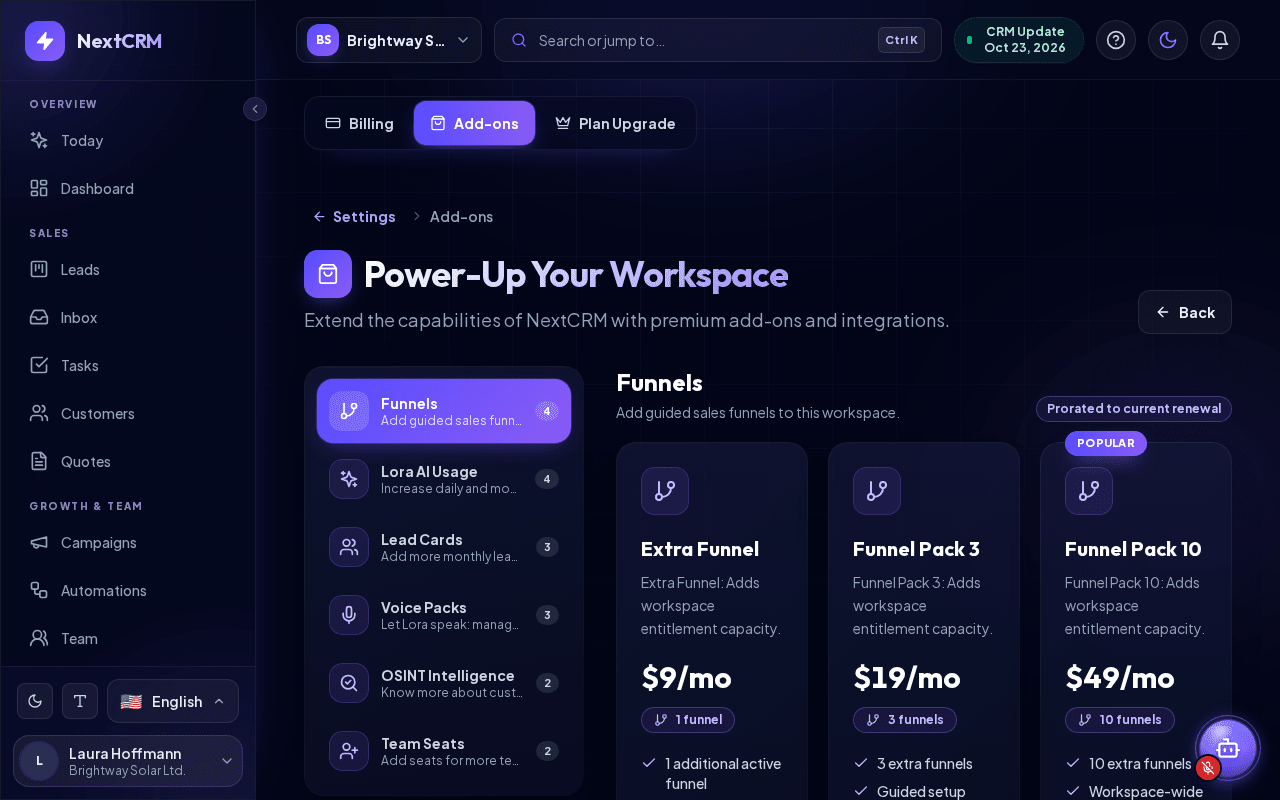
- Add-ons - buy extras for your current subscription.
View plans at the top of the Billing tab opens Plan Upgrade. All three tabs are also cards in the Settings hub (profile card menu > Settings, group Plan & billing): the Billing card shows the subscription status (for example Active, Trial or Payment needed), Add-ons shows how many are active and Plan Upgrade shows your current plan. Each page shows a breadcrumb such as Settings / Billing; click Settings to return to the hub.
Plans
Each plan sets your workspace limits, for example team seats, active funnels, lead cards, AI credits and voice usage, and which features are included (such as the Social Inbox, marketing campaigns, SMS or using your own AI key). The Plan comparison table on Plan Upgrade shows the exact current prices and limits. Use the Monthly / Yearly switch to compare billing intervals.
To change your plan:
- Open Plan & billing > Plan Upgrade.
- Click Select plan on the plan you want. Your current plan is marked Current plan. For plans with custom pricing, the button says Contact sales.
- If the change affects add-ons you already have, NextCRM shows which add-ons are replaced or become redundant before you continue.
- Complete the payment in Stripe.
When plan changes take effect
- Upgrades take effect immediately. The price difference for the rest of the current period is charged right away. If the payment fails, nothing changes - you stay on your current plan.
- Downgrades take effect at the end of the paid period. You keep your current plan until then. Billing shows a Pending plan change with the date; you can undo it with Cancel pending downgrade.
- Too many funnels for the smaller plan? If your workspace uses more active funnels than the new plan plus your add-ons allow, Billing asks you to Resolve funnels: merge funnels or archive extra funnel access. Leads, history, forms, tasks and analytics are kept - nothing is deleted.
Add-ons
Add-ons extend your current plan. Depending on what NextCRM offers at the moment, these include more Lora AI usage, extra lead cards, extra funnels, extra team seats, managed voice usage (Lora speech) and lead intelligence. Managed voice packs include a monthly amount of voice tokens (Gemini counts about 25 tokens per second of audio); with your own Gemini key voice is not counted.
- Open Plan & billing > Add-ons (or use Add capacity or Buy more AI credits on the Billing page).
- Click Add to subscription. The add-on is billed on your existing subscription, prorated to the current renewal. Items you already have are marked Owned.
You need an active subscription with automatic payment to add add-ons. Some capacity add-ons (for example extra seats) are only available on plans that allow them.
Add-ons that need your own account: some add-ons only work with your own account at another company - for example Bring Your Own AI Provider (your own Gemini, OpenAI, Anthropic or Grok key). Your own Google Gemini key also covers Lora voice, so a workspace that uses it needs no voice add-on. Plan features such as SMS (Twilio), the Social Inbox (Meta and other networks) and e-mail sending (your own e-mail provider) work the same way. These providers bill their usage directly to you. The add-on card and the purchase dialog show a Requirements block, and you must confirm that you understand this before you can buy. After the purchase, the add-on shows Purchased - setup required until the account is connected; Set up now opens the matching Configuration step (or AI Config for an AI key). See Third-party accounts and costs.
Cancel an add-on: in Active subscriptions on the Billing page, click Cancel add-on. The add-on stays active until the end of the paid period and does not renew. Your main plan is not affected. Changed your mind? Click Continue add-on before the period ends.
AI credits
Lora and other AI features use AI credits. Your plan includes a monthly amount and a daily amount; Billing shows Daily usage, Monthly usage and the Next reset.
- 1 AI credit = $0.01 of AI usage. Each AI action uses credits according to its actual AI cost - simple tasks use few credits, complex ones more.
- With the AI included in your plan, no technical setup is required.
- Need more? Click Buy more AI credits or add a Lora usage add-on.
- If your plan allows it, you can also connect your own AI provider key in Settings > AI Config. See AI configuration.
Payments, receipts and failed payments
- Payment method: click Update payment method on the Billing page.
- Receipts: the Order History lists every order. Click Download PDF to get the receipt for an order.
- Failed payment: Billing shows Payment needs attention. You then have a 7-day grace period from the first failed payment to update your payment method. After that, access is paused: your CRM stays readable, but Lora and paid write actions are locked until billing is restored.
Cancelling your subscription
Cancellation is a serious step, because it ends with the permanent deletion of your workspace and all its data. This is what happens when a Workspace Admin clicks Cancel Subscription:
- A dialog shows the dates and the consequences. You must tick I have read and agree and click Schedule cancellation. NextCRM keeps a record of this agreement (text, date, user).
- Until your paid period ends, everything keeps working. You can still click Stop cancellation to keep your subscription.
- Then a 30-day grace period starts. During the grace period you can only:
- export your customers (CSV or XML, on the subscription screen),
- reactivate your workspace by choosing a plan,
- withdraw the cancellation (while the paid period is still running: Stop cancellation; after it ended: choose a plan). All other functions are locked.
- When the grace period is over, everything is deleted: customers, leads, forms, funnels, files, Lora's workspace memory, training sources, the workspace itself and the accounts of team members who have no other workspace. Deleted data cannot be recovered - not even by NextCRM support.
Warning: Export your customers before the deletion date. After deletion, NextCRM cannot restore anything.
If your subscription has expired
If the subscription is no longer active, Workspace Admins see Choose a CRM plan to continue and can choose a plan. You can always export your customers as CSV or XML (Export customers). If a deletion is scheduled, the screen shows the date in red. Other team members see a notice to contact their Workspace Admin.
Related articles
- Third-party accounts and costs
- Team invitations
- AI configuration
- Data privacy and GDPR basics
- Workspace roles and permissions
Related guides
- Workspace roles and permissions The five workspace roles in NextCRM - Workspace Admin, Sales Manager, Marketing, Finances and Sales Team - what each role sees in the sidebar and what it can change. 5 min read
- Inviting your team How to invite colleagues by email, choose their roles, resend or revoke invitations, how team seats are counted, what the invited person sees and how invitations work for people who already use NextCRM in another workspace. 6 min read
- Working with multiple workspaces One login for several workspaces: choosing one at sign-in, switching, creating a workspace for another company, invitations, roles per workspace and leaving. 3 min read