Lora & AI
AI configuration (platform AI vs your own key)
Use the AI included in your plan or your own Gemini, OpenAI, Claude or Grok key (BYOK): where to get keys, how to test them and what happens when credits run out.
8 min read Updated October 24, 2026
On this page
NextCRM comes with AI built in. Lora and the AI features of the CRM run on platform AI that is part of your plan, so there is nothing to set up. If your plan or an add-on includes Bring Your Own Key (BYOK), you can also connect your own account with Google Gemini, OpenAI, Anthropic Claude or xAI Grok. This article explains both options.
Platform AI or your own key?
| Platform AI (included) | Your own key (BYOK) | |
|---|---|---|
| Setup | None | Paste an API key from your provider |
| Who pays for AI usage | Your plan's AI credits | Your provider bills you directly |
| Uses NextCRM AI credits | Yes | No |
| Available on | Plans that include platform AI | Plans or add-ons that include BYOK |
How Lora picks a provider: when your own provider is active, Lora uses it first. If your plan also includes platform AI, the platform AI is used as a fallback, for example when your provider is temporarily unavailable.
Who can change AI settings
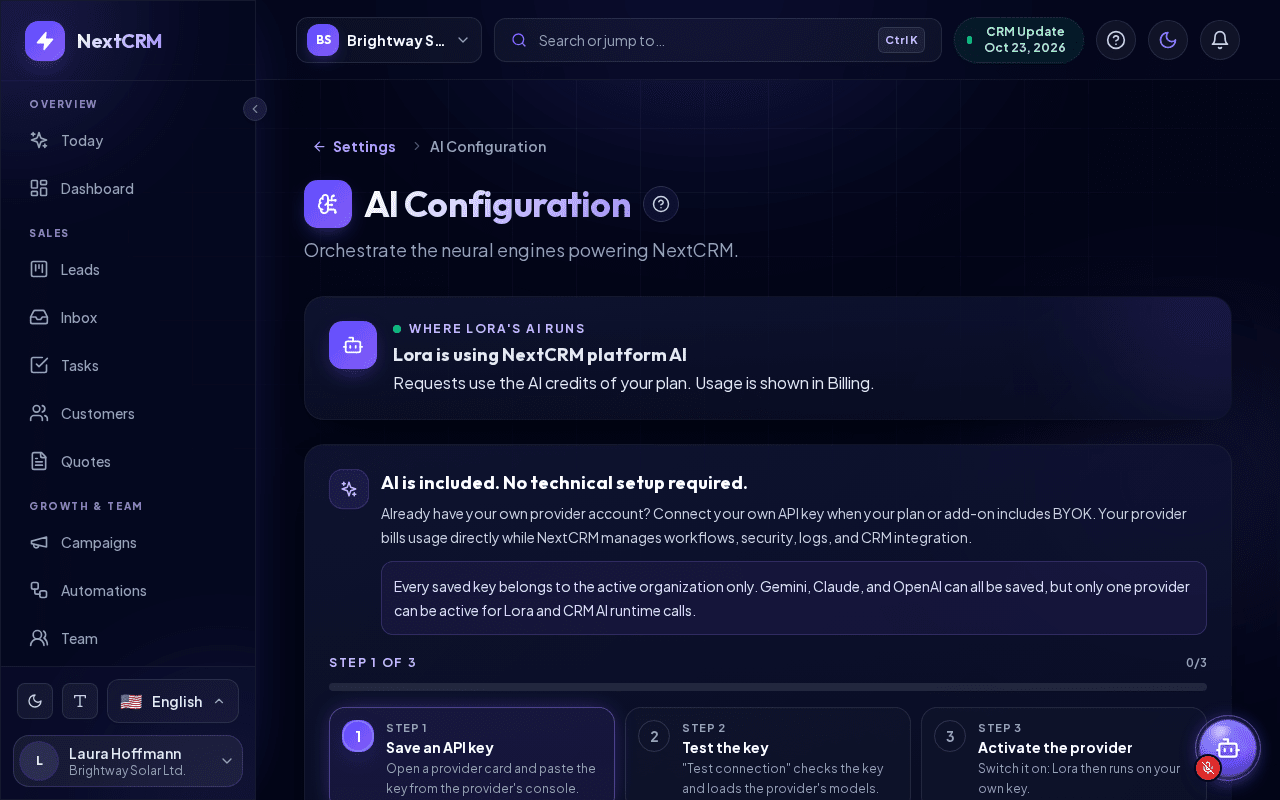
Click your profile card at the bottom of the sidebar, choose Settings and click the card AI Config (AI Configuration); its chip shows for example Platform AI active or Own AI key active. AI is not part of Configuration. The page header shows the breadcrumb Settings / AI Configuration; click Settings to go back to the Settings hub. Only Workspace Admins can view and change provider keys. Other roles, including Sales Managers, do not see this card. Ask a Workspace Admin if something needs to change.
Note: Every saved key belongs to the current workspace only. It is never shared with other workspaces.
Using platform AI
You do not need to do anything. Lora and the other AI features work as soon as your subscription is active.
At the top of the page, a status card with the eyebrow Where Lora's AI runs tells you what Lora uses right now:
- Lora is using your Google Gemini key (with the name of your provider) - your own key is active, and requests do not use your AI credits.
- Lora is using NextCRM platform AI - requests use the AI credits of your plan.
- Your Google Gemini key is failing - Lora uses platform AI (with the name of your provider) - test or replace your key to switch back.
- Lora has no AI available right now - your plan does not include platform AI right now and no own key is active.
Below it, the card "AI is included. No technical setup required." explains the options.
Platform AI uses your plan's AI credits:
- 1 AI credit = $0.01 of AI usage. Each AI action uses credits according to its actual AI cost - simple tasks use few credits, complex ones more.
- Your plan includes a daily and a monthly amount of AI credits. AI add-ons can add more.
- You see the current usage on the Billing page (Daily usage and Monthly usage).
- The monthly allowance follows your billing period.
What happens when credits run out
When the daily or monthly allowance is used up, Lora shows the card "AI usage limit reached" with the date and time when usage resets. From there you can:
- click Buy more usage to open the Add-ons page, or
- click View billing to check your plan.
If your workspace has an active own provider key (BYOK), Lora simply keeps working with your key, because BYOK requests never use NextCRM credits.
Connect your own provider key (BYOK)
If BYOK is not part of your plan, the provider cards show a lock and the badge BYOK add-on. Clicking a card then shows "Bring Your Own AI Provider requires an eligible plan or the BYOK add-on." You can get BYOK through Plan & billing > Add-ons or a Plan Upgrade.
When BYOK is available, a tracker with three steps shows your progress: Save an API key, Test the key and Activate the provider ("Step X of 3", or All steps done when your key is active). The collapsible How to get an API key panel below it has the instructions per provider.
- Create an API key at your provider (see the next section). Each card also has an API keys link that opens the provider's key page.
- Go to Settings > AI Config and click the card of your provider: Google Gemini, Anthropic Claude, OpenAI ChatGPT or xAI Grok.
- Paste the key into API key.
- Under Model, choose a model. Click Refresh models to load the models your key can use.
- Click Save configuration.
- Click Test connection (or the Wi-Fi icon on the card). The result appears as Valid, Invalid, Connection failed or Not tested.
- Click Activate (or switch on the toggle on the card).
Only one provider can be active at a time. Activating a provider switches off the one that was active before. You can still keep keys saved for several providers.
Note: API keys are encrypted on the server. After saving, the browser only shows a masked preview of the key.
To remove a key, open the card and click Delete key. If you delete the active provider, your own AI is switched off until you activate another provider. If your plan includes platform AI, Lora continues with the platform AI.
Where to get an API key
The exact screens change from time to time; look for the "API keys" area in your provider account.
| Provider | Where to create the key | Key usually starts with |
|---|---|---|
| Google Gemini | Google AI Studio, then click Create API key | AIza |
| OpenAI | OpenAI API keys, then create a new secret key | sk- |
| Anthropic Claude | Anthropic Console, then Settings > API keys | sk-ant- |
| xAI Grok | xAI Console, then open the API keys section | xai- |
Warning: Most providers bill API usage separately from chat subscriptions. Make sure billing or prepaid credits are active in your provider account. Otherwise the test shows a message such as "account has no remaining credits or its billing is not active".
Copy the key right after creating it. Many providers show it only once.
Common test results
- Invalid or "credentials are invalid": the key was copied incompletely, was revoked, or lacks API access. Create a new key and paste it again.
- "no remaining credits or its billing is not active": top up credits or enable billing in the provider console.
- "cannot use the selected model": choose another model, click Refresh models and test again.
- "rate limit reached": wait a moment and try again.
Voice (Google Gemini)
Lora speaks and listens with Google Gemini in every app language: gemini-3.8-flash-tts reads her answers aloud, and gemini-3.5-transcribe turns voice input, field-app dictation and call recordings into text. With your own Gemini key (Bring Your Own AI: a Google Gemini key saved on the Google Gemini card above) Lora voice uses that key, Google bills the usage to you, nothing is counted in NextCRM and you need no voice add-on - the Lora voice section then says "Your own Gemini key covers Lora voice - the voice add-on is not needed in your package." Without your own key, voice needs a Managed Voice add-on: it runs on NextCRM's Gemini account and is counted in voice tokens (about 25 tokens per second of audio) against the add-on's monthly allowance shown on Billing.
Lora speaks with one voice per workspace. In Lora voice choose one of Gemini's 30 prebuilt voices, or keep Platform default, and click Save. Every voice speaks all app languages. With your own Gemini key, Test voice makes a short real speech and transcription call with your key; a failure shows Google's answer, for example "Provider answer: HTTP 400, API_KEY_INVALID" (wrong or revoked key).
Where to get each value
Setup order: 1. create an account at the provider and activate billing or credits, 2. create the key with the click path below, 3. paste it in NextCRM as described above, 4. click Test connection. A failed test shows the provider's own answer, for example "Provider answer: HTTP 401, authentication_error" (wrong or revoked key).
| Field | Where you get it | Link |
|---|---|---|
| API key (Google Gemini) | Google AI Studio > Get API key > Create API key > choose a Google Cloud project > copy | aistudio.google.com/apikey |
| API key (Anthropic Claude) | Claude Console > Settings > API keys > Create key > copy (shown once) | platform.claude.com/settings/keys |
| API key (OpenAI) | OpenAI Platform > API keys > Create new secret key > copy (shown once) | platform.openai.com/api-keys |
| API key (xAI Grok) | xAI Console > API Keys > Create API key > copy | console.x.ai |
| Gemini key for Lora voice | The same Google Gemini key as above (Google AI Studio > Get API key > Create API key); voice needs no extra setting | aistudio.google.com/apikey |
| Lora voice (optional) | Pick a voice in the list (for example Kore - Firm); listen to all 30 voices in Google AI Studio > Generate speech | Gemini voices |
Only the API key is required. The model and the voice have working defaults; Lora voice always uses gemini-3.8-flash-tts for speech and gemini-3.5-transcribe for transcription. The (i) icon next to each field shows the same help.
Related articles
- Lora assistant
- Training Lora (Feed & Seed)
- Billing, plans and add-ons
- Troubleshooting
Related guides
- Lora assistant What Lora can do: answer questions, open pages, prepare leads, tasks, emails and more for your approval, read files, talk by voice and remember knowledge. 7 min read
- Training Lora (Feed & Seed) Teach Lora your products, prices and processes in Feed & Seed: add text or files, review states, the safety check, re-indexing and sharing anonymized insights. 6 min read
- Lora Today Your verified priorities of the day: which customers are waiting, which deals go quiet, which meetings to prepare - each with the evidence from your CRM and a next step you approve with one click. 5 min read