Lora & AI
Training Lora (Feed & Seed)
Teach Lora your products, prices and processes in Feed & Seed: add text or files, review states, the safety check, re-indexing and sharing anonymized insights.
6 min read Updated October 23, 2026
On this page
Lora gives better answers when she knows your business. In Feed & Seed you add your own knowledge, for example price lists, sales playbooks, product details or internal processes. This knowledge stays private to your workspace and Lora uses it in her answers.
Who can train Lora
- Workspace Admins and Sales Managers open Feed & Seed and manage all knowledge: click your profile card at the bottom of the sidebar, choose Settings and click the card Lora knowledge.
- Everyone else can suggest knowledge with Remember this in the Lora chat. These suggestions wait for review (see Lora assistant).
Training needs AI in your workspace: either the platform AI included in your plan or your own AI provider key.
What makes good knowledge
Good content is short, factual and specific:
- products, services, prices and package rules
- your sales process, qualification questions and follow-up rules
- answers to common customer questions and objections
- company facts such as opening hours, regions and contacts for internal handovers
Do not add passwords, API keys or other secrets. They are blocked automatically.
Add information as text
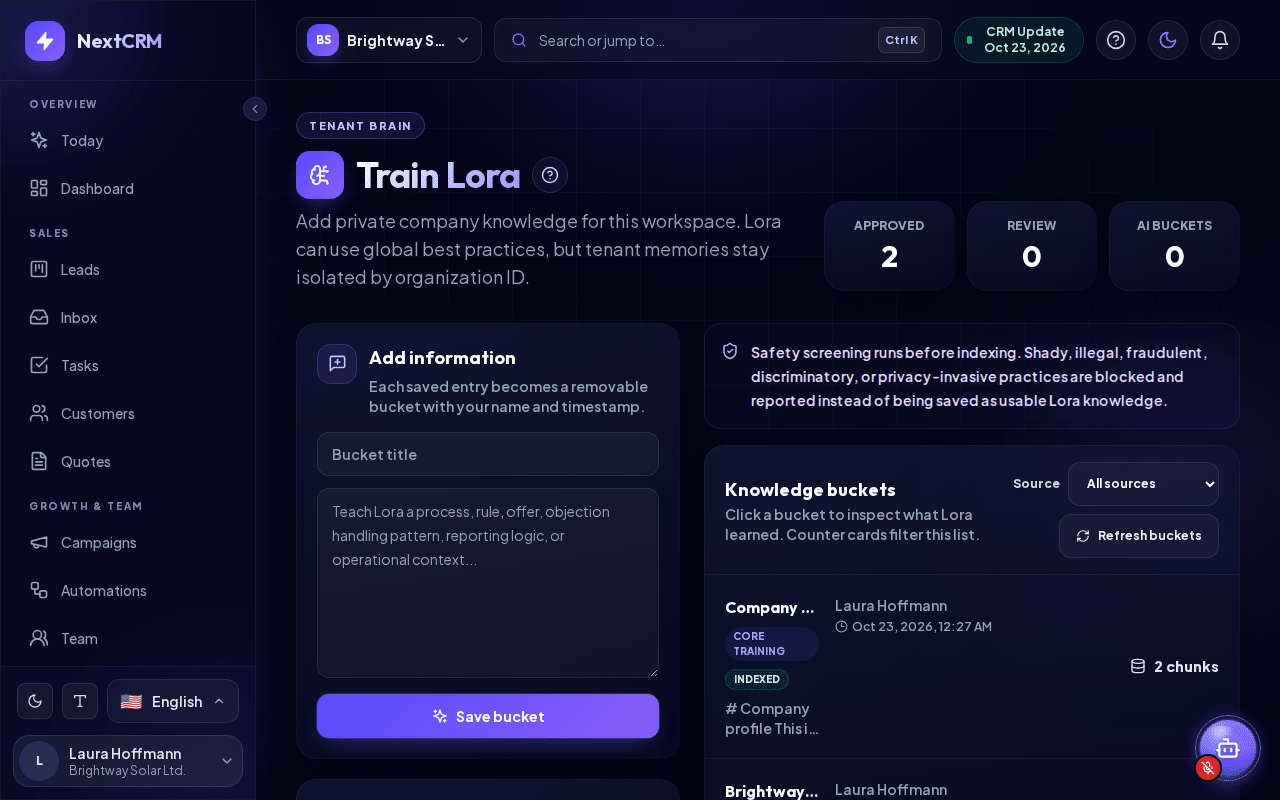
- Open Feed & Seed (Settings > Lora knowledge). The page header says Tenant brain and Train Lora.
- In the Add information box, enter a Bucket title.
- Write or paste the content below it.
- Click Save bucket.
Each saved entry becomes a bucket with your name and a timestamp. After the safety check it is indexed and Lora can use it right away.
Upload files
- In the Upload files box, optionally describe the files in Optional context for these files.
- Drop the files on the box or click Browse Files.
Rules for uploads:
| Topic | Rule |
|---|---|
| Supported types | PDF, DOCX, XLSX, CSV, Markdown (.md), TXT, JSON, plus LOG, XML and YAML |
| Amount and size | Up to 5 files at a time, 10 MB each |
| Not accepted | HTML, SVG, images (no text recognition), scripts, executable files, file names with double extensions |
| Protected files | Password-protected PDF, Word or Excel files are refused. Remove the protection first |
| Old formats | Save .doc or .xls files as .docx or .xlsx |
| Spreadsheets | Up to 5,000 rows per sheet or CSV are read |
A scanned PDF without a text layer gives "No readable text was found in this file". Paste the important text instead. Very long documents may be refused by the safety check (about 240,000 characters per entry). Split them into smaller files.
After the upload you see a summary such as "2 bucket(s) indexed, 1 blocked by safety screening."
Bucket states
| State | Meaning |
|---|---|
| Indexed | Active. Lora uses this knowledge |
| Pending review | Waiting for review before Lora uses it (for example items from Remember this or AI-generated buckets) |
| On hold | Not used in Lora answers until it is published again |
| Rejected | Blocked, with the reason |
| Archived | Deleted from Lora's knowledge; the audit trail is kept |
The tiles Approved, Review and AI buckets at the top filter the list. Click a tile again to remove the filter. Refresh buckets reloads the list.
Review and manage a bucket
Click a bucket in Knowledge buckets to open it. Depending on its state you can:
- Publish bucket - approve a pending or held bucket so Lora uses it.
- Reject bucket - decline a pending suggestion.
- Put bucket on hold - stop using it temporarily.
- Edit - change title, description or content, then click Save edits and hold. Saving puts the bucket on hold; publish it again when it is ready.
- Re-index bucket - rebuild its search index.
- Delete - archive the bucket. It is removed from Lora's answers.
Tip: Check the Review filter regularly. Suggestions from your team only help once you publish them.
Safety check: why content can be refused
Every entry is checked before it is stored. An automatic scanner runs first, then an AI safety review on the platform's own AI (never on your own key). Content is refused if it, for example:
- tries to change or switch off Lora's rules (prompt injection), reveal internal rules, or reach data of other workspaces
- contains credentials or secrets, active script code, SQL attack patterns or spreadsheet formula injection
- instructs deception (fake urgency, false claims, hidden fees), fraud (fake reviews, phishing), harassment or discrimination
- describes privacy violations such as secret recording or using personal data without consent, illegal activity, or mass messages without consent
Normal sales processes, honest persuasion, compliance rules and neutral descriptions of complaints are allowed.
When content is blocked, a Lora safety check window titled This cannot be fed to Lora shows What was detected, the reason and a reference ID. Click I understand to close it.
Tip: You can still teach Lora what not to do. Phrase such rules clearly, for example "Never promise discounts that are not in the price list".
Other messages you may see:
- "This knowledge is already in Lora's brain." - the same content exists already.
- "This cannot be fed to Lora right now: the safety check is temporarily unavailable." - try again in a few minutes.
Re-index knowledge
The Embedding index box shows the active AI provider and Buckets needing re-index. This is needed when buckets have no search index yet or were indexed with a different AI provider or model, for example after you switched providers in AI configuration. Click Re-index now. Re-indexing uses AI credits.
Learning from won deals
Every time a lead is won, Lora analyzes how it was won: response time, calls and their notes, meetings, quotes, follow-ups and the stage path. From all won deals (and the lost ones for comparison) she keeps your workspace's Won deals playbook up to date and uses it when you ask for a sales strategy, next steps for a lead or which leads to prioritize. The Learned from won deals box shows how many won leads she analyzed; Learn now updates it at once (this uses AI credits). The playbook stays in your workspace and appears in your knowledge list. Lora also remembers how your team phrases common questions, so repeated questions like "What are my overdue tasks?" are answered instantly.
Share anonymized insights
The Share anonymized insights box helps Lora give better general advice to all workspaces. It is off by default and only the workspace owner can change it.
- Only counts and rates from structured fields are shared, combined with at least 5 other workspaces.
- Names, notes, emails and free text never leave your workspace.
- Click Stop sharing at any time. Your workspace stops contributing immediately and pending contributions are deleted.
Related articles
- Lora assistant
- AI configuration (platform AI vs your own key)
- Data privacy
- Troubleshooting
Related guides
- AI configuration (platform AI vs your own key) Use the AI included in your plan or your own Gemini, OpenAI, Claude or Grok key (BYOK): where to get keys, how to test them and what happens when credits run out. 8 min read
- Lora assistant What Lora can do: answer questions, open pages, prepare leads, tasks, emails and more for your approval, read files, talk by voice and remember knowledge. 7 min read
- Lora Today Your verified priorities of the day: which customers are waiting, which deals go quiet, which meetings to prepare - each with the evidence from your CRM and a next step you approve with one click. 5 min read