Lora & AI
Lora assistant
What Lora can do: answer questions, open pages, prepare leads, tasks, emails and more for your approval, read files, talk by voice and remember knowledge.
7 min read Updated October 23, 2026
On this page
Lora is the AI assistant built into NextCRM. She answers questions about the app and your workspace, opens pages for you and prepares changes such as new leads or tasks. The rule is simple: Lora prepares, you approve, Lora executes. Every change waits for your approval, so nothing happens behind your back.
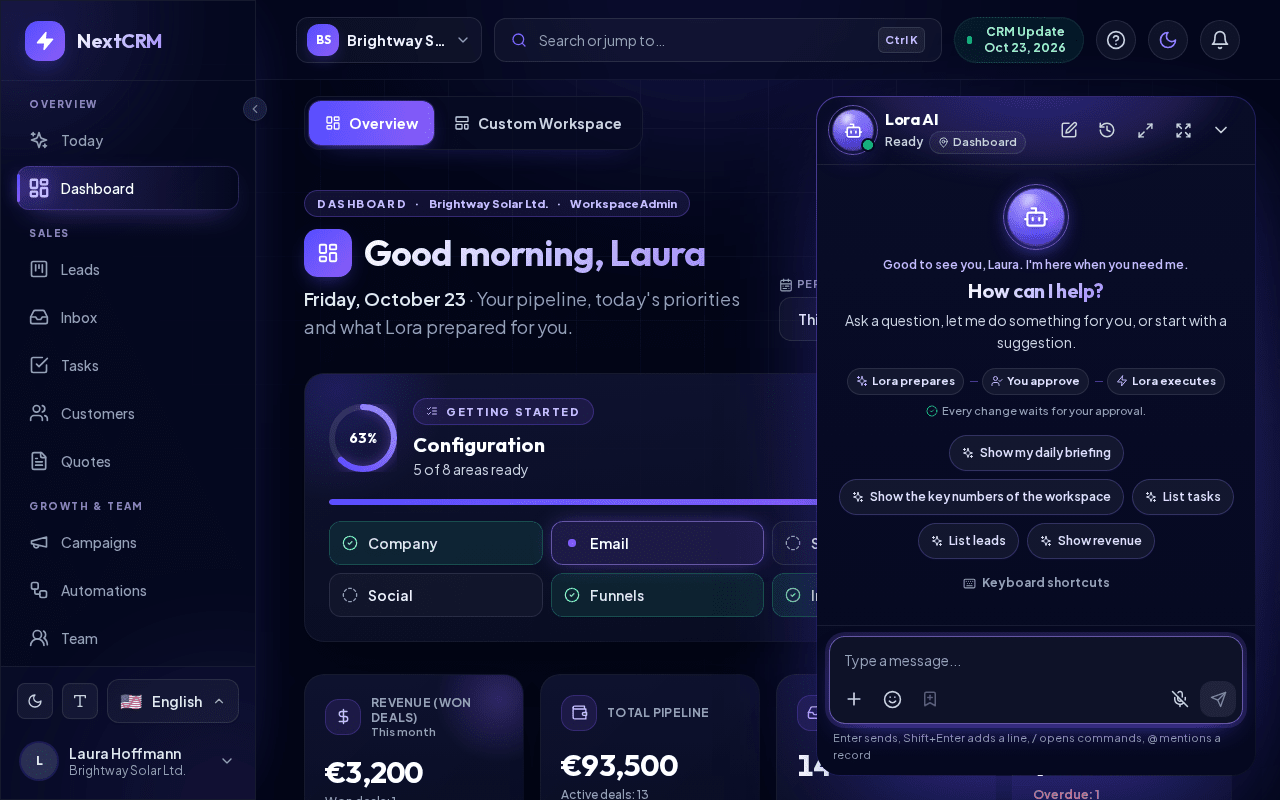
Open Lora
- Click the round Lora button at the bottom right of the screen. You can also press Ctrl+K / Cmd+K and choose Talk with Lora.
- If you chatted before, Lora asks: "Continue the previous Lora chat or start fresh?" Choose Continue chat or New chat.
- Type your question and press Enter or click the send button.
You can start a New chat at any time from the chat header. Click the down arrow (Minimize Lora) in the chat header to minimize Lora; she keeps the conversation.
What Lora can do
- Explain NextCRM. Ask "How do I connect my mailbox?" or "What does this page do?". Lora knows the Help Center and links matching articles as "Help article: ..." with an Open help article button.
- Use your workspace knowledge. Lora uses the knowledge your admins added in Feed & Seed and the leads of your workspace.
- Open pages. Say "Open the funnels" or "Take me to customers". Lora only opens pages your role is allowed to see. Otherwise she answers "Access denied for that page with your current role."
- Prepare changes. Lora can prepare the following actions for your approval:
| Action | What happens after you approve | Who can use it |
|---|---|---|
| Create a lead | The lead is created in the funnel you choose | All roles |
| Create a task | The task is added to Tasks | All roles |
| Draft an email to a lead | A draft is saved. It is not sent | All roles |
| Create a funnel with stages | The funnel is created | Workspace Admin, Sales Manager, Marketing |
| Create a starter web form | The form is created and connected to a funnel stage | Workspace Admin, Sales Manager, Marketing |
| Invite a team member | The invitation is created and emailed | Workspace Admin, Sales Manager |
When you ask for a lead, Lora first asks which funnel to use and asks for missing phone, email or address. You can skip these questions. If a similar lead already exists, Lora asks whether to update it, create a new one anyway or cancel.
Approval cards: nothing is saved before you approve
For every change, Lora shows a card titled Ready for your approval with a summary of the prepared action. A three-step track on the card shows where you are: Lora prepares, You approve, Lora executes. The card also says "Lora will only do this after you confirm." You have three buttons:
- Approve carries out exactly the action shown. The card then shows Done, often with a button to open the result and, where possible, Undo.
- Edit changes something first. Nothing is carried out: the card shows "Cancelled - nothing was changed" and "Tell Lora below what to change – she prepares a new version for your approval." The message field is pre-filled with "Please change the prepared action (...): ". Type your change and send it, and Lora prepares a new card.
- Cancel discards it.
Some cards look different:
- Deletions are titled Confirm deletion and need two clicks: Continue, then Yes, carry it out. The track marks the approval step as the final check.
- Bulk changes are titled Confirm bulk change and show the number of affected items. Click Approve to carry them out.
- Plans with several steps can be approved together with Approve all changes (N).
A card is valid for 5 minutes and can be used once. If it expired, the card says "This confirmation expired. Nothing was changed." Click Propose again to get a new card.
Tip: Read the summary on the card before you approve, for example the email address of an invitation.
Attach files
Click + (Add files) next to the message field, or drag files onto the chat ("Drop files into Lora").
- Up to 8 files per message, each up to 25 MB.
- Allowed: common documents, spreadsheets, PDFs, images, text and email files. HTML, SVG, scripts and executable files are blocked.
- Lora reads the content of plain-text files (TXT, MD, CSV, JSON, XML, RTF, LOG, EML) up to 1 MB, about the first 12,000 characters. For other files, such as PDF, Word or images, Lora only sees the file name, type and size.
- Files should relate to CRM work (leads, customers, deals, campaigns, invoices, meetings, support). Otherwise Lora tells you the file does not look business-related.
- A file with hidden instructions that try to manipulate Lora is refused.
Note: To teach Lora the content of a PDF or Word document permanently, use Remember this (below) or ask an admin to upload it in Feed & Seed (Settings > Lora knowledge). There the text is extracted.
Remember this
The bookmark button Remember this saves the text you typed and the attached files as knowledge for your workspace.
- Type the information (for example a new price list or a process) and/or attach files (up to 5).
- Click Remember this instead of sending.
- Lora confirms: "Saved 1 item(s) for review. A workspace admin approves them before I use them."
A Workspace Admin or Sales Manager reviews the entry in Feed & Seed. Content that is already known is reported as a duplicate.
Talk to Lora by voice
The microphone button sits next to the send button (Toggle Lora microphone). Its tooltip explains push to talk: "Push to talk: hold the microphone button, or press Alt+L on any page (press again to send)."
- Click the microphone and allow microphone access in your browser.
- Speak. Lora transcribes your words, answers and reads the answer aloud.
- Say "Lora stop" or click End voice chat to finish. The microphone also turns off after 5 minutes without activity.
The voice screen shows the badge Hands-free with the hint "Lora listens, answers and listens again. Say “Lora stop” or end the voice chat at the top." Under Latest exchange you see your last question and Lora's answer. If Lora prepared a change, the screen says "A prepared change is waiting for your approval." Click Show in chat to see the card and approve it there.
Voice needs your workspace's own Google Gemini key (Bring Your Own AI) or a Managed Voice add-on; with the add-on, voice is counted in voice tokens, not AI credits. If voice is not available, Lora shows a message such as "Voice is not included in your current plan." If the microphone cannot be used, you see "Microphone access is not available." Check your browser's microphone permission.
Privacy and safety
- Lora works only with the data of your workspace. Questions about other companies or workspaces are refused: "I can only access this workspace's own data, ..."
- When Lora refuses a request, she gives a short reason, for example that it would mislead customers, is illegal or would reveal internal configuration.
- Messages that try to change Lora's rules are blocked with a request to rephrase.
- If you send too many messages in a short time, Lora asks you to wait a moment.
Credits
Each Lora answer uses AI credits from your plan, unless your workspace uses its own AI provider key. When the allowance is used up, you see "AI usage limit reached" with the reset date. See AI configuration for details.
If Lora answers that she needs an active AI provider and shows Open AI Configuration, a Workspace Admin needs to check the AI settings. See Troubleshooting.
Related articles
Related guides
- AI configuration (platform AI vs your own key) Use the AI included in your plan or your own Gemini, OpenAI, Claude or Grok key (BYOK): where to get keys, how to test them and what happens when credits run out. 8 min read
- Training Lora (Feed & Seed) Teach Lora your products, prices and processes in Feed & Seed: add text or files, review states, the safety check, re-indexing and sharing anonymized insights. 6 min read
- Lora Today Your verified priorities of the day: which customers are waiting, which deals go quiet, which meetings to prepare - each with the evidence from your CRM and a next step you approve with one click. 5 min read