Leads, funnels & forms
Leads and pipeline
Work with the Leads Board: create leads, drag them between stages, use the lead details tabs, mark deals as won or lost, filter the board and export leads.
12 min read Updated October 23, 2026
On this page
The Leads Board is where your deals live. Every lead is a card, and every column is a stage of the selected funnel. Moving a card from left to right shows how close a deal is to closing.
Open it from the sidebar: Sales > Leads.
How the board is organized
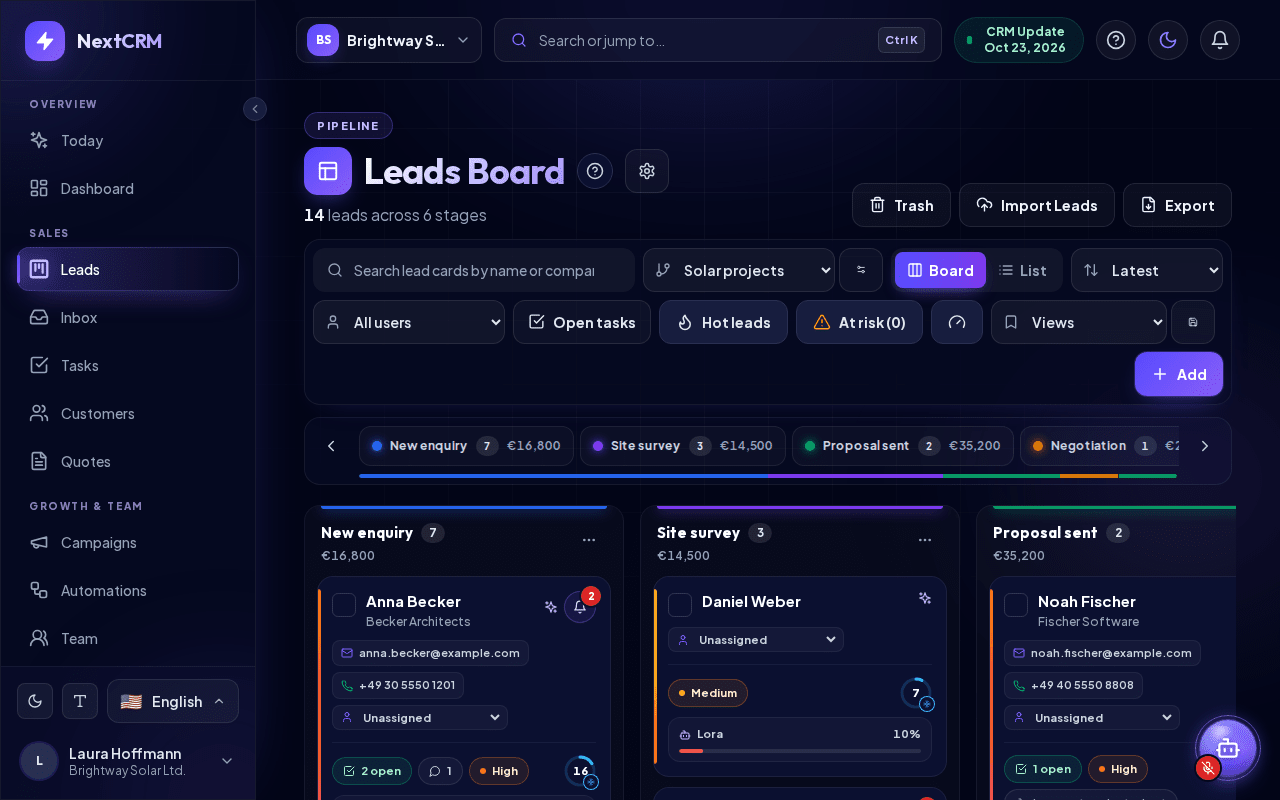
- Header: above the board you see the eyebrow Pipeline, the title Leads Board with a gear icon (Card Configuration) and a line such as "24 leads across 5 stages". On the right are Trash, Import Leads and Export (depending on your role).
- Funnel selector: the drop-down in the toolbar chooses which funnel (pipeline) you see. Each funnel has its own stages. The icon button next to it (tooltip Edit pipeline stages) opens the funnel settings.
- Stage columns: one column per stage, with the number of visible cards and the total value of the loaded leads in that stage (or No value yet). The stage bar above the board shows every stage with its lead count and value and lets you jump to a column; a thin bar below it shows how the leads are spread over the stages. You can also scroll sideways with the arrow buttons or Shift + mouse wheel.
- Won and lost stages are highlighted: won stages in green, lost stages in red.
- Lead cards show the details you choose. Click the gear icon next to the Leads Board title to open Card Configuration, switch fields on or off (for example Email, Phone, Assigned user, Open tasks, Comments, Priority, Lora win chance) and click Save. Defaults restores the standard set.
If your workspace has no funnel yet, the board shows Create your first funnel. Click Open Funnel to create one. See Funnels and stages.
Board and list view
Next to the funnel selector, switch between Board (stage columns with cards) and List (a table of the same leads). Both views show the selected funnel and use the same search, sort, user filter, Open tasks and Hot leads filters. Your choice is remembered in this browser. Every role that can open the Leads Board can use both views.
The List shows Name, Score, Stage, Assigned to, Value, Priority and Last activity (on narrow screens some columns are hidden). Click the header Name, Score, Value, Priority or Last activity to sort the list. It loads 50 leads at a time; the button below the table loads more. Click a row to open the lead. Tick rows, or the header checkbox (Select all shown leads), to get the same selection bar as on the board. On screens narrower than 768 px every lead is shown as a compact card instead of a table row, with a Select all shown leads checkbox above the cards.
Create a lead
- Select the funnel at the top of the board.
- Click Add. The lead panel opens with the first stage of that funnel already selected.
- In Profile Details, enter at least a name, email or company. Optional: phone, job title, value, priority, address, notes and the funnel's custom fields.
- Click Save Lead (or Save at the top of the panel).
The lead name is built from first and last name; if both are empty, the email or company is used.
Leads also arrive automatically from web forms, imports, social integrations and from Lora when you ask her to create one (Lora prepares the lead, you approve, and only then is it saved).
Note: If your plan's active lead limit is reached, new leads are not lost. They are stored in the Lead Inbox until you free capacity. See Lead Inbox.
Move leads between stages
- Drag and drop: drag a card onto another column. The change is saved immediately and recorded in the lead's activity.
- From the lead panel: under Funnel progress, click any stage button. To move a lead to another funnel, choose it in the Pipeline field; the lead lands in the first stage of that funnel.
- Several leads at once: tick the checkbox on each card. A bar appears showing how many cards are selected (up to 500 at once). Choose a stage and click Move stage.
Won and lost
A deal is closed by moving it into a won or lost stage. New funnels come with a 5 Won and a 0 Lost stage.
- Won and lost leads leave the active pipeline. They no longer count against your active lead limit, so closing old deals frees room for new ones.
- The Lora win chance is hidden on closed leads.
- Moving a closed lead back into an open stage makes it active again. This needs a free active lead slot.
Note: Whether a stage closes a deal is set by its Stage outcome (Open, Won or Lost) on the Funnel page, not by its name. Details in Funnels and stages.
Lead details tabs
::video[/help/videos/{lang}/lead-details.webm]{caption="Video: lead details with notes, files and e-mail" captions="/help/videos/{lang}/lead-details.vtt" poster="/help/videos/{lang}/lead-details.jpg"}
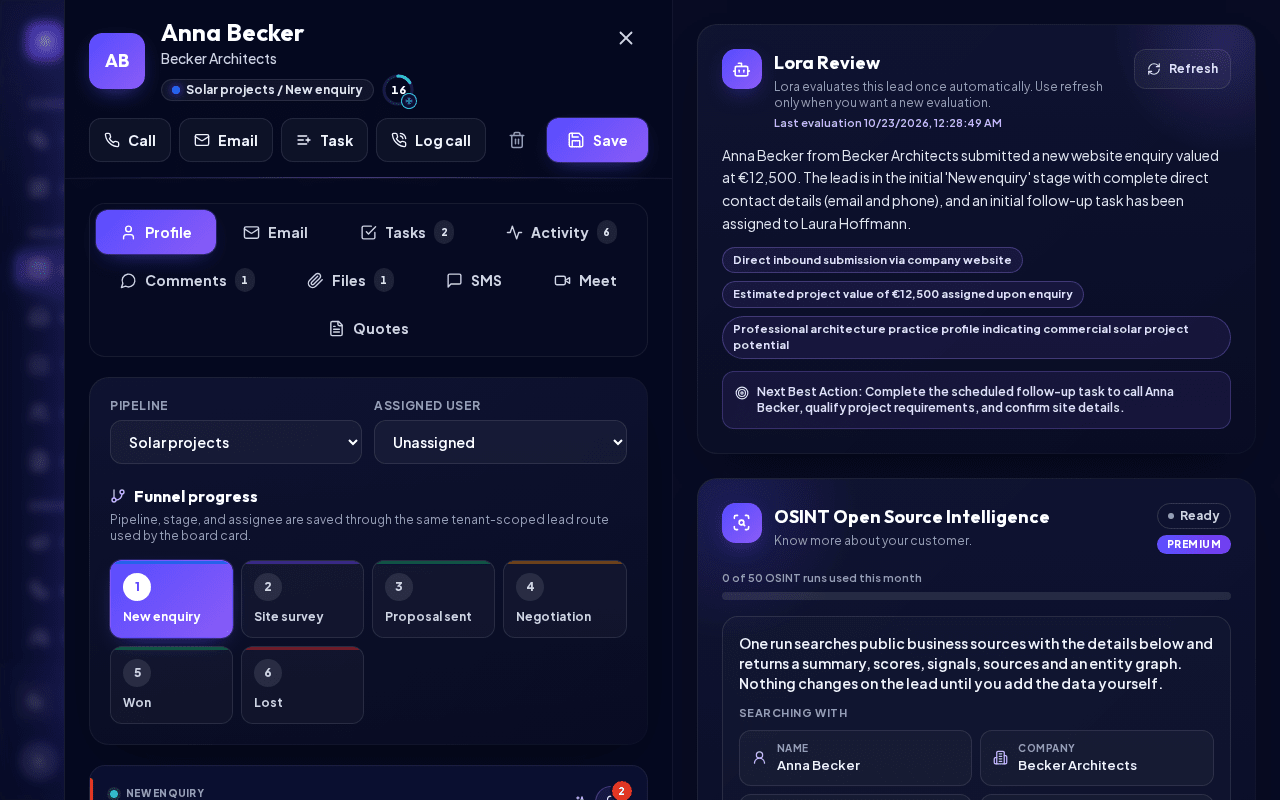
Click a card to open the lead panel. The header shows the lead's name, below it the job title · company, a chip with the current stage, the lead score ring and, while you edit, an Unsaved changes badge. The quick actions below are Call (or a phone link "Call … from this device" when calling through Twilio is not set up), Email, Task, Log call, a trash icon (Move to Trash) and Save.
The left side shows the pipeline, the assigned user and the funnel progress; the right side shows the selected tab. The tabs sit in one row, with a count badge on Tasks, Activity, Comments and Files:
| Tab | What you can do |
|---|---|
| Profile | Edit contact data, value, priority, address, notes and custom fields, grouped into Contact, Deal and Tags and notes; Save Lead saves them. Lora intelligence appears here too. |
| Read the email history with this lead, write and send emails, save drafts. Needs a configured mailer or a connected mailbox. | |
| Tasks | See the lead's tasks and create a new one with Add Task. |
| Activity | The Activity Timeline: every change, email, task and comment, filterable by date (From / To, Apply). |
| Comments | Internal notes for your team. Type in Write a comment... and click Send. |
| Files | Upload documents and images (Upload files), download them again. |
| SMS | Send and read SMS via Twilio. Needs the SMS step in Configuration. |
| Meet | Schedule and track meetings with the lead. |
| Quotes | All quotes for this lead, with every version, and New quote to create one. |
Clicking the email or phone chip on a card also jumps straight to the Email or SMS tab.
Note: Files can be up to 25 MB each. Allowed are common documents (PDF, Word, Excel, PowerPoint, TXT, CSV) and images (PNG, JPG, WEBP, GIF). Executables, scripts, HTML and SVG files are rejected. Only Workspace Admins and Sales Managers can delete lead files or reset the activity stream (Reset stream).
Logging calls
Calls you make through NextCRM with your own Twilio account are logged automatically (see Calling with Twilio). Log calls made elsewhere, for example on your mobile phone, yourself. When you have called a lead (or the lead called you), record it so the whole team sees it in the lead's timeline.
- Open the lead and click Log call at the top of the lead panel (or in the Activity tab).
- Choose the Direction: Outbound (I called) or Inbound (they called).
- Check Date and time (it starts at now, in your time zone), add the Duration (min) if you like and pick the Outcome, for example Reached - interested, Callback requested, Voicemail or No answer.
- Write Notes: what was discussed and what happens next.
- Tick Create follow-up task to create a task linked to the lead in the same save. Title and due date are suggested from the outcome (for example "Call Anna back" for a callback); the task is assigned to you unless you pick someone else (Workspace Admins and Sales Managers only).
- Click Save call. The call appears in the Activity tab right away, the task in the Tasks tab.
You can also tell Lora, in any language: "I called Acme today at 14:30, they are interested and want an offer by Friday." Lora prepares one card titled Ready for your approval with two steps, the call and the follow-up task. Say "without the task" to log only the call. Nothing is saved until you click Approve; Edit lets you tell Lora what to change, Cancel discards it. Lora prepares, you approve, Lora executes. Lora never invents notes: it summarises what you said. If the time is unclear or lies in the future, Lora asks.
The Activity tab is the lead's complete timeline: calls and meetings, messages (email, SMS, social, campaigns, comments), tasks and changes, from the team and from Lora. Use the filters All, Calls & meetings, Messages, Tasks, Changes and Lora. Every entry shows who did it; actions approved through Lora carry a Lora badge ("Logged by Anna via Lora"). Ask Lora "When did we last call Acme and what came out of it?" and she answers from this timeline.
Note: Every role that can edit leads can log calls (not Finances). Calls cannot be logged for leads in the Trash; restore the lead first.
Assign leads
Use Assigned user in the lead panel, the assignee picker on the card, or Bulk assign for several selected cards.
- Workspace Admins and Sales Managers can assign any team member, choose AI, or leave a lead Unassigned.
- Sales Team users can assign a lead to themselves or to AI.
Search, sort and filter
The toolbar above the board holds, from left to right: the search field, the funnel selector with Edit pipeline stages, the Board / List switch, sort, user filter, Open tasks, the lead scoring controls, the saved views and Add. The controls work together:
- Search (placeholder Search lead cards by name or company).
- Sort: Latest, Alphabetical, Priority or Lead score.
- User filter: All users, Unassigned, My leads or a team member.
- Open tasks: shows only cards with open tasks.
- Hot leads, At risk and the gauge icon Scoring: shown when lead scoring is on. See Lead scoring.
When a filter is on, a row Filter active appears below the toolbar with one chip per filter (for example "Search: Acme", Open tasks only, the selected user or Hot leads). Click the X on a chip (Remove filter: …) to remove just that filter, or Clear filters to reset all of them. Your sort and user filter are remembered in your browser.
On phones, only search, Board / List, Filters and Add are visible. Tap Filters to show the funnel selector, sort, user filter, Open tasks, scoring and saved views; a badge on the button shows how many filters are active.
Saved views
Save a combination of filters you use often:
- Set the search, sort, user filter and Open tasks filter.
- Click the disk icon (tooltip Save view) next to the Views drop-down, enter a Name of the view (up to 60 characters) and click Save. Cancel closes the field without saving.
- Later, pick the view in the Views drop-down (Views is its first entry). Changing a filter afterwards deselects the view.
Saving under an existing name replaces that view. To remove a view, select it and click the X button (Delete saved view). You can keep up to 20 views. Saved views are personal and stored in this browser for this workspace: teammates do not see them, and another browser or device starts without them. The funnel and the Hot leads filter are not part of a view. Every role that can open the Leads Board can use saved views.
Add leads to a sequence
Select cards (or rows in the list) and click Add to sequence in the selection bar. Choose the Sequence and click Start sequence. Every role that can edit leads can do this (not Finances); only active sequences are offered. You can add up to 200 leads at once. Leads in the Trash, won or lost leads and leads already in the sequence are skipped, and a message tells you how many. See Follow-up sequences.
Delete leads
Select cards and click Delete selected (Workspace Admins and Sales Managers only). Deleted leads move to the Trash (button Trash on the Leads Board). There you can Restore a lead to its stage (or to the Lead Inbox if the stage is gone or the active lead limit is reached), and Workspace Admins and Sales Managers can Delete permanently, which cannot be undone. Other roles can move only their own leads (assigned to them or created by them) to the Trash: with Move to Trash in the lead panel or from the Customers list.
Export leads
Only Workspace Admins see the Export button (the server refuses exports from other roles as well). It opens a menu:
- Export … (current filters) (with the name of the selected funnel): the leads of the selected funnel, with the current search, sort, user filter, Open tasks and Hot leads filters.
- Export all funnels: the leads of every funnel, with the same filters.
To export only certain leads, select them and click Export selected in the selection bar (up to 500 leads per export). The download is a CSV file (UTF-8, opens in Excel). One export contains at most 10,000 leads, and leads in the Trash are never exported. Each export is recorded in the security log.
Workspace Admins and Sales Managers also see Import Leads. See Importing leads.
Related articles
Related guides
- Lead Inbox Why leads wait in the Lead Inbox when your active lead limit is reached, and how to activate, archive or delete them. 4 min read
- Importing leads (CSV/XLSX) Import contacts from a CSV, XLSX or JSON file: upload it, map the columns, check the preview, handle duplicates and roll back an import if needed. 6 min read
- Field sales app (scan cards & QR) Capture leads on the road and at trade fairs: scan business cards and QR codes, import contacts, note what was agreed and work offline. 4 min read