Leads, funnels & forms
Customers
The Customers page lists all leads and accounts of your workspace in one searchable list. Learn how leads become customers, how to add, open and delete records.
3 min read Updated October 23, 2026
On this page
The Customers page gives you a simple list view of the people and companies in your CRM, without the stage columns of the Leads Board. It is handy when you want to find a contact quickly or scan values and tags.
Open it from the sidebar: Customers. The second tab, Customer success, shows health, renewals and NPS (see Customer success).
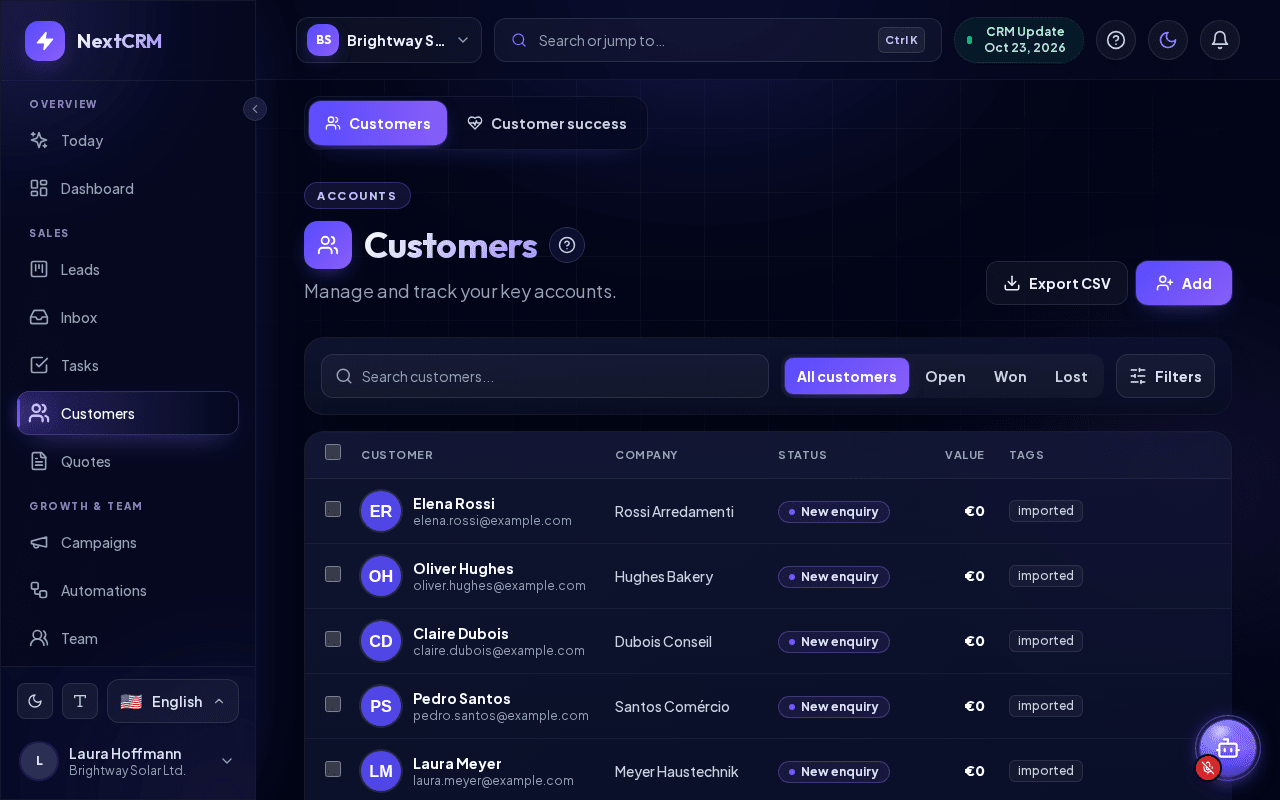
Leads and customers are the same records
NextCRM does not keep a separate customer database. Every record on the Customers page is a lead from your funnels, so all data, emails, tasks, comments and files are shared between both views.
- A record that you create on the Customers page also appears on the Leads Board.
- A change made on the Leads Board is visible here right away.
How a lead becomes a customer
There is no separate "convert" button. A lead becomes a customer when you win the deal:
- Open the Leads Board.
- Drag the lead into your won stage (by default 5 Won), or click that stage under Funnel progress in the lead panel.
The Status column on the Customers page then shows the won stage. Won leads stay in your CRM with their full history, and they no longer count against your active lead limit.
Tip: Use tags (for example
customerorvip) to mark important accounts. Tags are shown in the list and can be set during an import.
What the list shows
| Column | Content |
|---|---|
| Customer | Name and email |
| Company | Company name |
| Status | Current stage of the lead |
| Value | Deal value |
| Tags | Tags of the lead (shown on screens from 1280 px wide) |
| (no header) | Quick actions: call, email and delete |
The table is shown on screens from 768 px wide; on phones every record is a card. On screens from 1024 px wide the quick actions appear when you hover over a row; on smaller screens they are always visible.
The list shows the newest records first, 25 per page; use the page buttons below the list to see more. Leads waiting in the Lead Inbox are not included.
Search
Type into Search customers... to filter by name, company, email, phone or job title. If nothing matches, you see No customers found.
Next to the search, narrow the list by deal state: All customers, Open, Won or Lost. The Filters button opens a Funnel selection (All funnels or one funnel); Clear filters resets it.
Add a customer
- Click Add.
- The lead panel opens. The record is placed in the first stage of your first funnel; you can change Pipeline and stage there.
- Fill in Profile Details and click Save Lead.
If your active lead limit is reached, the new record goes to the Lead Inbox instead.
Open a customer
Click a row to open the same lead panel you know from the Leads Board, with the tabs Profile, Email, Tasks, Activity, Comments, Files, SMS, Meet and Quotes. See Leads and pipeline.
Delete a customer
- Hover over the row (or, on smaller screens, use the always visible quick actions) and click the trash icon.
- The dialog Delete Customer opens. Click Move to Trash.
The record moves to the Trash. You can restore it from Trash on the Leads Board, where Workspace Admins and Sales Managers can also delete it permanently.
Note: Workspace Admins and Sales Managers can delete any record. Other roles can delete only records assigned to them or created by them.
Workspace Admins also see Export CSV. It downloads the list with the current search and filters, or only the rows you ticked.
Related articles
Related guides
- Leads and pipeline Work with the Leads Board: create leads, drag them between stages, use the lead details tabs, mark deals as won or lost, filter the board and export leads. 12 min read
- Lead Inbox Why leads wait in the Lead Inbox when your active lead limit is reached, and how to activate, archive or delete them. 4 min read
- Importing leads (CSV/XLSX) Import contacts from a CSV, XLSX or JSON file: upload it, map the columns, check the preview, handle duplicates and roll back an import if needed. 6 min read