Leads, funnels & forms
Importing leads (CSV/XLSX)
Import contacts from a CSV, XLSX or JSON file: upload it, map the columns, check the preview, handle duplicates and roll back an import if needed.
6 min read Updated October 23, 2026
On this page
Moving from spreadsheets or another CRM? The import wizard turns each row of your file into a lead. Nothing is written until you have seen a preview and clicked Confirm import, so you can try safely.
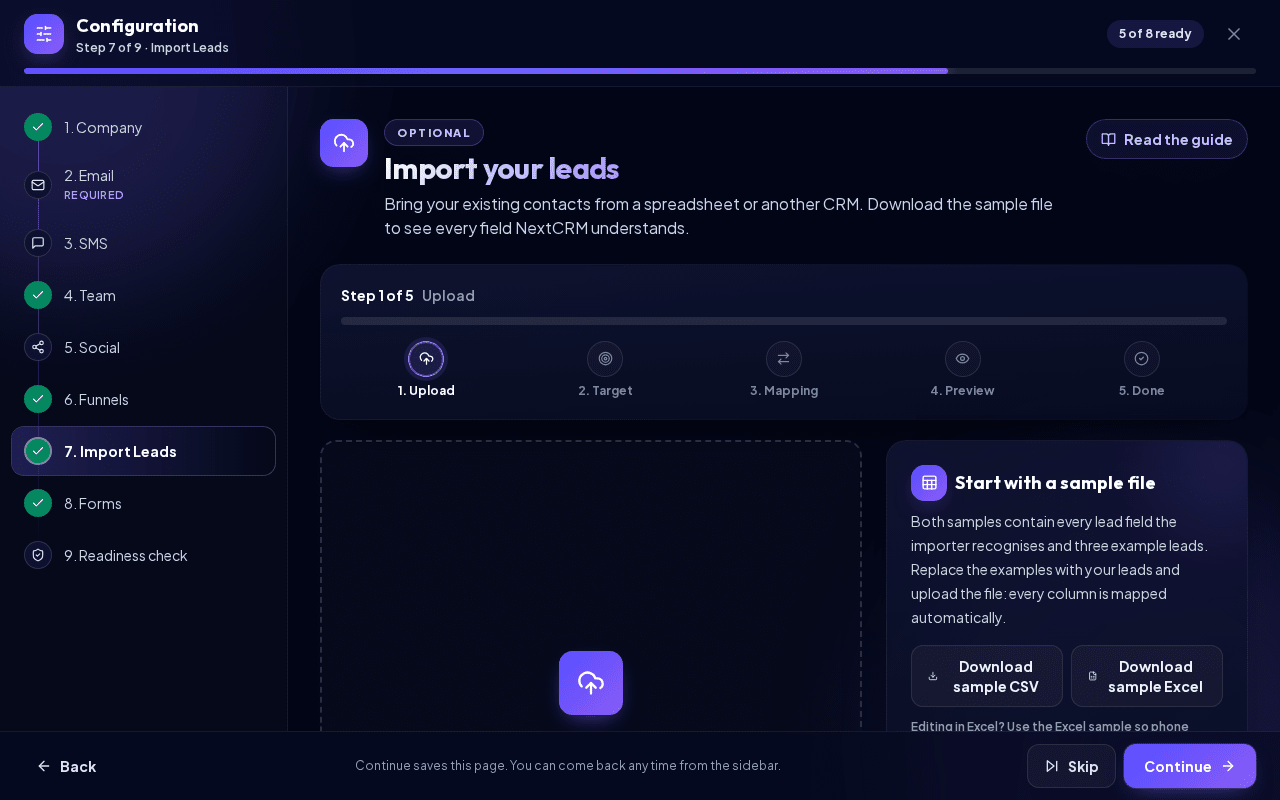
Open Configuration > Import Leads, or click Import Leads on the Leads Board. Both open the Import Leads step of Configuration.
Note: Imports are available to Workspace Admins and Sales Managers only.
A step tracker at the top shows where you are ("Step 2 of 5"): Upload, Target, Mapping, Preview and Done.
Before you start
- Supported files: CSV, XLSX (Excel) or JSON. Old
.xlsfiles and macro-enabled.xlsmfiles are rejected; save them as.xlsxor.csvfirst. - Limits: maximum 5 MB, 5,000 rows and 80 columns per file.
- One lead per row, with a header row. Each row needs at least a name, company, email or phone.
- Funnel first: create the funnel you want to import into, and its custom fields, before importing. See Funnels and stages.
Tip: In the upload step, click Download sample CSV or Download sample Excel. Both files contain every importable lead field with the exact column names the importer recognises (Name, First Name, Last Name, Company, Job Title, Email, Phone, WhatsApp, Website, Street, House Number, Address Line 2, District, City, State, ZIP, Country, Source, Tags, Notes, Stage, Assigned To, Estimated Value, Probability, Priority, Lead Status, plus the custom column Industry) and three example leads, so they import without any manual mapping. If you edit the file in Excel, use the Excel sample so phone numbers keep their + sign.
Step 1: Upload the file
- Click Select file under Upload File, or drag the file onto the upload area (or drag a file here; while you drag it shows Drop the file to upload it).
- NextCRM shows Uploading and reading the file, reads it privately and suggests a column mapping.
Fields such as organization, workspace, owner, billing, role or permission in your file are always ignored. Duplicates are only checked inside your own workspace.
Step 2: Funnel, stage, owner and source
Under Select Import Target, Leads is selected. The other targets (Contacts, Companies, Leads with contacts, Leads with tasks, Leads with notes, Mixed CRM export) are marked as coming soon and cannot be selected yet. Then set:
- Funnel and Default stage: where new leads are placed.
- Assignment: Assign all to me, Assign all to selected team member, Assign based on file column, Assign to AI / Lora or Leave unassigned.
- Source label: shown as the lead source (for example "CSV Import" or "Excel Import").
- Global tags: comma-separated tags added to every imported lead (default:
imported).
Click Continue to mapping.
Step 3: Map columns
Each column of your file gets a Target field, for example Email, Phone, Company, Stage or Assigned To. NextCRM suggests matches and shows how confident it is (High, Medium, Low or Manual).
- Choose Ignore column for data you do not need, or click Ignore unknowns.
- Map columns to the funnel's custom fields under Custom Fields for This Funnel.
- Reset suggestions restores the automatic mapping.
Rules before you can preview:
- At least one identity field (name, company, email or phone) must be mapped.
- Each target field can be used by only one column.
If you map a Stage column, stage names are matched inside the selected funnel. Under If stage name is not found, choose Use the selected default stage or Mark the row as an error. If you map Assigned To, users are matched by their workspace email or exact display name.
Duplicates and overwriting
A row counts as a duplicate when its email, phone, or company plus name matches an existing lead in your workspace, or another row in the same file.
Duplicate handling decides what happens to matches:
| Option | Effect |
|---|---|
| Merge missing fields only (default) | Fills empty fields of the existing lead. |
| Skip existing leads | Leaves existing leads untouched. |
| Update existing leads | Updates existing leads with file data. |
| Append notes only | Adds the file's notes to the existing lead. |
| Add new tags only | Adds the file's tags. |
| Create duplicates anyway | Creates a new lead even if one exists. |
Overwrite mode fine-tunes updates: Overwrite only empty fields, Do not overwrite existing fields, Overwrite selected fields or Overwrite all mapped fields. With Apply selected funnel and stage to matched leads, existing leads are also moved to the chosen funnel and stage.
Duplicate rows inside the same file are skipped unless you choose Create duplicates anyway.
Step 4: Preview
Click Preview import. You see the totals Rows, Valid, Invalid, Duplicates, Create and Update, plus a table with each row's funnel, stage, assigned user, status and warnings. Each row shows what will happen to it: Create, Update, Skip or Error.
- Click Download validation report to get the details as a file.
- Click Back to mapping to fix problems.
- Click Confirm import when the preview looks right. While it runs, you see "Importing 250 rows. Large files can take a moment."
Note: If some rows have errors, or the file contains more new leads than you have free active lead slots, Confirm import is refused until you tick Allow partial import. Then rows with errors are skipped and the extra leads are saved in the Lead Inbox. The preview shows a warning on those rows.
Step 5: Done
When Import finished appears, the result screen shows tiles for On the lead board, In Lead Inbox, Updated, Skipped, Invalid and Failed, plus a one-line summary. An activity entry was recorded for each imported lead.
- Open Lead Inbox (only when leads went to the Lead Inbox) opens the waiting leads.
- Leads → takes you to the Leads Board.
- Import another file starts the wizard again.
Import history, report and rollback
Open View technical import history to see every import with date, file, status and the counts Created, Updated, Skipped and Failed.
- Report downloads the result of that import.
- Rollback undoes an import.
Rollback deletes only leads that this import created and that nobody has worked on since (no tasks, comments or later activity). Existing leads that the import updated are not changed back. The button is shown only when the import created leads and was not rolled back already.
Related articles
Related guides
- Leads and pipeline Work with the Leads Board: create leads, drag them between stages, use the lead details tabs, mark deals as won or lost, filter the board and export leads. 12 min read
- Lead Inbox Why leads wait in the Lead Inbox when your active lead limit is reached, and how to activate, archive or delete them. 4 min read
- Field sales app (scan cards & QR) Capture leads on the road and at trade fairs: scan business cards and QR codes, import contacts, note what was agreed and work offline. 4 min read