Leads, funnels & forms
Lead Inbox
Why leads wait in the Lead Inbox when your active lead limit is reached, and how to activate, archive or delete them.
4 min read Updated October 23, 2026
On this page
Your plan includes a number of active leads: leads that sit in an open stage of a funnel. When that limit is reached, NextCRM never throws new leads away. It parks them in the Lead Inbox until there is room on the board.
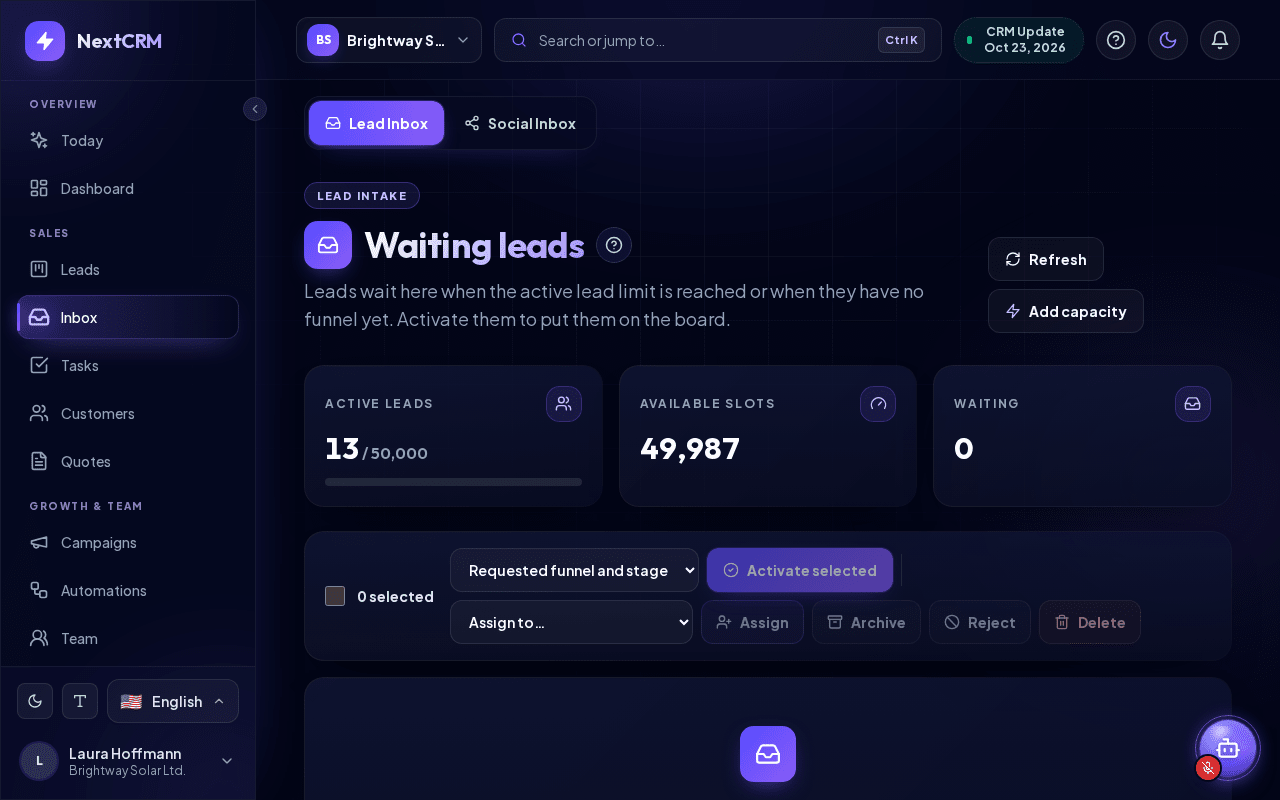
Open it from the sidebar: Inbox > Lead Inbox (the first tab of the Inbox page).
What lands in the Lead Inbox
A lead is stored here instead of on the Leads Board when:
- it arrives while all active lead slots are in use, for example from a web form, a social integration, Lora or a manual entry, or
- it is part of an import and there are more new rows than free slots (the import preview warns you about this), or
- it was saved without a funnel, so it has no stage to go to yet.
The list has the columns Lead, Reason, Source, Requested destination and Created. Waiting leads keep the funnel and stage they were meant for; you see it in the Requested destination column. The Reason is shown as a chip: Active lead limit reached, Waiting for activation, Funnel was archived or Call from an unknown number.
On phones every waiting lead is shown as a card with the same information. When nothing is waiting, the page shows Lead Inbox is empty and a Back to the Leads board button.
Waiting leads do not appear on the Leads Board and cannot be worked on in the pipeline until you activate them.
When the limit is reached, the Leads Board also shows a yellow notice with an Open Lead Inbox button and the number of waiting leads.
Read the counters
At the top of the page you see three numbers and a progress bar that shows how much of your active lead limit is used:
| Counter | Meaning |
|---|---|
| Active leads | Leads currently counting against your plan, shown as used / limit. |
| Available slots | How many waiting leads you can activate right now. |
| Waiting | Leads currently in the Lead Inbox. |
Click Refresh to reload the list.
What counts as an active lead
Only leads in an open stage count. These do not count:
- leads in a won or lost stage (for example 5 Won or 0 Lost),
- leads waiting in the Lead Inbox,
- archived and deleted leads.
Tip: The fastest way to free slots is to close finished deals. Move them to your won or lost stage on the Leads Board.
Activate waiting leads
- Make sure Available slots is at least the number of leads you want to activate.
- Tick the leads (or the checkbox at the top to select all).
- Click Activate selected.
Each lead moves to its requested funnel and stage. If that stage no longer exists, it goes to the first open stage of the requested funnel. The button stays disabled while you have selected more leads than free slots; a hint such as "Only 3 free slots for 5 selected leads. Select fewer leads or add capacity." tells you why.
Note: A lead whose Requested destination shows Not selected (no funnel) goes to the first open stage of your oldest funnel. To put the selected leads somewhere else, choose a funnel and stage under Requested funnel and stage before you click Activate selected.
Archive or delete waiting leads
Not every waiting lead is worth a slot. Select the leads and click Archive, Reject or Delete:
- Archive: marks them as archived and moves them to the Trash of the Leads Board.
- Delete: marks them as deleted and moves them to the Trash.
- Reject: moves leads you do not want (for example spam) to the Trash as rejected.
You can restore them from the Trash at any time. With Assign to… and Assign you give the selected waiting leads to a team member.
Archived or deleted waiting leads do not use an active lead slot and no longer appear in your lead lists.
You confirm archive, delete and reject in a dialog. Up to 500 leads can be handled at once.
Add capacity
If you regularly run out of slots, click Add capacity. It opens Plan & billing > Add-ons, where Workspace Admins can buy extra active lead capacity, or upgrade the plan on the Plan Upgrade tab.
Who can manage the Lead Inbox
The Lead Inbox tab is shown to Workspace Admin, Sales Manager and Marketing users, who list, activate, assign, archive, reject and delete waiting leads. Other roles do not see the tab (their Inbox opens the Social Inbox); if they open the page through a link, they see a permission message.
Related articles
Related guides
- Leads and pipeline Work with the Leads Board: create leads, drag them between stages, use the lead details tabs, mark deals as won or lost, filter the board and export leads. 12 min read
- Importing leads (CSV/XLSX) Import contacts from a CSV, XLSX or JSON file: upload it, map the columns, check the preview, handle duplicates and roll back an import if needed. 6 min read
- Field sales app (scan cards & QR) Capture leads on the road and at trade fairs: scan business cards and QR codes, import contacts, note what was agreed and work offline. 4 min read