Leads, funnels & forms
Web forms and embedding
Build a lead capture form, send new leads straight into a funnel stage, embed it on your website with a secure iframe and protect it against spam.
7 min read Updated October 23, 2026
On this page
Web forms turn website visitors into leads automatically. Every submission creates (or updates) a lead in the funnel and stage you choose, so your team can follow up right away. You manage forms in Configuration > Forms (open Forms).
Note: Everyone can open the forms list. Creating, editing and archiving forms is available to Workspace Admins, Sales Managers and Marketing users.
Create a form
- Open Configuration > Forms and click Create New Form.
- Replace Untitled Form at the top with a clear name, for example "Website contact form".
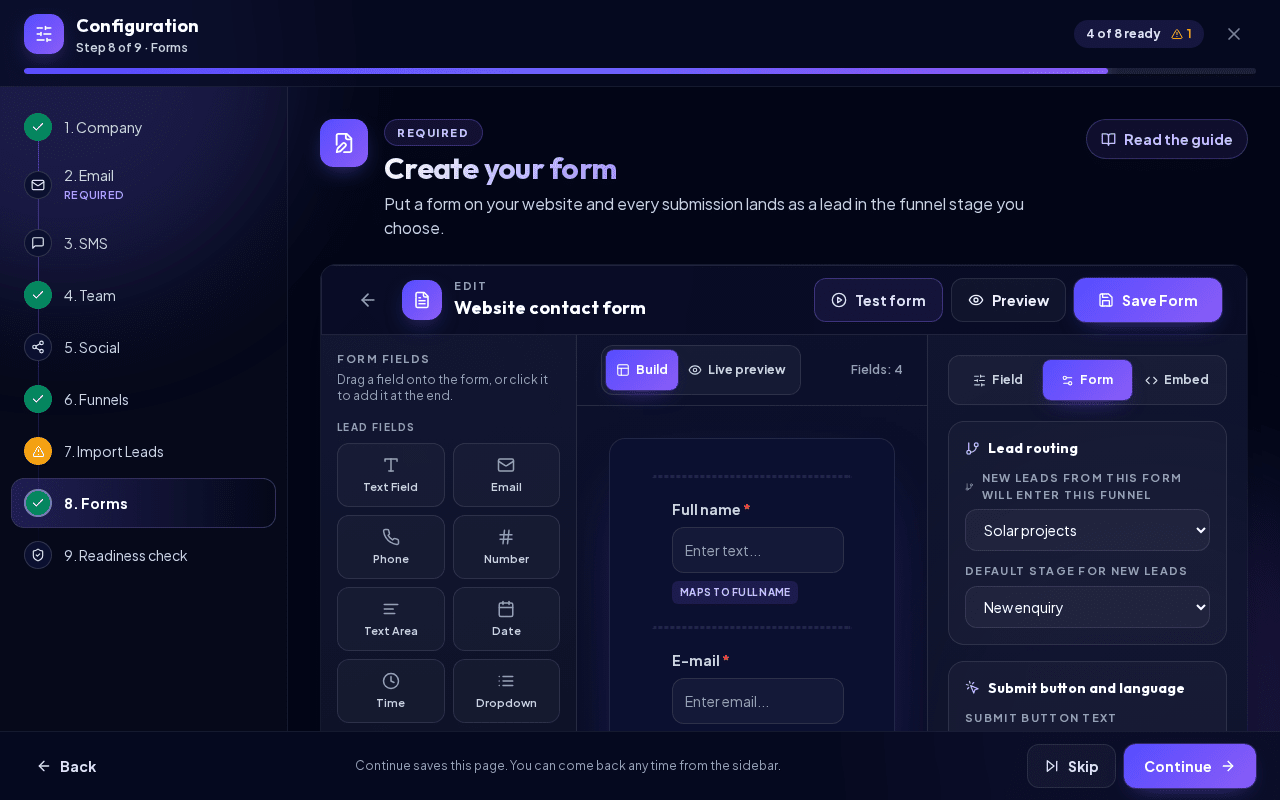
- A new form opens with the Form tab of the right panel. In the section Lead routing, under New leads from this form will enter this funnel, pick the funnel. Only active funnels are listed.
- Under Default stage for new leads, pick the stage where new leads should land (usually your first stage).
- Adjust the fields (see below), then click Test form and fix anything it reports.
- Click Save Form. The form is saved as active and appears in My Forms.
A new form already contains the five standard lead fields: Name, Email, Phone, Address and Message. They are mapped to the matching lead fields, so the data lands in the right place on the lead.
Warning: A form without a funnel and stage cannot be saved. In the list such forms show Choose a funnel and stage before publishing.
The editor has three areas: the Form Fields palette on the left, the canvas in the middle and the settings panel on the right with the tabs Field, Form and Embed. Above the canvas you switch between Build and Live preview (in the live preview also between Desktop and Phone width) and see how many fields the form has ("Fields: 6"). The Preview button at the top still opens the form in a window.
Fields and field settings
Drag fields from the Form Fields panel onto the canvas, or click a field in the palette to add it at the end of the form. Drag existing fields to reorder them.
- Lead fields: Text Field, Email, Phone, Number, Text Area, Date, Time, Dropdown, Checkbox, Radio, Slider, File Upload, Address and Hidden field.
- Layout and tracking: Logo, Divider, Google tag and Meta Pixel.
- Custom Fields for This Funnel: custom fields defined on the selected funnel. Click Add to put one on the form.
Click a field on the canvas: the right panel switches to the Field tab with the Field Settings. With no field selected, the tab shows "Select a field on the canvas to edit its label, mapping and options." Depending on the type you can set the label, Field key, Map to lead field, placeholder, Default value, Required Field, the options of a dropdown/checkbox/radio, the number of rows, allowed file types and file size. For Google tag and Meta Pixel you only paste the Tracking ID (for example G-XXXXXXXX); custom scripts are not allowed.
Tip: Use a Hidden field to tag where a lead came from, for example
landing-page-spring. By default it maps to the lead source.
Test the form before publishing
Test form runs a quick check: it confirms the funnel and stage, looks for duplicate field keys, missing labels or options, missing tracking IDs and a missing logo image. It also warns when one of the standard fields (Name, Email, Phone, Address, Message) is missing or not mapped. When everything is fine you see Form test passed; otherwise Form needs attention with a list of issues.
Preview shows the form as visitors will see it. The test does not send a real submission; to try the full flow, embed the form on an approved page and submit it once.
Embed the form on your website
- Save the form first. Unsaved forms show Save the form first to generate an embed code.
- In the editor, open the Embed tab of the right panel: under Secure iframe embed, click Copy code. The note "This snippet belongs to the saved form. Save your changes to publish them." reminds you that unsaved edits are not live yet. You can also click Copy code on the form card in My Forms, or open Preview and use Copy code next to Secure iframe embed.
- Paste the code into your website's HTML where the form should appear (in most site builders: an "HTML" or "Embed code" block).
The copied code is an iframe and looks like this:
<iframe src="https://YOUR-NEXTCRM-ADDRESS/api/forms/FORM_ID/embed?token=EMBED_TOKEN" title="NextCRM form" style="width:100%;min-height:520px;border:0;display:block;" loading="lazy" sandbox="allow-forms allow-scripts allow-same-origin allow-popups allow-top-navigation-by-user-activation" referrerpolicy="strict-origin-when-cross-origin"></iframe>
Warning: Paste the code unchanged. The
tokenis unique to the form, and thereferrerpolicyattribute lets NextCRM recognise your website. If you remove it, or your site sends no referrer at all, submissions from approved domains can be rejected.
You can change the size with the style attribute (for example a larger min-height).
Approved website domains
In the Form tab, section Approved website domains, list the sites allowed to show and submit the form, one per line (or separated by commas):
example.com
www.example.com
*.example.com
*.example.comcovers all subdomains (such asshop.example.com) but notexample.comitself, so add both if needed.- If the list is empty, the form works on any website. Leave it empty only while testing.
- A visitor on a site that is not on the list sees "Form access restricted", and submissions are refused.
Spam protection
Your forms are protected in several layers:
- Honeypot: an invisible field that real visitors never fill in. Bots that fill it are blocked.
- Rate limits: by default, the same visitor (IP address) can submit a form at most 5 times per minute and 20 times per hour.
- Security scanning: submitted text is checked for malicious content before a lead is created.
- Google reCAPTCHA protection: an optional per-form switch in the Form tab of the editor. The Google keys and score threshold are managed centrally by your NextCRM operator.
Note: Only turn on Google reCAPTCHA protection if reCAPTCHA has been set up for your NextCRM installation. If no keys are available, the embedded form shows "Form temporarily unavailable" instead of the form. Test the form after switching it on.
After a visitor submits
In the Form tab, section Post-send actions, you decide what the visitor sees. (The Submit button text and the Visitor language of popups and error messages are set in the section Submit button and language of the same tab.)
- Show personalized thank-you popup with a title, message, an optional button (label and URL) and optional Auto-close popup after a number of seconds.
- Open website / thank-you page with a Redirect URL, Redirect behavior (Same iframe/page, Parent page if allowed or New tab), a delay and a Message before redirect.
Popup and redirect texts can use the placeholders {first_name}, {last_name}, {name}, {email} and {company}. URLs must start with http:// or https://.
Note: NextCRM does not send an automatic confirmation e-mail to the visitor after a form submission. If you want to follow up by e-mail, do it from the lead or with an e-mail campaign.
What happens with submissions
- Each submission creates a new lead in the chosen funnel and stage.
- If a lead with the same e-mail address already exists, the submission is added to that lead instead of creating a duplicate. Empty fields on the lead are filled in, and a lead that had been removed from the pipeline is brought back.
- The lead's activity shows "New form submission created this lead." (or that a submission was appended), together with the form name.
- If the workspace subscription has expired, forms are paused and do not accept submissions.
To stop a form, click the delete icon on its card and confirm Archive form. The form stops collecting new submissions; existing submissions stay attached to the leads.
Related articles
- Funnels and stages
- Leads and pipeline
- Email campaigns
- Troubleshooting
Related guides
- Leads and pipeline Work with the Leads Board: create leads, drag them between stages, use the lead details tabs, mark deals as won or lost, filter the board and export leads. 12 min read
- Lead Inbox Why leads wait in the Lead Inbox when your active lead limit is reached, and how to activate, archive or delete them. 4 min read
- Importing leads (CSV/XLSX) Import contacts from a CSV, XLSX or JSON file: upload it, map the columns, check the preview, handle duplicates and roll back an import if needed. 6 min read