Leads, funnels & forms
Funnels and stages
Create funnels (pipelines), add, rename, reorder and archive stages, set up won and lost stages, add custom fields, merge funnels and understand plan limits on funnels.
6 min read Updated October 23, 2026
On this page
A funnel is the path your deals follow, for example "New Leads > Contacted > Qualified > Negotiation > Won". Each funnel has its own stages, and the Leads Board shows one funnel at a time. Web forms and imports also send leads into a funnel and stage.
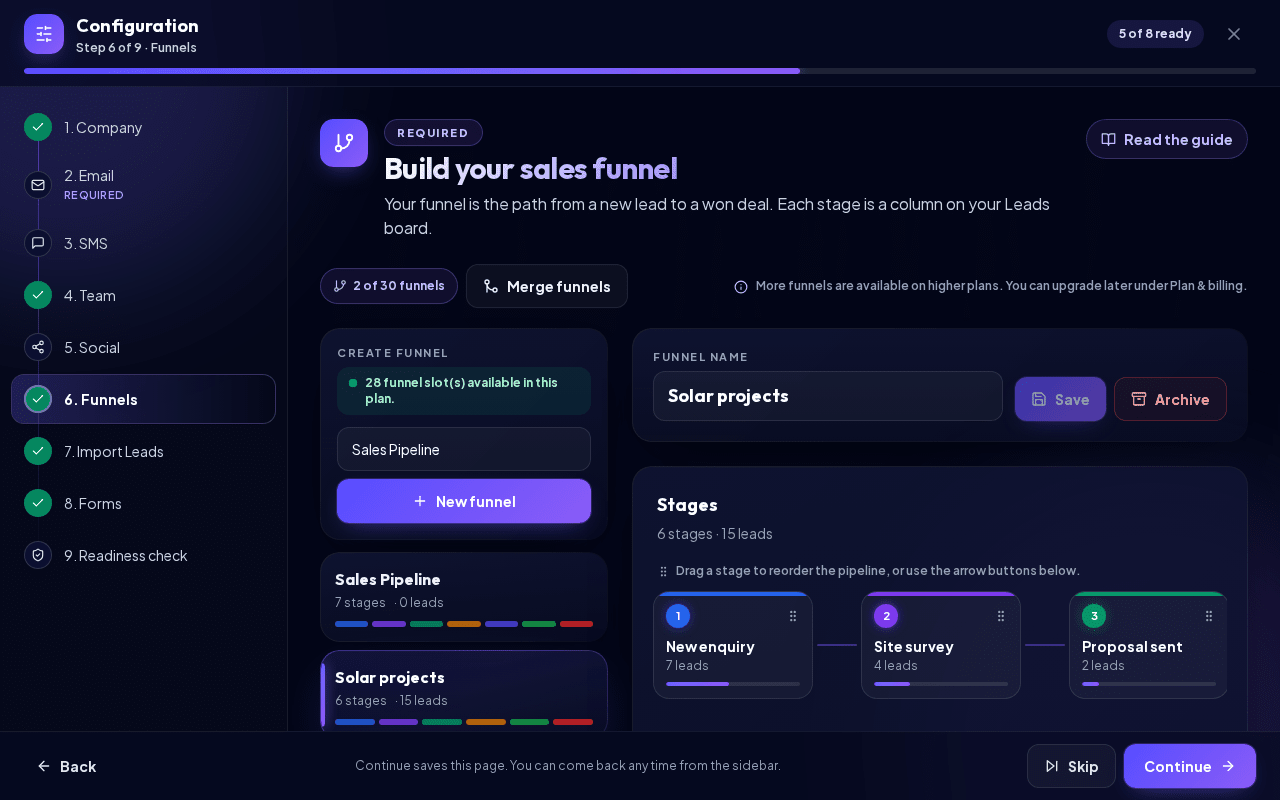
Open Configuration > Funnels, or click the icon button Edit pipeline stages next to the funnel selector on the Leads Board. Both open the Funnels step of Configuration.
Note: Everyone can see the funnels. Creating and changing funnels, stages and custom fields is limited to Workspace Admin, Sales Manager and Marketing roles.
Your first funnel
If there is no funnel yet, the Leads Board shows Create your first funnel, and the Funnels step shows Set up your first pipeline: Create default sales pipeline creates a ready-made funnel in one click, and Build my own walks you through a funnel, its stages, a starter lead form and the stage new form leads land in. A tracker shows where you are ("Step 2 of 6"), and Back returns to the previous step. Close guided setup stops it; you can do everything in this step later.
To create a funnel:
- Under Create funnel, enter a name (default: Sales Pipeline).
- Click New funnel.
Every new funnel starts with six default stages:
| Stage | Type |
|---|---|
| New Leads | open |
| Contacted | open |
| Qualified | open |
| Negotiation | open |
| 5 Won | won |
| 0 Lost | lost |
Rename or remove stages so they match how you sell.
Manage stages
Select a funnel in the list on the left. The Stages heading shows how many stages and leads the funnel has, for example "6 stages · 42 leads". Below it, a stage flow strip shows the stages in order as numbered steps with their lead count and a bar for their share of the leads; won stages are green, lost stages red. In the stage list below, every stage has the same number badge. There you can:
- Add a stage: type a name into Add next stage and click Add stage. New open stages are placed before the won and lost stages.
- Rename: click Rename, change the name, click Save.
- Reorder: drag a stage by its handle, or use the Move up / Move down arrows. The board columns follow this order.
- Archive: click Archive. Leads in that stage are moved to another stage; the confirmation tells you which one. A funnel needs at least one stage, so create another stage first if needed. The last open stage of a funnel cannot be archived.
To rename the whole funnel, change Funnel name and click Save. Open Leads takes you to the Leads Board with this funnel selected.
Won and lost stages
Won and lost stages close a deal. Leads in them leave the active pipeline, stop counting against your active lead limit and are highlighted green (won) or red (lost) on the board.
Each stage has a Stage outcome: Open, Won or Lost. Change it with the outcome selector next to the stage; the leads in that stage get the new outcome too. A funnel always keeps at least one open stage. When you add a stage, its outcome is preset from its name:
| Outcome | Recognized stage names |
|---|---|
| Won | 5 Won, Won, Closed Won, Closed, Done |
| Lost | 0 Lost, Lost, Closed Lost, Canceled, Cancelled |
Note: Renaming a stage never changes its outcome. To turn a stage into a closing stage (or back into an open one), change its Stage outcome.
Custom fields
Custom fields store extra information per funnel, for example "Company size" or "Budget". They appear in the lead Profile tab, in imports and in exports, and their options are also available for form fields.
- Under Custom Fields, enter a label (for example Company Size) and, optionally, an internal key.
- Pick a type: Text, Textarea, Number, Date, Time, Email, Phone, URL, Select, Radio, Checkbox or Hidden.
- For Select and Radio, enter the options, one per line.
- Tick Required if needed and click Add.
Edit label changes the label but keeps the internal key, so existing values stay connected. Disable hides the field; existing lead values are kept.
Merge funnels
Too many similar funnels? Merge them into one. You need at least two funnels.
- Click Merge funnels.
- Choose the Target funnel and tick the Funnels to merge.
- Check the preview: number of leads, contacts, deals and forms, and the Stage mapping. Stages are matched by name; won and lost stages go to the target's won and lost stage; anything else goes to the first active stage of the target.
- Choose Archive empty merged funnels or Keep empty merged funnels.
- Tick the confirmation and click Merge selected funnels.
Leads are never deleted by a merge. Web forms that sent leads to a merged funnel are paused and must be assigned to another funnel. If a social integration routes leads into a merged funnel, you are asked to confirm and the integration is moved to the target funnel.
Archive a funnel
Click Archive next to the funnel name. If the funnel has leads, the dialog shows how many (open, won, lost): choose the funnel under Move leads to funnel and the stage under Stage for open leads, then click Move leads and archive. Won and lost leads go to the Won and Lost stages of the receiving funnel and keep their outcome. Forms that fed the funnel are paused until you choose a new funnel for them. Archiving frees a funnel slot of your plan; archived funnels are listed under Archived funnels, where you can Restore them.
Plan limits on funnels
Your plan includes a number of active funnels. The counter at the top shows, for example, 2 of 3 funnels.
- When the limit is reached, New funnel is disabled and you see Your plan funnel limit is reached. Click Add more funnels to buy a funnel package, upgrade your plan, archive a funnel or merge funnels.
- If your workspace has more funnels than the current plan allows, extra funnels are marked Paused. Leads and setup stay safe, but edits and new form submissions are disabled until you add capacity or merge the paused funnel into an active one.
- Without an active CRM subscription, funnels cannot be created.
Related articles
Related guides
- Leads and pipeline Work with the Leads Board: create leads, drag them between stages, use the lead details tabs, mark deals as won or lost, filter the board and export leads. 12 min read
- Lead Inbox Why leads wait in the Lead Inbox when your active lead limit is reached, and how to activate, archive or delete them. 4 min read
- Importing leads (CSV/XLSX) Import contacts from a CSV, XLSX or JSON file: upload it, map the columns, check the preview, handle duplicates and roll back an import if needed. 6 min read