E-mail & SMS
Email campaigns
Send or schedule an e-mail to all active leads of a funnel: check readiness, preview recipients, personalise the message, track the results and understand how unsubscribes and STOP replies are handled.
8 min read Updated October 23, 2026
On this page
E-mail campaigns let you send one message to every active lead in a funnel, either right away or at a planned time. Each lead receives a personal copy from your own sender address. Campaigns are available to Workspace Admins, Sales Managers and Marketing users.
Before you start: readiness check
A campaign needs three things:
- A connected mailer. E-mail campaigns are sent through the provider enabled in Configuration > Email. See Email setup.
- Your plan. Sending campaigns requires the Marketing Campaigns feature in your plan. SMS campaigns also need SMS messaging, and WhatsApp campaigns need Social Inbox. If a feature is missing, sending is refused and you are pointed to Billing.
- Leads with e-mail addresses in the funnel you want to reach.
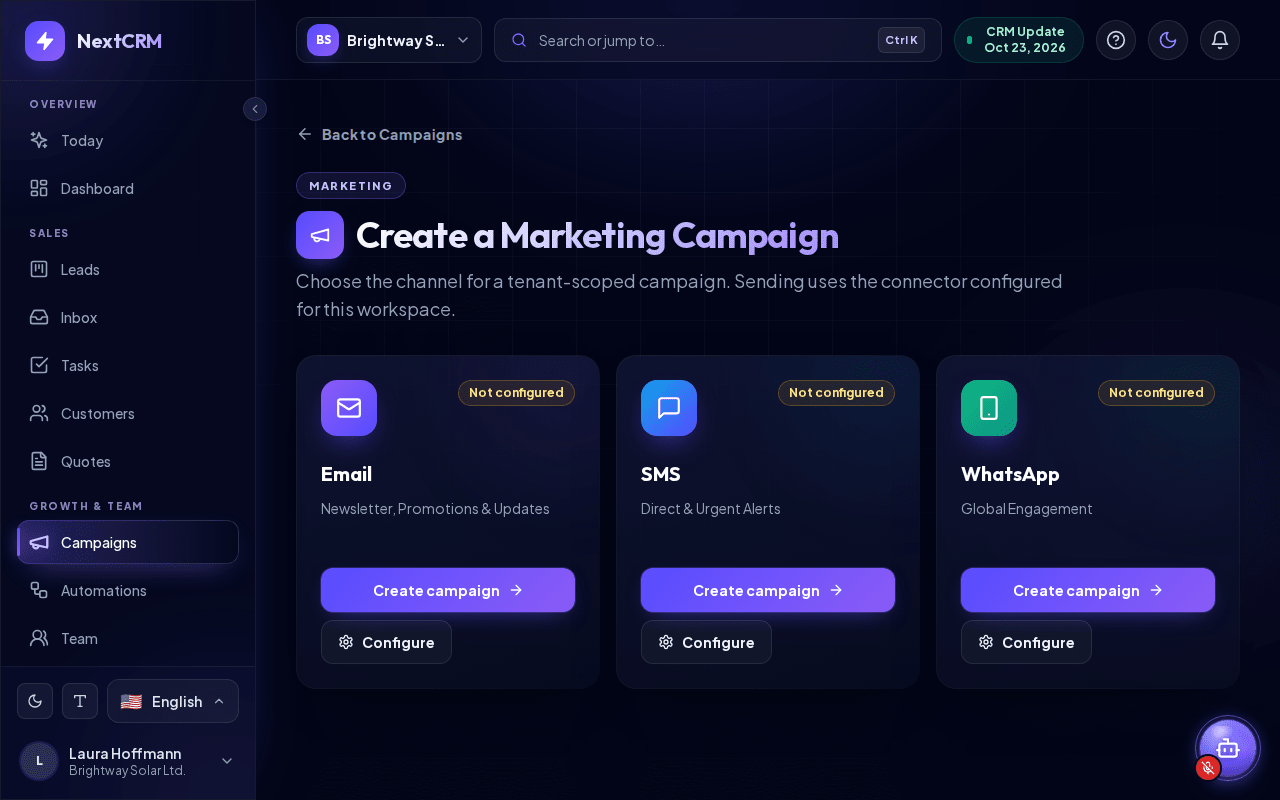
Open Campaigns in the sidebar and click New Campaign (open New Campaign). The page Create a Marketing Campaign shows a card for Email, SMS and WhatsApp, each marked Connected, Not configured, Saved, not verified or Credentials rejected. If e-mail is not connected, click Configure to go straight to the Email step of Configuration. Channels are set up in Configuration, not on the Campaigns page.
Create an e-mail campaign
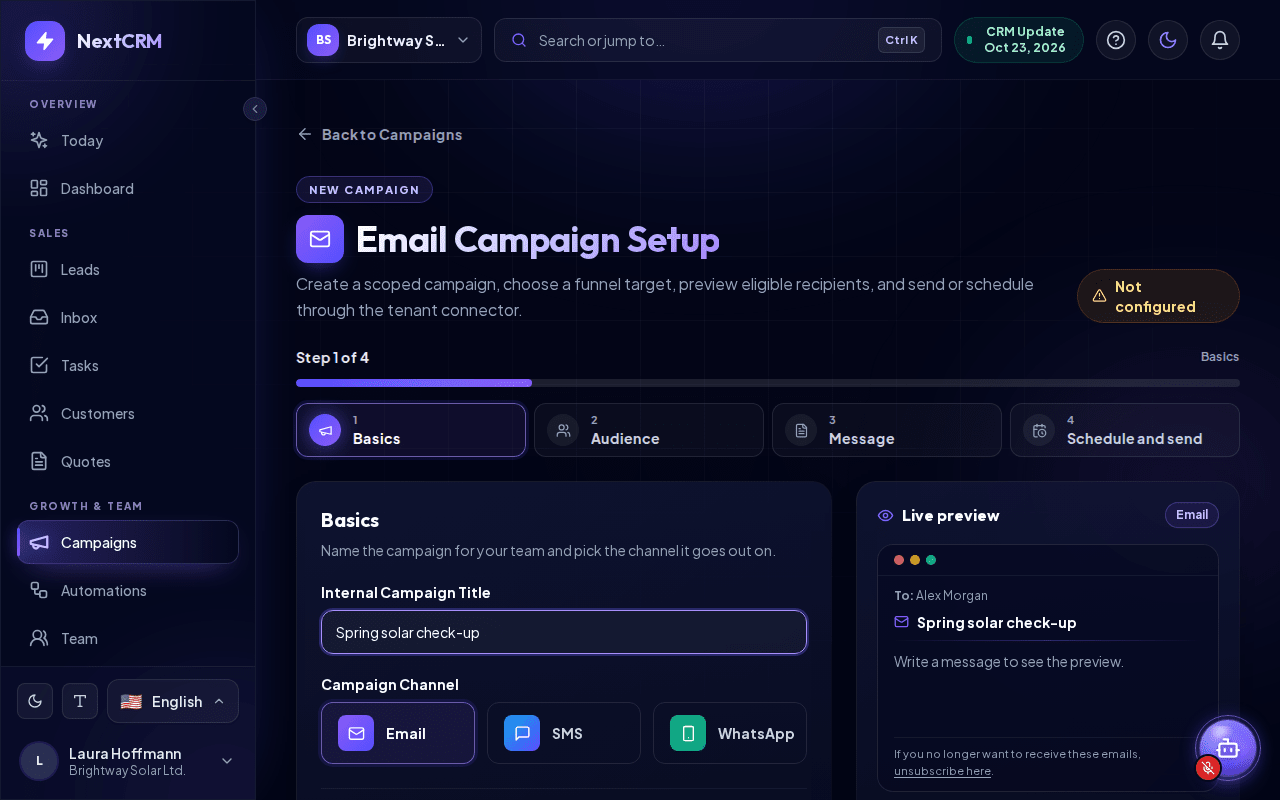
On the Email card, click Create campaign. The Email Campaign Setup page guides you through four steps. At the top you see Step X of 4, a progress bar and one tile per step. You can click a tile to jump to any step; Next first checks the current step and shows what is missing.
- Basics - enter an Internal Campaign Title. Only your team sees it; it is also used as the subject if you leave Subject empty. Check that Email is selected under Campaign Channel.
- Audience - under Select Funnel, choose the funnel whose leads should receive the e-mail. The Recipient Preview shows how many leads receive it and how many are skipped (see below).
- Message - optional: click one of the Campaign templates (Welcome message, Follow-up after first contact, Promotion, Re-engagement, Appointment reminder, Thank-you message) to fill in subject and text, then adapt it. Write the Subject and the Message Content. Click a variable chip such as
{{first_name}}to insert it at the cursor. - Schedule and send - choose the Delivery Timing (see below), check the Campaign Summary (title, channel, target funnel, recipients and timing) and click Schedule Campaign or Send Campaign.
At the bottom of every step you find Back, Save as draft and Next. Schedule Campaign or Send Campaign only appears on step 4. Save as draft keeps the campaign in My Campaigns, so you can finish it later.
Next to the steps (below them on smaller screens) the Live preview shows the message as a recipient sees it, filled in for a sample lead ("Preview for a sample lead"), including the unsubscribe line NextCRM adds. A small Recipient Preview card below it shows the number of recipients and, if any, Skipped: N.
If the mailer is not ready when you click Schedule Campaign or Send Campaign, a Connection Required window appears with Cancel, Save as draft and Save draft & Open Mailer Settings. Your campaign is saved as a draft before you leave the page, so nothing is lost. Users who cannot change the email settings see a hint to ask an admin instead of the last button.
Personalise the message
You can use these placeholders in the subject and the message:
| Placeholder | Replaced with |
|---|---|
{{first_name}} |
The lead's first name |
{{last_name}} |
The lead's last name |
{{full_name}} |
The lead's full name |
{{sales_rep}} |
The name of the user who sends the campaign (best used with Send Immediately) |
{{company}} |
The lead's company |
{{booking_link}} |
The booking page link of the lead's owner (or yours), see Booking pages |
If a lead has no value for a placeholder, it is left empty, so write sentences that still read well, for example "Hello {{first_name}}," rather than relying on the name.
The message is sent as simple text: line breaks are kept, but there is no formatting, images or attachments. The subject can have up to 180 characters and the message up to 8,000.
Audience: who receives the campaign
The Recipient Preview in the Audience step updates as soon as you pick a funnel:
- Recipients are the active leads in that funnel that have a valid e-mail address.
- Skipped leads are missing a valid e-mail address or have unsubscribed from e-mail campaigns, and will not receive anything. A separate line tells you how many leads opted out.
- Leads marked as won or lost, archived leads and leads removed from the pipeline are not included.
A campaign run can reach up to 1,000 recipients by default. For larger lists, split your leads into several funnels and send one campaign per funnel.
Schedule or send now
In step 4 Schedule and send, under Delivery Timing:
- Schedule for Later (preselected) lets you pick a Schedule Date / Time in the future (your local time zone is shown below the field). Click Schedule Campaign; NextCRM sends it automatically shortly after that time.
- Send Immediately sends the e-mails when you click Send Campaign. NextCRM first asks Send this campaign now?, because the e-mails go to the whole funnel at once and this cannot be undone. Click Send now to start.
When done you see Campaign Sent or Campaign Scheduled with the number of recipients. Click Back to Campaigns to return to the list.
Track results in My Campaigns
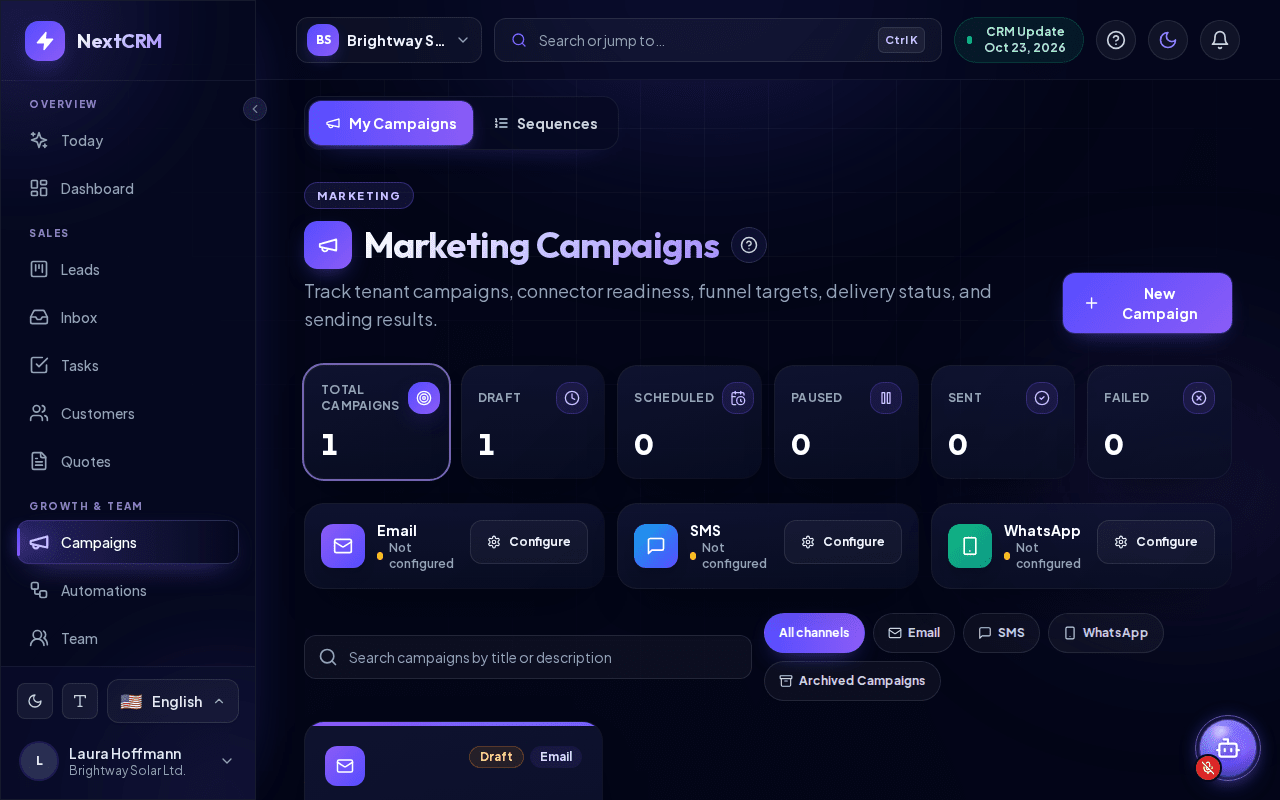
The My Campaigns tab of Campaigns (open My Campaigns) shows totals for Total Campaigns, Draft, Scheduled, Paused, Sent and Failed. Click a tile to show only the campaigns with that status. Below the totals you see each channel's connection status, a search field and channel filters. Each campaign has a card with:
- the counters Recipients, Sent, Failed and Skipped, and a Progress bar, for example "120 sent / 2 failed / 5 skipped".
- Scheduled Date or Last Sent.
- Details, which opens Campaign Details.
- Archive to move a campaign to Archived Campaigns.
On Campaign Details you can change the internal title and description (Save Changes) and see:
- Live preview - the message as recipients see it.
- Timeline - for example Created, Scheduled for, Sending now, Sent, Sending failed, Archived or Draft - not scheduled yet.
- Delivery log - one row per recipient with Recipient, Status, Details and Time, including the reason if a message failed or was skipped.
A campaign is never sent twice. If a send is interrupted, leads that were already reached are not e-mailed again.
Note: If your plan loses the Marketing Campaigns feature before a scheduled campaign is due, the campaign is not sent and is marked as blocked.
Unsubscribe and opt-out
Every campaign message gives the recipient a way to opt out, and NextCRM respects it automatically. You do not have to write an unsubscribe line yourself.
- E-mail: NextCRM adds an unsubscribe link at the end of every campaign e-mail, in the language the campaign was written in (the language of your NextCRM interface when you created it). The e-mail also carries a one-click unsubscribe header, so e-mail programs that support it can show their own unsubscribe button.
- SMS and WhatsApp: campaign texts end with a line such as "Reply STOP to opt out." in the campaign language (it is not added twice if your text already mentions STOP). When someone replies with just STOP (or UNSUBSCRIBE, CANCEL, END or QUIT), their number is opted out of that channel. A reply of START or UNSTOP opts them back in.
- Skipped automatically: opted-out leads are not contacted again by campaigns on that channel. The Recipient Preview shows how many leads opted out, and in the campaign details they appear as Opted out.
- Per channel: a lead who unsubscribed from e-mails can still receive SMS or WhatsApp campaigns, unless they opted out there too. Opt-outs apply to your workspace only.
To check or change a lead's status, open the lead and look at Marketing consent on the Profile tab. It shows per channel whether the lead receives campaigns or when and how they unsubscribed. Workspace Admins and Sales Managers can click Unsubscribe for a lead who asked by phone or e-mail, and Resubscribe only when the person asked for it again. Every change is recorded in the lead's activity.
Opt-outs only apply to campaigns. E-mails and messages you send yourself from a lead are not blocked, so respect the person's wish there too.
You remain responsible for complying with e-mail marketing and data protection rules (such as GDPR or LGPD): only e-mail leads who agreed to hear from you or with whom you have an existing business relationship. See Data privacy and GDPR basics.
Tip: Send a first campaign to a small test funnel that contains only your own team's addresses, check how it looks in the inbox, then send to the real funnel.
Related articles
Related guides
- Email setup (SMTP and IMAP) Connect your mail server so NextCRM sends lead e-mails and campaigns from your own address: Gmail, Microsoft 365, IONOS, Strato, deliverability and fixes. 11 min read
- Connect Google Workspace (Gmail + Calendar) Sync Gmail and Google Calendar so emails and meetings with your leads appear in NextCRM: what is synced, what is never read, disconnecting and admin notes. 5 min read
- SMS setup Connect your Twilio account to text leads from NextCRM, receive replies and run SMS campaigns: live and test mode, Twilio values, webhooks and test messages. 6 min read