E-mail & SMS
SMS setup
Connect your Twilio account to text leads from NextCRM, receive replies and run SMS campaigns: live and test mode, Twilio values, webhooks and test messages.
6 min read Updated October 23, 2026
On this page
NextCRM sends and receives SMS through Twilio. Each workspace connects its own Twilio account, so messages go out from your own number and the costs are billed by Twilio directly to you. Once SMS is set up, anyone in your team can text a lead from its card or detail view.
Note: Only Workspace Admins can change the SMS settings. Other roles, including Sales Managers, do not see the SMS step in Configuration. Your plan must include the SMS messaging feature to save the settings and send messages.
Where to get each value
Sign in to the Twilio Console at https://console.twilio.com/ and collect the values below. The (i) icon next to each field in the SMS step shows the same information.
| NextCRM field | Where to get it in Twilio | Link |
|---|---|---|
| Twilio Account SID | Your Twilio account ID, it starts with AC. Twilio Console > Account Dashboard, section Account Info. |
https://console.twilio.com/ |
| Auth Token | The secret key of the same account. Twilio Console > Account Dashboard > Account Info: click Show next to Auth Token. | https://console.twilio.com/ |
| From Number | An SMS-capable Twilio number in international format, for example +15551234567. Twilio Console > Phone Numbers > Manage > Active numbers. |
https://console.twilio.com/us1/develop/phone-numbers/manage/incoming |
| Messaging Service SID (optional) | Instead of a From Number, it starts with MG. Twilio Console > Messaging > Services: open the service and copy its SID. |
https://console.twilio.com/us1/develop/sms/services |
| Test Account SID / Test Auth Token | Free test credentials that never send a real SMS. Twilio Console > Account > API keys & tokens, section Test credentials. | https://console.twilio.com/us1/account/keys-credentials/api-keys |
| Inbound webhook URL | Shown in NextCRM after saving. Paste it into Twilio: Phone Numbers > Active numbers > your number > Messaging configuration > A message comes in: Webhook, HTTP POST. | https://console.twilio.com/us1/develop/phone-numbers/manage/incoming |
Setup order: create or open your Twilio account > copy the Account SID and Auth Token and choose a number or Messaging Service > paste them in NextCRM and save > paste the Inbound webhook URL into Twilio > test the connection and send a test SMS.
You need either a From Number or a Messaging Service SID. For production sending, a Messaging Service is the recommended option.
Warning: The Auth Token is always required for live mode, because NextCRM uses it both to call Twilio and to verify that incoming webhooks really come from Twilio. NextCRM therefore does not ask for a Twilio API key.
Connect Twilio step by step
- Open Configuration > SMS (open the SMS step). The SMS & calling card in Settings opens the same step.
- Switch on Enable SMS integration.
- Under Twilio environment, choose Live (real messages) or Test (simulated messages, see below).
- Fill in the Live credentials: Twilio Account SID, Auth Token, and From Number and/or Messaging Service SID.
- Check Default Country Code (for example
+49or+55). It is added to phone numbers that were saved without a country code. - Click Save SMS settings.
- Click Test connection. On success you see "Twilio connection verified." and the status badge at the top changes to connected.
At the top of the page, the card Connect Twilio in three steps tracks your progress: Enter your Twilio credentials, Verify the connection and Turn on SMS. The steps are ticked from your saved settings and the last connection test. The how-to with step-by-step instructions is inside this card.
If the From Number is not in international format, the field shows "Use the international format with country code, e.g. +15551234567."
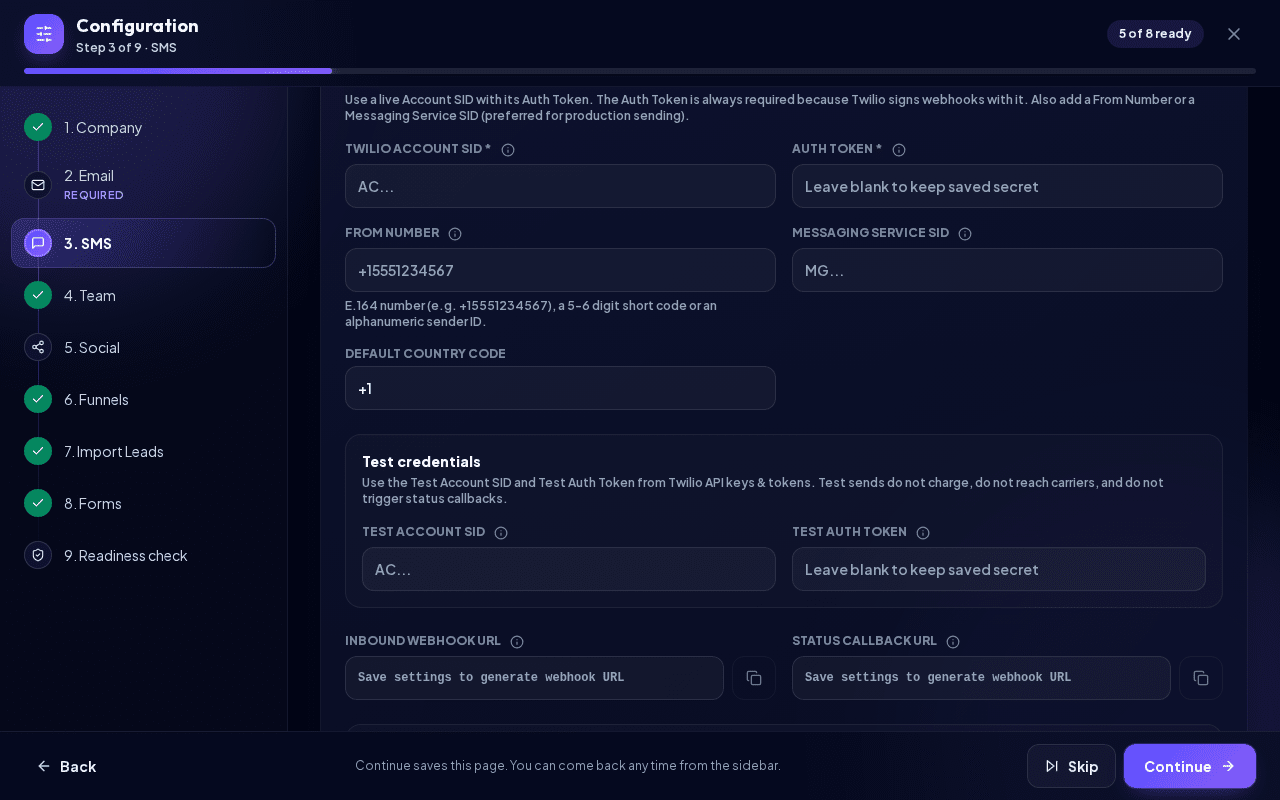
Secrets are encrypted at rest, masked after saving and never shown again. Leave a secret field empty to keep the saved value.
Webhook URLs (receiving replies)
After saving, NextCRM shows two read-only addresses with a copy button:
- Inbound webhook URL: Twilio calls it when a lead replies to your number.
- Status callback URL: Twilio reports delivery status (sent, delivered, failed) to it.
NextCRM sends the status callback URL with every message automatically, so you do not have to enter it in Twilio. The inbound URL you must add yourself:
- In the Twilio Console, open your phone number's configuration (or, if you send through a Messaging Service, the service's integration settings).
- In the messaging section, for incoming messages ("A message comes in"), choose Webhook, paste the Inbound webhook URL and select HTTP POST.
- Save in Twilio.
Incoming replies are matched to the lead with the same phone number and appear in that lead's SMS history. If no lead or several leads share the number, the message is kept aside as unassigned instead of being attached to the wrong lead.
Test mode
Choose Test under Twilio environment to try the setup without cost:
- Enter Test Account SID and Test Auth Token from Twilio.
- NextCRM always sends test messages from
+15005550006, Twilio's magic number for a successful test send, so there is no sender to enter. - Test messages are not charged, never reach a real phone, do not trigger status callbacks and cannot receive replies. Leads show a notice that Twilio Test mode is active.
Switch back to Live and click Save SMS settings when you are ready for real messages.
Send a test message
In Send test SMS, enter your own mobile number in international format, adjust the text if you like and click Send. If the number is not in international format, you see "Use the international format with country code, e.g. +15551234567." and Send stays disabled. NextCRM confirms with "Test SMS queued." In live mode this is a real SMS and Twilio charges it like any other message.
Send SMS to a lead
- On a lead card, click the SMS button next to the phone number ("Send SMS to …"). The Send SMS window opens with the Recipient filled in. Write the Message (up to 1,600 characters) and send. While you type, the window shows how many SMS segments the message needs, for example "2 SMS segment(s)".
- In the lead details, open the SMS tab to see the SMS history, send a new message, or click Sync to fetch replies from Twilio.
Phone numbers should be in E.164 format, for example +5511999999999. Numbers without + are normalised with the default country code. Every sent message and every reply is logged in the lead's activity.
To text many leads at once, create an SMS campaign under Campaigns > New Campaign > SMS (open SMS campaign). Long texts are split into several SMS segments (about 160 characters each); the campaign editor shows the segment count.
Costs and limits
- Twilio bills every message, phone number and service directly to your Twilio account. NextCRM does not charge per SMS.
- Prices, sender rules and registration requirements depend on the destination country. Some countries require you to register your business or sender before sending; check this in your Twilio account.
- Twilio trial accounts are restricted (for example, they can usually only send to verified numbers). Upgrade the Twilio account before going live.
Troubleshooting
- "Twilio credentials are incomplete." Enter the Account SID and Auth Token, then save.
- "Twilio sender is incomplete." Add a From Number or a Messaging Service SID.
- Test connection fails: save the settings with Enable SMS integration switched on first, and check that the SID and token belong to the same Twilio account and environment.
- Replies do not appear: make sure the Inbound webhook URL is set on the number or Messaging Service in Twilio, and that the lead's phone number matches the sender's number. Use Sync in the lead's SMS tab.
Related articles
Related guides
- Email setup (SMTP and IMAP) Connect your mail server so NextCRM sends lead e-mails and campaigns from your own address: Gmail, Microsoft 365, IONOS, Strato, deliverability and fixes. 11 min read
- Connect Google Workspace (Gmail + Calendar) Sync Gmail and Google Calendar so emails and meetings with your leads appear in NextCRM: what is synced, what is never read, disconnecting and admin notes. 5 min read
- Email campaigns Send or schedule an e-mail to all active leads of a funnel: check readiness, preview recipients, personalise the message, track the results and understand how unsubscribes and STOP replies are handled. 8 min read