Social Inbox & WhatsApp
WhatsApp Business setup
Connect the WhatsApp Business Platform (Cloud API) with a Meta app, phone number ID, access token, app secret and webhook, so chats arrive in the Social Inbox.
9 min read Updated October 23, 2026
On this page
- What NextCRM supports for WhatsApp
- Before you start
- Where to get each value
- Step 1: Create the Meta app with WhatsApp
- Step 2: Create a permanent access token
- Step 3: Enter the details in NextCRM
- Step 4: Connect the webhook in Meta
- Step 5: Test it
- The 24-hour customer service window
- WhatsApp campaigns
- Common errors
- Related articles
With WhatsApp connected, messages that customers send to your WhatsApp Business number appear in the Social Inbox, and your team (or Lora) can answer them from NextCRM. NextCRM uses the official WhatsApp Business Platform (Cloud API) from Meta. The normal WhatsApp Business app on a phone cannot be connected.
Plan about 30-60 minutes for the first setup. You work in two places: Meta for Developers / Meta Business settings, and Configuration > Social in NextCRM.
What NextCRM supports for WhatsApp
- Incoming: text messages, button replies and captions of images and documents. Other message types (for example voice notes or stickers) appear as a placeholder such as
[audio]. Media files themselves are not downloaded. - Outgoing: plain text replies from the Social Inbox, Lora replies in autopilot, and WhatsApp campaigns.
- Not supported: sending approved message templates, delivery and read receipts, and importing chats from before the connection.
Before you start
- You need the Workspace Admin or Sales Manager role and a plan that includes the Social Inbox.
- A Meta Business account (Business portfolio) with admin access.
- A phone number for WhatsApp. It must not be in use in the WhatsApp or WhatsApp Business app on a phone, or you must move it to the platform first. For testing, Meta gives you a free test number.
Where to get each value
After you click Configure on the WhatsApp card, the (i) icon next to each field shows the same information.
| NextCRM field | Where to get it | Link |
|---|---|---|
| App secret | Meta for Developers > My Apps > your app > App settings > Basic > App secret (click Show). Meta signs every webhook with it. | https://developers.facebook.com/apps |
| Access token | A permanent token of a system user: Meta Business settings > Users > System users > Generate new token, with whatsapp_business_messaging and whatsapp_business_management. |
https://business.facebook.com/settings/system-users |
| Phone number ID | The ID of the number, not the phone number itself: Meta for Developers > your app > WhatsApp > API Setup, shown below the From number. | https://developers.facebook.com/apps |
| Verify token | A password you make up. Enter the same value in Meta for Developers > your app > Webhooks (WhatsApp: WhatsApp > Configuration) as Verify token. | https://developers.facebook.com/apps |
| Webhook URL | Shown on the card after the first save. Paste it unchanged into the provider's webhook settings as callback URL. | https://developers.facebook.com/apps |
Setup order: create the Meta app with WhatsApp (Step 1) > create a permanent access token (Step 2) > paste the values and a verify token into NextCRM and save (Step 3) > connect the webhook in Meta (Step 4) > send a test message (Step 5).
Step 1: Create the Meta app with WhatsApp
- Open Meta for Developers and create an app. Choose the business type or use case that offers WhatsApp, and connect it to your business portfolio.
- Add the WhatsApp product to the app.
- Open the WhatsApp API Setup page (the name can differ slightly). Here you find:
- the Phone number ID of the test number or your own number,
- the WhatsApp Business Account ID,
- a temporary access token for testing.
- In the app's basic settings, copy the App secret. NextCRM does not need the App ID or the WhatsApp Business Account ID.
Note: Copy the Phone number ID, not the phone number itself. It is a long number that Meta shows next to or below the phone number.
Step 2: Create a permanent access token
The temporary token from the API Setup page stops working after about 24 hours. For daily use, create a token for a system user:
- Open Meta Business settings and go to Users > System users.
- Add a system user (an admin system user is fine) or pick an existing one.
- Assign assets to the system user: your app and your WhatsApp account, with full control.
- Click to generate a new token, choose your app and choose that the token never expires, if your account offers this.
- Select the permissions, for example
whatsapp_business_messagingandwhatsapp_business_management. - Copy the token and keep it safe. Meta shows it only once.
Step 3: Enter the details in NextCRM
::video[/help/videos/{lang}/social-connect.webm]{caption="Video: the How to connect panel and where to paste each value" captions="/help/videos/{lang}/social-connect.vtt" poster="/help/videos/{lang}/social-connect.jpg"}
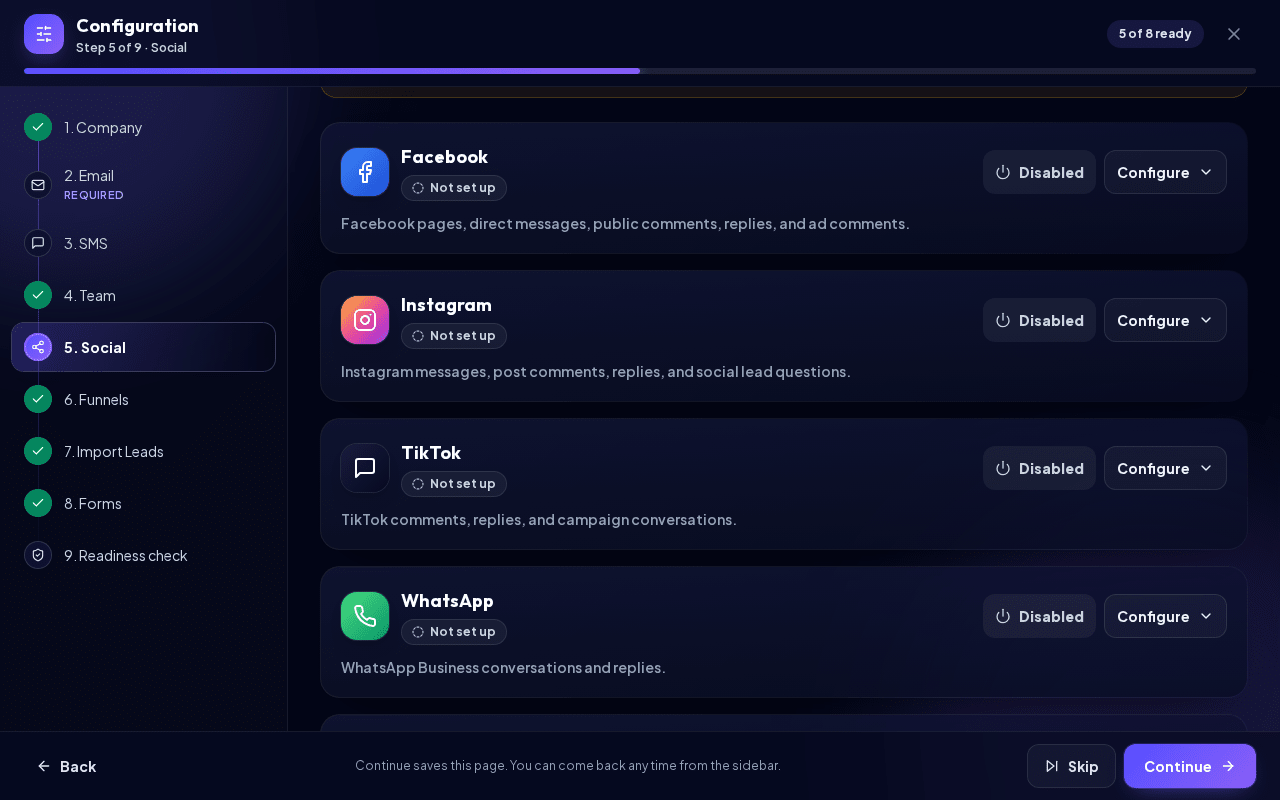
- Open Configuration > Social (open the Social step), find the WhatsApp card and click Configure. The fields, the Live connector delivery box and the How to connect WhatsApp panel only appear after this click.
- Fill in the fields:
| NextCRM field | What to paste |
|---|---|
| App secret | The App secret of your Meta app (required: Meta signs every webhook with it) |
| Access token | The permanent system-user token from Step 2 (required) |
| Verify token | A password you make up, for example a long random string (required) |
| Phone number ID | The Phone number ID from the API Setup page (required) |
Fields marked with * are required.
- Click Save. The Webhook URL in the Live connector delivery box now ends with
?hook=and a code for your workspace. The Provider account ID shows your phone number ID. - Click Disabled at the top of the card so that it shows Enabled. Messages are only accepted while the card is enabled.
Step 4: Connect the webhook in Meta
- In your Meta app, open WhatsApp > Configuration and edit the webhook.
- Callback URL: paste the Webhook URL from NextCRM unchanged. Example:
https://…/api/social/webhooks/whatsapp?hook=hook_EXAMPLE123
- Verify token: enter the same verify token you saved in NextCRM.
- Click Verify and save. Meta calls NextCRM, and NextCRM confirms when the token matches.
- Under the webhook fields, subscribe to messages.
Why the App secret matters: Meta sends the verify token only during this check. Every later message is signed by Meta with your App secret, and NextCRM rejects messages whose signature does not match, so the App secret must belong to the same app. Do not add the verify token to the callback URL; older callback URLs that end with &token=... keep working as long as that token matches the saved one.
Step 5: Test it
- If you use the test number, add your own mobile number as an allowed recipient on the API Setup page. The test number can only talk to a small list of numbers you add there.
- Send a WhatsApp message from your phone to the business number.
- Open the Social Inbox (open the Social Inbox). The chat appears under WhatsApp, usually within seconds.
- Reply from NextCRM and check that it arrives on your phone.
Test number vs real number: the test number is free and good for checking the setup, but it cannot be used with real customers. To go live, add your own number in WhatsApp Manager, verify it, and complete what Meta asks for, such as business verification and display name approval. Then replace the Phone number ID in NextCRM and click Save.
The 24-hour customer service window
WhatsApp only allows free-form messages within 24 hours of the customer's last message. After that, businesses must use pre-approved message templates.
- Reply to customers in the Social Inbox within 24 hours of their last message.
- NextCRM sends plain text only, not templates. Outside the window, Meta may accept the message but not deliver it. NextCRM does not receive delivery reports, so the message can show as sent in NextCRM even though the customer never got it.
- If you need to contact someone after 24 hours, use a template in a Meta tool, or ask the customer to message you first.
WhatsApp campaigns
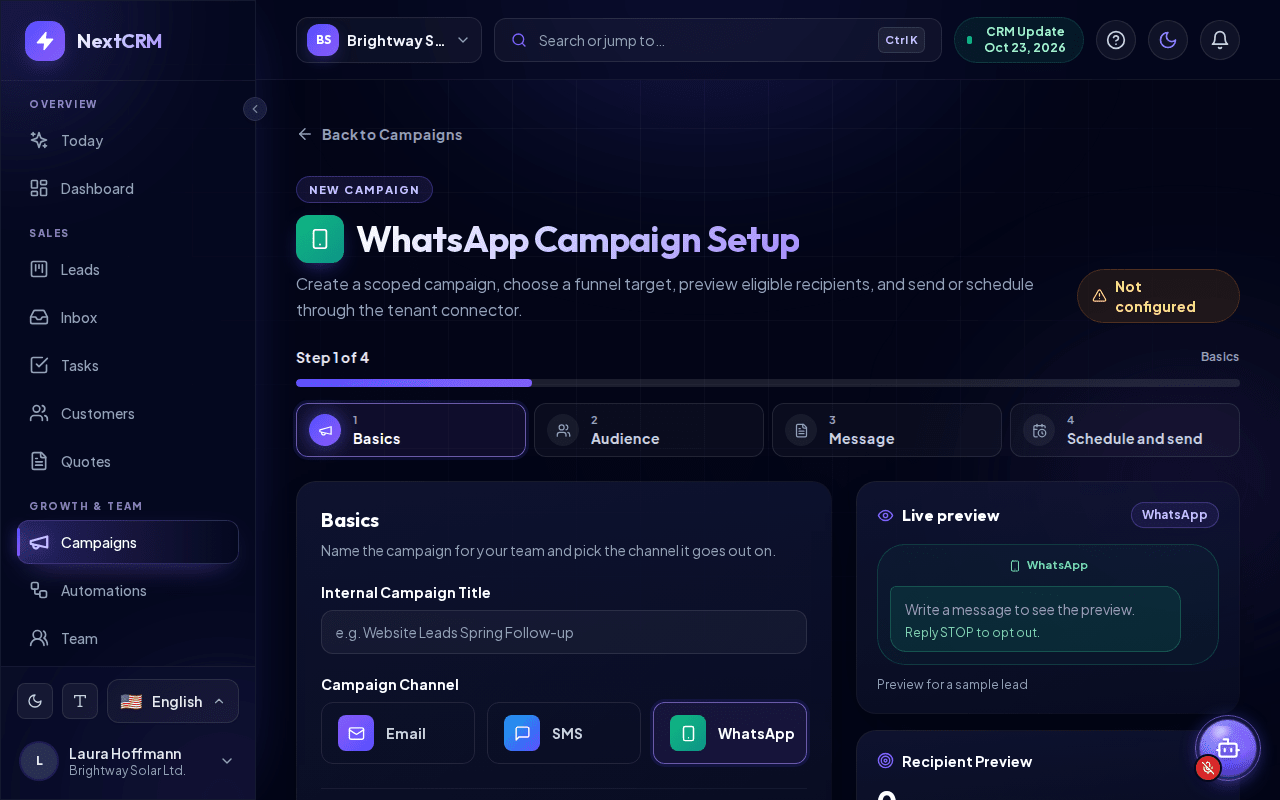
Under Campaigns > New Campaign > WhatsApp (open WhatsApp campaigns) you can send a text message to the leads of a funnel. The editor is the same 4-step wizard as for e-mail campaigns (Basics, Audience, Message, Schedule and send).
The badge at the top shows Connected only when the WhatsApp card is enabled, has an access token and a phone number ID, and Meta accepted the credentials. Otherwise it reads Not configured, Saved, not verified or Credentials rejected. If WhatsApp is not ready when you click Schedule Campaign or Send Campaign, a Connection Required window appears with Cancel, Save as draft and Save draft & Open WhatsApp Settings (users who cannot open the settings see a hint to ask an admin instead of the last button); your campaign is kept as a draft.
Campaigns use the same plain-text sending as replies, so the 24-hour rule applies: campaign messages normally only reach leads who have written to your WhatsApp number in the last 24 hours. Leads need a phone number in international format, for example +491701234567. Numbers without a country code are treated as +1 (USA/Canada).
Common errors
- Meta cannot validate the callback URL or verify token: the verify token in Meta does not match the one saved in NextCRM, or you copied the Webhook URL before the first save (the
?hook=part is missing). Save in NextCRM, copy the URL again and retry. - Verification works, but no messages arrive: check that the App secret of the same app is saved (Meta signs every message with it), the card is Enabled, and you subscribed to messages. If test messages from Meta arrive but real ones do not, make sure your app is subscribed to your WhatsApp Business Account.
- Card shows the chip Needs attention: click Configure to see the details. Usually the App secret, access token, verify token or Phone number ID is missing (paste them and click Save), or Meta rejected the access token.
- Reply shows as queued with a note that delivery needs valid credentials: the access token or Phone number ID is missing, so nothing was sent. Add them and send again.
- "Provider credentials are invalid, expired, or missing required permissions.": the token is wrong, expired (for example the 24-hour test token) or lacks WhatsApp permissions. Create a system-user token as in Step 2.
- "Provider rejected the message with status 400.": Meta did not accept the message, for example because the recipient is not on the test number's list or the number format is wrong.
- "Provider rate limit reached. Please wait and try again.": too many messages in a short time. Wait a moment.
Related articles
- Social connections overview
- Connect Facebook (Messenger and Page comments)
- Email campaigns
- Troubleshooting