Social Inbox & WhatsApp
Social connections overview
Which networks NextCRM supports, how to connect them with webhooks and verify tokens, and how Lora prepares replies and creates leads in the Social Inbox.
9 min read Updated October 23, 2026
On this page
NextCRM collects messages and comments from your social channels in one place: the Social Inbox. Your team reads and answers them there, and Lora can prepare replies for you to review, answer automatically and turn interested contacts into leads. You connect each channel once in Configuration > Social.
Supported networks and what they can do
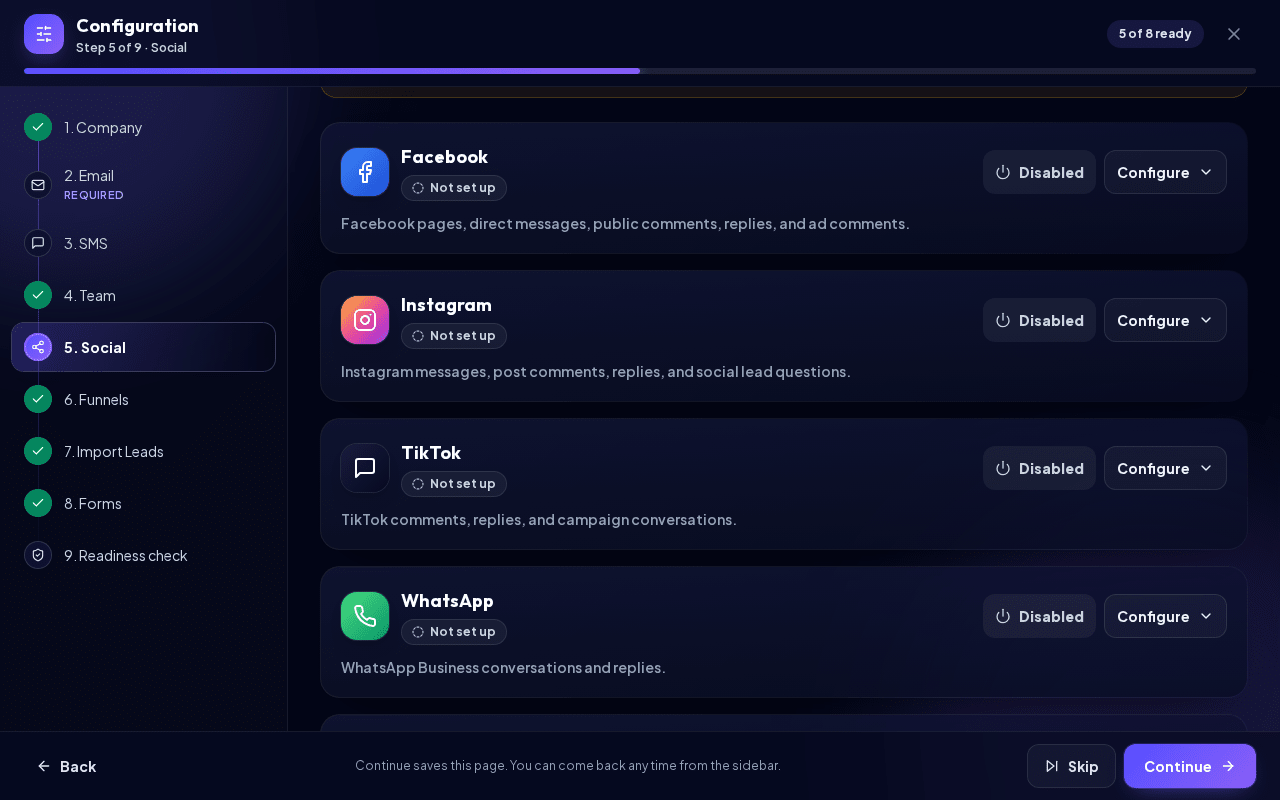
Each network has its own card in the Social step of Configuration. The table shows what NextCRM really supports today.
| Network | Messages in | Comments in | Reply from NextCRM | Setup guide |
|---|---|---|---|---|
| Messenger messages to your Page | Comments on your Page posts | Yes (messages and comments) | Connect Facebook | |
| Direct messages | Comments on your posts | Yes (see the Instagram guide) | Connect Instagram | |
| WhatsApp Business messages | - | Yes (text) | WhatsApp Business setup | |
| Telegram | Messages to your bot | - | Yes | Connect Telegram |
| Limited: lead-form and comment notifications | Limited | No | Connect LinkedIn | |
| TikTok | - | Limited: approved comment events | No | Connect TikTok |
| Website Chat | Messages from a website chat widget | - | Yes (stored for the widget) | This article |
| Emails already stored in NextCRM | - | Yes (through your SMTP settings) | Email setup |
Important limits:
- LinkedIn and TikTok need official API access from LinkedIn or TikTok. NextCRM only accepts approved webhook events. It does not scrape, log in for you or send unofficial replies. Replies to these channels must be written in LinkedIn or TikTok directly.
- Facebook, Instagram and WhatsApp deliver new messages by webhook. Older conversations from before the connection are not imported, and the Sync button does not download history for these networks.
- Email in the Social Inbox shows email records already stored in NextCRM. SMTP alone can only send, not receive.
Who can set up connections
- Workspace Admins and Sales Managers see the Social step in Configuration and can connect, change or switch off channels and change the AI settings.
- All workspace roles can open the Social Inbox, read and reply. Creating a lead from a conversation is open to every role except Finances.
- Your plan must include the Social Inbox feature to connect a channel. Without it you can still switch a channel off. Automatic AI replies need a plan that also includes AI autorun. See Billing, plans and add-ons.
How a connection card works
Each channel is a compact one-row card with its name, a status chip, the Enabled / Disabled button and Configure. The status chip shows one of these states:
- On - the channel is switched on.
- Ready to turn on - the credentials are saved, but the channel is switched off.
- Connected - the channel is on and the provider accepted the credentials.
- Not verified - the channel is on, but the credentials are not verified yet.
- Needs attention - a required detail is missing or the provider rejected the credentials.
- Not set up - nothing is saved yet.
Clicking Enabled / Disabled switches the channel on or off and saves at once. Before a channel is switched off, NextCRM asks you to confirm with Disable.
Click Configure to open the channel's settings; the button then reads Close. Only one channel is open at a time, and while it is open a Save button also appears at the top of the card. The opened panel (Telegram has its own simpler form) has the same parts:
- A step tracker: Add the credentials, Save to get the webhook URL and Turn the channel on. Each step is ticked when it is done.
- App secret and Access token (Facebook, Instagram, WhatsApp): the credentials from Meta's developer portal.
- Live connector delivery box with the Webhook URL, the Verify token and, for WhatsApp, the Phone number ID. LinkedIn and TikTok only need the verify token, because their events are forwarded to NextCRM.
- Lora Social Inbox box with the AI settings (see below).
- Save button at the bottom.
Secrets are encrypted on the server and never shown again. After saving, the field only shows a hint such as Saved: .... To change a secret, paste the new value and click Save. Leaving a secret field empty keeps the saved value.
A closed card only shows the chip Needs attention. Click Configure to see the full message, for example "Credentials or connector details need attention before this provider can sync reliably.": usually a required field is missing. Required fields are marked with *. When you save an enabled Facebook, Instagram or WhatsApp card, NextCRM checks the access token with Meta; LinkedIn and TikTok cannot be checked. This check does not test the webhook, so send yourself a test message to be sure.
Webhook URL and verify token
A webhook is how a network tells NextCRM "a new message arrived". You give the network two things:
- Webhook URL: shown read-only in the Live connector delivery box after you click Configure. It ends with
?hook=and a code that belongs only to your workspace. The URL gets this code after the card is saved for the first time, so click Save once before you copy it. - Verify token: a password you make up yourself (for example a long random string). Type it into the Verify token field in NextCRM and click Save. Enter exactly the same value in the network's webhook settings.
For LinkedIn and TikTok, NextCRM accepts an event only when the verify token is sent with it in the X-NextCRM-Webhook-Token HTTP header (never in the URL). This token must be at least 24 characters long; use Generate secure token on the card to create one. For Facebook, Instagram and WhatsApp the verify token is used for Meta's webhook check; every event is then authenticated by Meta's signature with your App secret, so the App secret is required for these three networks.
Note: Meta sends the verify token only when you first verify the webhook, not with each message. For Facebook, Instagram and WhatsApp, paste the Webhook URL unchanged as callback URL; do not add the verify token to it. Older callback URLs that end with
&token=...keep working as long as that token matches. The per-network guides explain this step.
AI modes: manual, draft and autopilot
In the Lora Social Inbox box on each card you choose how Lora works for that channel:
| Mode | What happens |
|---|---|
| Manual only | Your team answers everything. Lora does nothing on its own. |
| AI draft mode | Your team answers. In the inbox, Lora draft prepares a reply that you review and edit before sending. |
| AI autopilot | Lora answers new incoming messages automatically. It uses only the conversation and your instructions. If Lora is unsure, it leaves the message for a person. |
More settings in the same box:
- Max AI replies (1-25, default 3): after this many automatic replies in one conversation, Lora stops and marks the conversation Needs Human Review.
- The large text field: describe your business tone, products or services, when to hand over to a person, and what makes a good lead. Lora uses this text for automatic replies.
Autopilot needs an active AI provider (see AI configuration) and a plan that includes AI autorun. AI usage counts toward your workspace's AI usage.
Automatic leads and the qualification threshold
Lora scores each conversation for buying intent. The score goes up when people ask about prices, quotes, bookings or a product, or when they share an email address or phone number.
- Auto-create AI Leads: when this is on and a channel runs on autopilot, Lora creates a lead automatically once the score reaches the threshold. If a lead with the same email, phone or handle exists, Lora links the conversation to it instead.
- Lead threshold (10-100, default 70): the minimum score for a new lead. Higher means fewer but better leads.
- AI Lead destination funnel and AI Lead destination stage: where new AI leads land. Use CRM default and First stage are the defaults.
The Create Lead button in the inbox uses the same threshold. If the score is too low, you see "Lead qualification threshold was not met." and can use Link to Existing Lead instead.
Using the Social Inbox
Open Inbox in the sidebar and choose the Social Inbox tab (open the Social Inbox). For Sales Team and Finances, Inbox opens the Social Inbox directly.
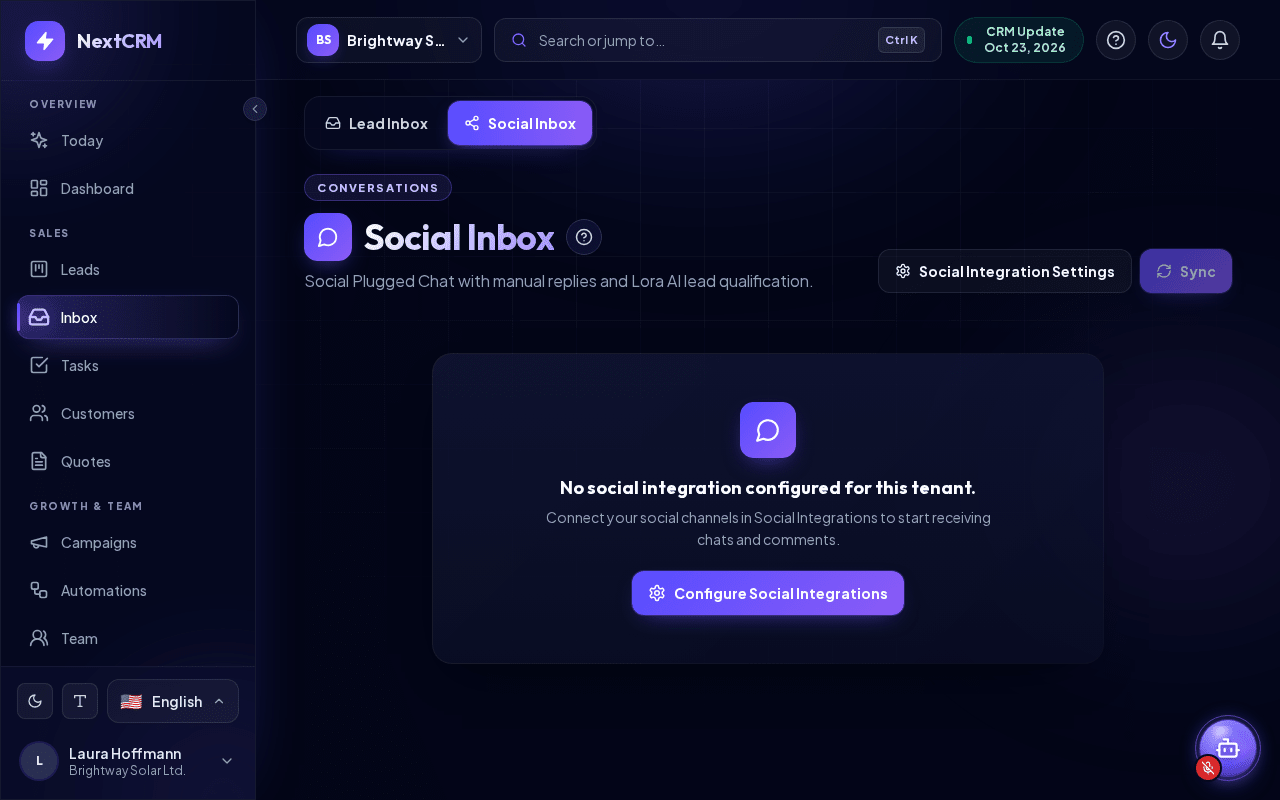
- Pick a channel in the row at the top: All channels or a single channel, each with its number of unread messages. Total: N shows how many conversations the list contains. Use Filters such as Unread, Assigned to me, AI Active, Needs review, Leads Only, Comments or Direct.
- Open a conversation. Set its status with Open, Pending, Resolved, Spam or Archived.
- Type your answer and click Send, or press Ctrl + Enter. Above the text field, Replying via shows the channel the reply goes out on. Or click Lora draft: a box Lora prepared a reply - review it before you send shows the text. Click Use draft to put it into the reply field, check or edit it and click Send, or click Rewrite for a new version.
- Open the Lead context panel. On wide screens (from 1280 px) it is the third column on the right; on smaller screens, open it with the Lead context info button in the conversation header. On phones the list, the conversation and the lead context are separate screens, and the back arrow (Back to all conversations) returns to the list. Under Lora handling you find Let Lora handle this, Enable autopilot (for this conversation only) and Stop AI.
- Under AI lead score, click Create Lead or Link to Existing Lead. Open linked lead jumps to your leads.
Lora draft, autopilot and Stop AI can only be used by Workspace Admins and Sales Managers. Everyone can reply manually. Sync imports new data where a network supports it (Telegram without webhook, Email) and does not fetch Facebook, Instagram or WhatsApp history.
Website chat
The Website Chat card is for a chat widget on your own website. The widget sends visitor messages to NextCRM, and your answers from the Social Inbox are stored so the widget can show them. The Verify token on the card serves as the widget key, and the Webhook URL contains your workspace code.
NextCRM does not provide copy-and-paste widget code on this page yet. A developer can connect an existing chat widget using the URL and key. Do not publish the verify token anywhere you would not publish a password.
Related articles
- WhatsApp Business setup
- Connect Facebook (Messenger and Page comments)
- Connect Instagram
- Connect Telegram