E-mail & SMS
Email setup (SMTP and IMAP)
Connect your mail server so NextCRM sends lead e-mails and campaigns from your own address: Gmail, Microsoft 365, IONOS, Strato, deliverability and fixes.
11 min read Updated October 23, 2026
On this page
NextCRM sends e-mail through a mail account that you connect. Once it is set up, e-mail campaigns and lead e-mails go out from your own address (for example sales@example.com), and replies come back to your normal mailbox.
SMTP and IMAP in NextCRM
- SMTP (outgoing mail) is what NextCRM needs. It is used for e-mail campaigns, for e-mails you send from a lead with the Default mailer, and for workspace notifications. You set it up in Configuration > Email.
- Only your mailer sends your workspace's emails. Everything your workspace sends to leads and customers - campaigns, sequences, automations, lead emails, quotes, NPS surveys and booking emails to visitors - goes out only through this mailer or a connected mailbox. NextCRM never falls back to its own mail server, so without a mailer these emails are not sent. NextCRM's own mailer only sends account emails such as team invitations, billing and security notices.
- Incoming mail is not read over IMAP. To see replies on your leads in NextCRM, connect your mailbox with Google Workspace or Microsoft 365 under Profile > Connections. The SMTP option on a lead's Email tab only sends. Replies always arrive in your normal mailbox as well.
Note: Only Workspace Admins and Sales Managers can change the email settings, and your plan must include the Email Inbox feature to save or test a provider.
Set up sending in Configuration
- Open Configuration > Email (open the Email step). The Mailer Settings card in Settings (its chip shows for example Connected or Not set up) opens the same step.
- Pick a provider card. Mailboxes: Gmail / Google Workspace, Microsoft 365 / Outlook, Yahoo Mail, IONOS, STRATO and SMTP (any server) for every other mail provider. Sending services: SendGrid, Mailgun and Amazon SES.
- Click the gear icon on the card. The panel Provider credentials and sender identity opens.
- Fill in the fields (see the table below) and click Test connection.
- When the test succeeds, click Save. When all fields are filled and no other provider is active, saving also switches the provider on and checks the sign-in: the card shows Enabled and Verified.
- If the sign-in check fails, the panel stays open with the reason. Correct the values and save again.
At the top of the page, the card How the default mailer works shows the three steps as a tracker: Configure a provider, Test the connection and Make it the default. Steps that are done are ticked. The chip in the page header shows how many providers are enabled, for example 1 enabled.
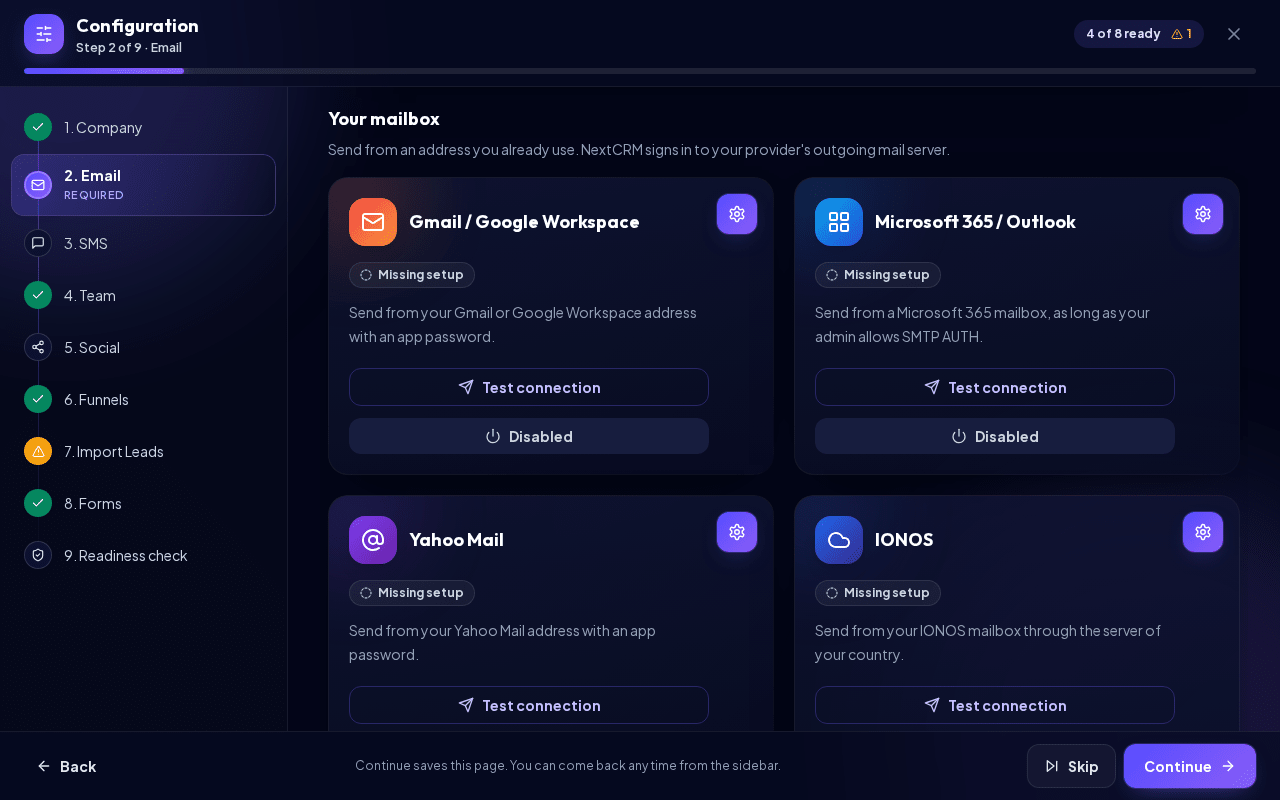
Only one provider can be enabled at a time: it is the default mailer that sends all workspace emails. While one is enabled, saving another provider keeps it switched off, and the other cards show Use as default (if the provider is configured) or Configure (if not). A provider counts as configured when all its fields are filled (the card shows Configured instead of Missing setup). The active provider's card has the Enabled / Disabled button to switch it on or off.
To switch to another provider, click Use as default on its card. A dialog asks, for example, Use SendGrid as the default mailer? NextCRM checks the new provider's connection first. If the check fails, your current default stays active and you see the reason.
The SMTP fields
| Field | What to enter |
|---|---|
| SMTP Host | The outgoing server of your provider, for example smtp.ionos.de. |
| Port | 465 or 587 in almost all cases. NextCRM accepts 25, 465, 587 and 2525. |
| Username | Usually your full e-mail address. |
| Password | Your mailbox password or, where required, an app password. |
| From Email | The sender address recipients see. Use the mailbox you log in with (or an alias your provider allows). |
| From Name | The sender name, for example your company name. |
There is no separate security switch: port 465 uses SSL/TLS from the start, and port 587 uses STARTTLS (the connection is upgraded to encryption when the server offers it, which all major providers do).
The Gmail / Google Workspace, Microsoft 365 / Outlook and Yahoo Mail cards only ask for the address (Username), the password or app password (Password) and the From Name; the server is set automatically (Gmail and Yahoo: port 465 with SSL/TLS, Microsoft 365: smtp.office365.com, port 587 with STARTTLS), and mail is always sent from the address you sign in with. On the IONOS card you choose the server of your country under Server (country): smtp.ionos.de, smtp.ionos.com, smtp.ionos.co.uk, smtp.ionos.es, smtp.ionos.fr, smtp.ionos.it (port 465 with SSL/TLS); other servers are not accepted. The STRATO card always uses smtp.strato.de, port 465 with SSL/TLS. For IONOS and STRATO the From Email is optional: leave it empty to send from the login address, or enter an alias of the mailbox. SendGrid and Mailgun use an API Key instead of a password, and Amazon SES asks for the Region plus SMTP credentials created in AWS.
The Test connection button
Test connection sends a real test e-mail with the subject "NextCRM mailer connection test". By default it goes to the From Email address. To send it somewhere else, enter an address in Send test to (optional) in the provider panel ("Leave empty to send the test message to the From address."). The test uses the values currently in the form, so you can test before saving. The result appears as Connection status: Connected or Connection status: Not connected with the reason. Check the inbox (and spam folder) of that address to confirm the message arrived.
How your password is protected
Passwords and API keys are encrypted (AES-256) before they are stored and are never sent back to the browser. After saving, the field stays empty and shows Saved securely. Leave blank to keep it. Type a new value only when you want to replace it.
Tip: Use an app password or a dedicated sending mailbox instead of your personal main password whenever your provider supports it.
Gmail and Google Workspace
Google requires an app password for SMTP and IMAP.
- Turn on 2-Step Verification for the Google account.
- Create an app password at https://myaccount.google.com/apppasswords and copy the 16-character code.
- In NextCRM, use the Gmail / Google Workspace card: Username = your Gmail or Workspace address, Password = the app password. You can paste it with or without the spaces Google shows.
Alternatively use the SMTP card with these values:
| Setting | Value |
|---|---|
| SMTP server | smtp.gmail.com, port 465 (SSL/TLS) or 587 (STARTTLS) |
| IMAP server | imap.gmail.com, port 993 (SSL/TLS) |
| Username | Full Gmail / Google Workspace address |
Note: If you cannot see the app password page, 2-Step Verification is off, or your Google Workspace admin has disabled app passwords. Gmail also applies daily sending limits, so for large campaigns consider SendGrid, Mailgun or Amazon SES.
Microsoft 365 and Outlook.com
Important: Microsoft is switching off password sign-in (basic authentication) for SMTP in Microsoft 365. For lead e-mails and replies, connect the mailbox with Connect Microsoft 365 under Profile > Connections instead (see Connect Microsoft 365). The Microsoft 365 / Outlook card only works while your Microsoft 365 admin still allows SMTP AUTH for the mailbox.
If SMTP AUTH is still allowed, use the Microsoft 365 / Outlook card. Server and port are set automatically; you only enter the mailbox address and its password (or app password). For reference:
| Setting | Value |
|---|---|
| SMTP server | smtp.office365.com, port 587 (STARTTLS) |
| IMAP server | outlook.office365.com, port 993 (SSL/TLS) |
| Username | Full mailbox address |
- SMTP AUTH must be enabled for the mailbox. Your Microsoft 365 administrator can turn on "Authenticated SMTP" for the user in the Microsoft 365 admin center.
- Microsoft is retiring basic (password) authentication in many scenarios. Whether SMTP AUTH and app passwords work for you depends on your tenant's security policies (for example Security defaults or Conditional Access). If the test keeps failing with an authentication error, ask your Microsoft 365 admin, or use a sending service such as SendGrid, Mailgun or Amazon SES.
- Personal Outlook.com accounts may not accept password-based SMTP at all. A business mailbox is the more reliable choice.
IONOS
| Setting | Value |
|---|---|
| SMTP server | smtp.ionos.de (Germany) or smtp.ionos.com (US), port 465 (SSL/TLS) or 587 (STARTTLS) |
| IMAP server | imap.ionos.de, port 993 (SSL/TLS) |
| Username | Full e-mail address |
| Password | The password of that mailbox |
Use the IONOS card and choose the server of the country your IONOS contract belongs to under Server (country). NextCRM connects on port 465 (SSL/TLS).
Strato
| Setting | Value |
|---|---|
| SMTP server | smtp.strato.de, port 465 (SSL/TLS) or 587 (STARTTLS) |
| IMAP server | imap.strato.de, port 993 (SSL/TLS) |
| Username | Full e-mail address |
| Password | The password of that mailbox |
Use the STRATO card: smtp.strato.de with port 465 (SSL/TLS) is set automatically, so you only enter the username and password.
Other providers
Look for "SMTP settings" or "e-mail client settings" in your provider's help pages. You need the outgoing server name, the port (465 or 587), and your login. For IMAP, the incoming server usually uses port 993. Servers on private or internal networks cannot be used.
Where to get each value
Every field in the Email step has a small (i) icon next to its name. Click it to see where the value comes from and to open the provider page that creates it. The same information, per provider:
SMTP (any mailbox provider)
| Field | Where to get it |
|---|---|
| SMTP Host and Port | In your provider's help pages under "SMTP settings" or "e-mail client settings" (see the provider tables above). |
| Username | Usually your full e-mail address, the same login as for webmail. |
| Password | Your mailbox password, or an app password if your provider requires one. |
| From Email | The mailbox you sign in with, or an alias your provider allows. |
Gmail / Google Workspace
| Field | Where to get it |
|---|---|
| Username | Your full Gmail or Google Workspace address. |
| Password | An app password: turn on 2-Step Verification, then open Google Account > Security > App passwords (open App passwords) and create one named "NextCRM". Paste it with or without spaces. |
Yahoo Mail
| Field | Where to get it |
|---|---|
| Username | Your full Yahoo Mail address. |
| Password | An app password: Yahoo Account security > Generate app password (open Yahoo account security). |
SendGrid
| Field | Where to get it |
|---|---|
| API Key | SendGrid > Settings > API Keys > Create API Key with at least "Mail Send" access (open API Keys). The key starts with SG. and is shown only once. |
| From Email | A verified sender or an address on an authenticated domain: Settings > Sender Authentication (open Sender Authentication). |
Mailgun
| Field | Where to get it |
|---|---|
| API Key | Account menu > API Security: create or copy a private API key (open API Security). |
| Domain | Your verified sending domain under Sending > Domains (open Domains), for example mg.example.com. US and EU accounts both work; NextCRM finds the right region by itself. |
| From Email | An address on that sending domain. |
Amazon SES
| Field | Where to get it |
|---|---|
| Region | The region of your SES account, shown at the top right of the AWS console, for example eu-central-1 (list of SES regions). |
| SMTP Username and SMTP Password | SES console > SMTP settings > Create SMTP credentials (open SMTP settings). These are not your AWS access keys; the password is shown only once. |
| From Email | A verified identity (address or domain) in the same region: SES > Identities (open Identities). |
Deliverability: SPF, DKIM and DMARC
To keep your e-mails out of spam folders, your domain should prove that your provider may send on its behalf. These are DNS TXT records that you add at your domain host:
- SPF lists the servers allowed to send for your domain. Your provider tells you the exact value. Example for Google Workspace:
example.com. TXT "v=spf1 include:_spf.google.com ~all"
- DKIM adds a digital signature. You generate the key in your mail provider's admin area and publish the TXT record it gives you (for example at
selector._domainkey.example.com). - DMARC tells receivers what to do with mail that fails SPF/DKIM. A safe start:
_dmarc.example.com. TXT "v=DMARC1; p=none; rua=mailto:dmarc-reports@example.com"
Warning: A domain may have only one SPF record. If you send through several services, combine them into one record with several
include:entries.
Also make sure the From Email belongs to the mailbox you authenticate with; many providers reject or flag messages with a different sender address.
Common errors
- Authentication failed (for example "Provider returned status 535" or
smtp_auth_failed): wrong username or password, an app password is required, or SMTP AUTH is disabled for the mailbox (Microsoft 365; the error then contains5.7.139). - Timeout (
smtp_connection_timeout): wrong host or port, or the provider blocks the connection. Check the server name and try the other port (465 or 587). - TLS / certificate error (
smtp_tls_certificate_invalid) or connection failed: the port and encryption do not match. Use 465 for SSL/TLS or 587 for STARTTLS, and use the host name your provider documents (not an IP address). - Mail server port is not allowed: only ports 25, 465, 587 and 2525 are accepted.
- "{provider} has no complete config": fill in every field and save before enabling the provider.
Related articles
- Email campaigns
- SMS setup
- Getting started
- Troubleshooting
Related guides
- Connect Google Workspace (Gmail + Calendar) Sync Gmail and Google Calendar so emails and meetings with your leads appear in NextCRM: what is synced, what is never read, disconnecting and admin notes. 5 min read
- Email campaigns Send or schedule an e-mail to all active leads of a funnel: check readiness, preview recipients, personalise the message, track the results and understand how unsubscribes and STOP replies are handled. 8 min read
- SMS setup Connect your Twilio account to text leads from NextCRM, receive replies and run SMS campaigns: live and test mode, Twilio values, webhooks and test messages. 6 min read