Leads, funnels & forms
Tasks (create, assign, files, comments)
Create and assign tasks, set due dates and status, attach files, comment, filter and archive tasks, and let Lora create tasks for you.
6 min read Updated October 23, 2026
On this page
Tasks keep follow-ups from slipping: call back a lead, send an offer, prepare a meeting. A task can stand alone or be linked to a lead or a campaign, and it can be assigned to you, a team member or Lora.
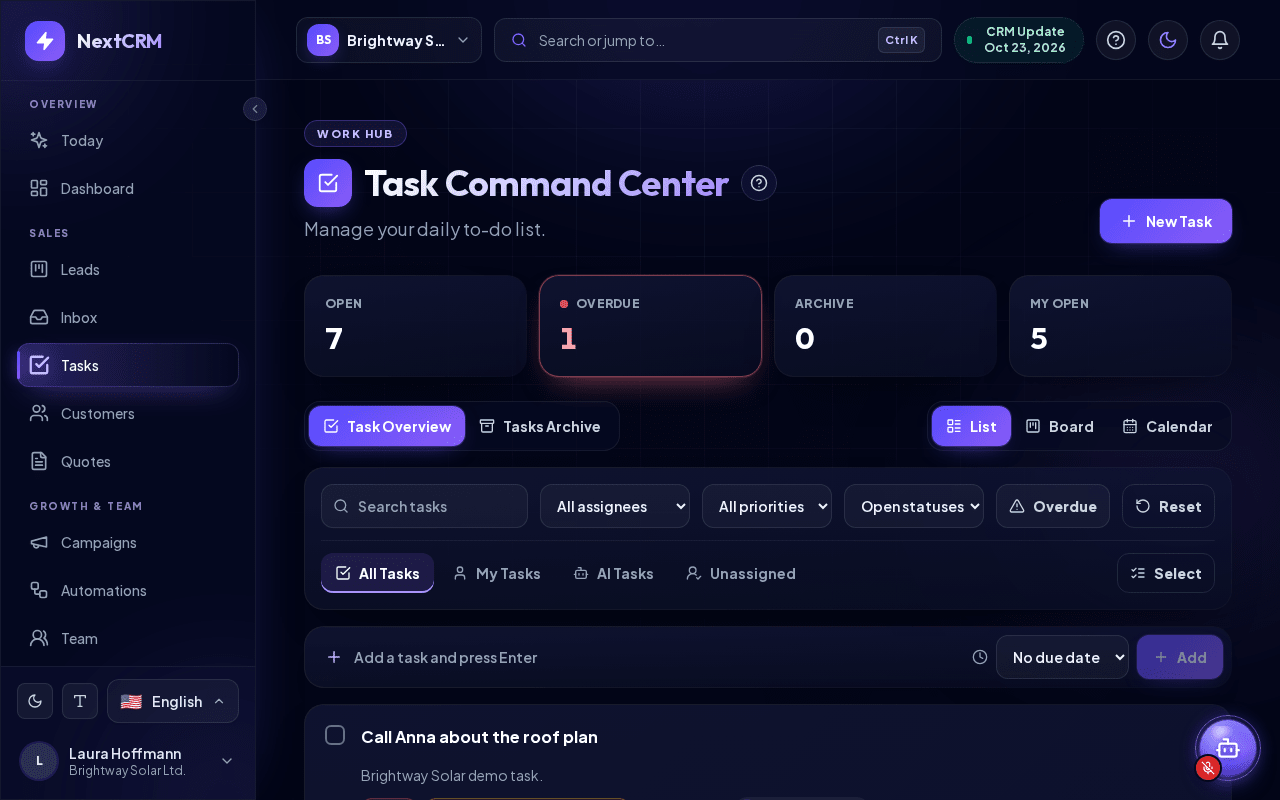
Open the task list from the sidebar: Tasks. The page is called Task Command Center (eyebrow Work hub). Next to Task Overview / Tasks Archive you switch between the views List, Board and Calendar; your choice is remembered. Tasks Archive is always shown as a list.
Create a task
- Click New Task.
- Enter a Task Title (required).
- Optional: set status, priority, Assignee, Due Date, Description, Subtasks (+ Add Subtask) and Tags.
- Link it to a lead with Link Customer or to a campaign with Link Campaign.
- Click Create Task.
Quick add: in Task Overview, type a title into Add a task and press Enter, optionally pick a due date (No due date, Today, Tomorrow or In a week) and press Enter or click Add. The task is assigned to you, and the message "Task added: …" confirms it. Open it afterwards to add details.
From a lead: open the lead, go to the Tasks tab and click Add Task. The task is linked to that lead automatically, and the lead card on the board shows the number of open (or overdue) tasks.
Assign tasks
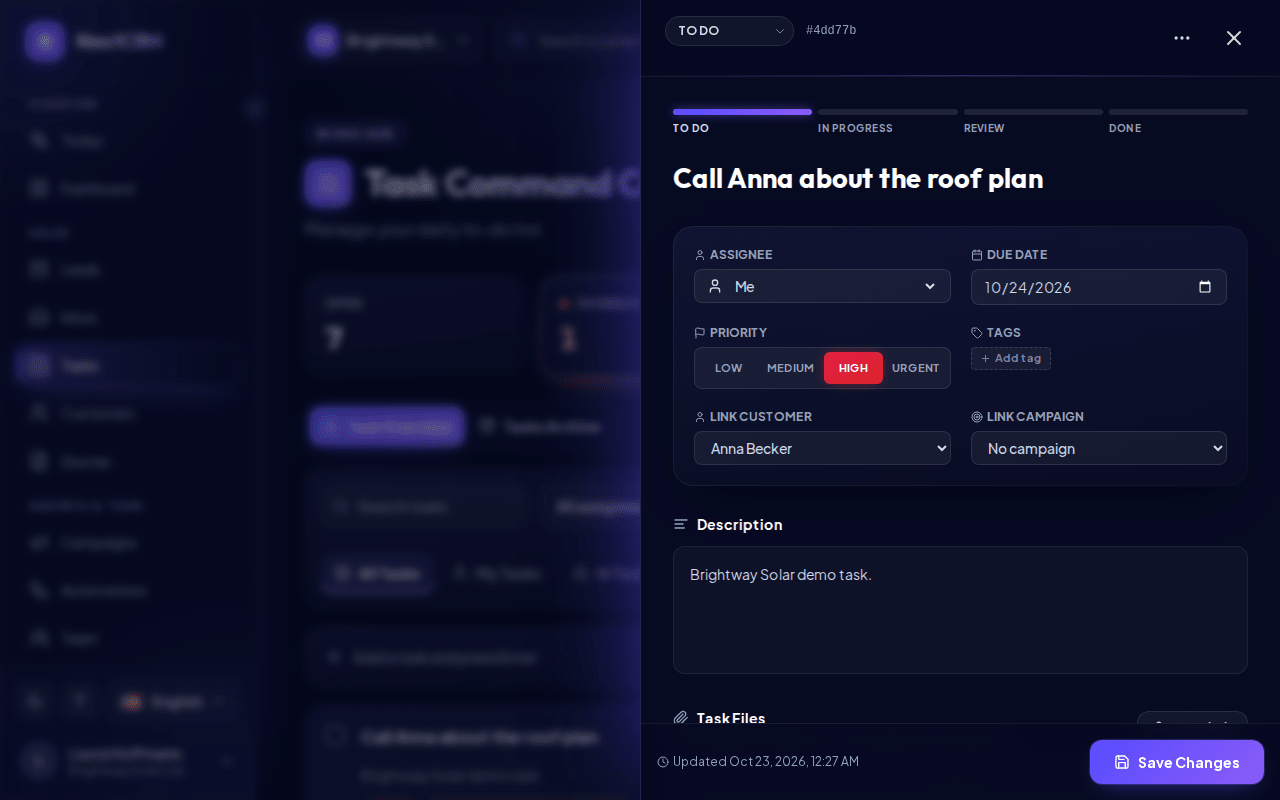
The Assignee field offers:
- Me and Lora AI: available to everyone.
- Unassigned and other team members: only for Workspace Admins and Sales Managers.
Sales Team users can assign tasks only to themselves or to Lora. They can still pick up an unassigned task. When you assign a task to another person, they receive a notification.
Status, priority and due dates
| Status | Meaning |
|---|---|
| To do | Not started |
| In progress | Being worked on |
| Review | Waiting for a check |
| Done | Finished, moves to the archive |
| Canceled | Will not be done |
Priority is Low, Medium, High or Urgent.
The due date appears in the list as, for example, "Due today", "Due tomorrow", "In 3 days" or "Overdue by 2 days". Overdue tasks are counted in the Overdue summary and highlighted on the lead card.
Quick complete: in the List view, click the checkbox in front of a task to mark it Done. Click it again to reopen it.
Edit a task
Click a task to open its details, change what you need and click Save Changes. At the top of the details, a track To do / In progress / Review / Done shows how far the task is.
Sales Team users can edit tasks they created or that are assigned to them. Workspace Admins and Sales Managers can edit all tasks.
Files
Use Task Files to attach documents: click Attach file or drop files into the box.
- When creating a task, files are attached first and uploaded right after the task is created.
- For an existing task, files upload immediately.
- Each file can be up to 25 MB. Allowed are PDF, Office, images, text, CSV and email files: common documents (PDF, Word, Excel, PowerPoint, TXT, CSV), images (PNG, JPG, WEBP, GIF) and saved emails (.eml). Executables, scripts, HTML and SVG files are rejected.
- All files count towards your workspace storage limit.
- Only Workspace Admins and Sales Managers can delete task files.
Comments
Comments are available once the task exists. Open the task, type in Write a comment... and click Add comment. Comments are visible to everyone in the workspace who can open the task, and they are recorded in the task activity.
Find tasks: filters and views
::video[/help/videos/{lang}/tasks-filters.webm]{caption="Video: filter tasks and work with several at once" captions="/help/videos/{lang}/tasks-filters.vtt" poster="/help/videos/{lang}/tasks-filters.jpg"}
- Tabs: All Tasks, My Tasks, AI Tasks (assigned to Lora) and Unassigned.
- Search tasks by text.
- All assignees: pick a team member.
- All priorities: pick one priority.
- Open statuses: by default the list shows open tasks (To do, In progress, Review). Pick one status to see only those tasks; pick Canceled to see canceled tasks.
- Overdue: show only overdue tasks.
- Reset clears all filters.
The summary cards show Open, Overdue, Archive and My Open counts. They are also filters: click a card to show exactly those tasks, for example Overdue for all overdue tasks or Archive to open Tasks Archive.
Board and calendar view
Board shows your tasks in the columns To do, In progress, Review and Done (plus Canceled when canceled tasks are loaded). Drag a card to another column to change its status, or use the arrow on a card (Move to …) to move it to the next step; this also works with the keyboard and on touch screens. Dropping a task on Done completes it, and completed tasks move to the archive ("Drop a task here to complete it…").
Calendar shows the month with the tasks on their due date. Use Previous month, Today and Next month to navigate. Drag a task to another day to reschedule it. Click a day to list its tasks below the calendar; Add task creates a task with that day already set as the due date. Tasks without a due date are listed under Without due date.
The checkbox for quick complete, the archive icon and Select are available only in the List view. The filters and tabs apply to all three views.
Archive and delete
- Archive: click the archive icon on a task in Task Overview (or Archive task in the task's ... menu) and confirm. Workspace Admins, Sales Managers and the person who created the task can archive it.
- Tasks Archive shows archived tasks and all tasks marked Done. Click Back to Task Overview to return.
- Delete permanently: in Tasks Archive, click the trash icon and confirm Delete task permanently?. This also removes the task's comments and files and cannot be undone.
- Restore: in Tasks Archive, click the restore icon on the task (or Restore in the task's ... menu). The task is back in Task Overview.
- Several tasks at once: in the List view, click Select, tick the tasks and choose Mark done, Assign to... or archive them. Tasks you may not change are skipped and counted in the message.
Tasks created by Lora
You can ask Lora in the chat (Lora button at the bottom right) to create a task, for example "Remind me to call Maria from Acme on Friday". Lora prepares the task with title, priority and due date in a card titled Ready for your approval and creates it only after you click Approve (Edit lets you tell her what to change, Cancel discards it). Lora prepares, you approve, Lora executes. Tasks created this way are assigned to Lora AI and appear under AI Tasks. You can reassign them at any time.
Related articles
Related guides
- Leads and pipeline Work with the Leads Board: create leads, drag them between stages, use the lead details tabs, mark deals as won or lost, filter the board and export leads. 12 min read
- Lead Inbox Why leads wait in the Lead Inbox when your active lead limit is reached, and how to activate, archive or delete them. 4 min read
- Importing leads (CSV/XLSX) Import contacts from a CSV, XLSX or JSON file: upload it, map the columns, check the preview, handle duplicates and roll back an import if needed. 6 min read