Team, workspaces & billing
Inviting your team
How to invite colleagues by email, choose their roles, resend or revoke invitations, how team seats are counted, what the invited person sees and how invitations work for people who already use NextCRM in another workspace.
6 min read Updated October 23, 2026
On this page
Every person who works in NextCRM needs their own login - never share accounts, because activity history, task assignments and the Social Inbox depend on who did what. You invite people from the Team page. Workspace Admins and Sales Managers can send invitations.
Send an invitation
- Open Team in the sidebar (in the Growth & team section). You can also invite people in the Team step of Configuration; it uses the same form.
- Click the Add Team Member card, or switch to the Onboard Team tab.
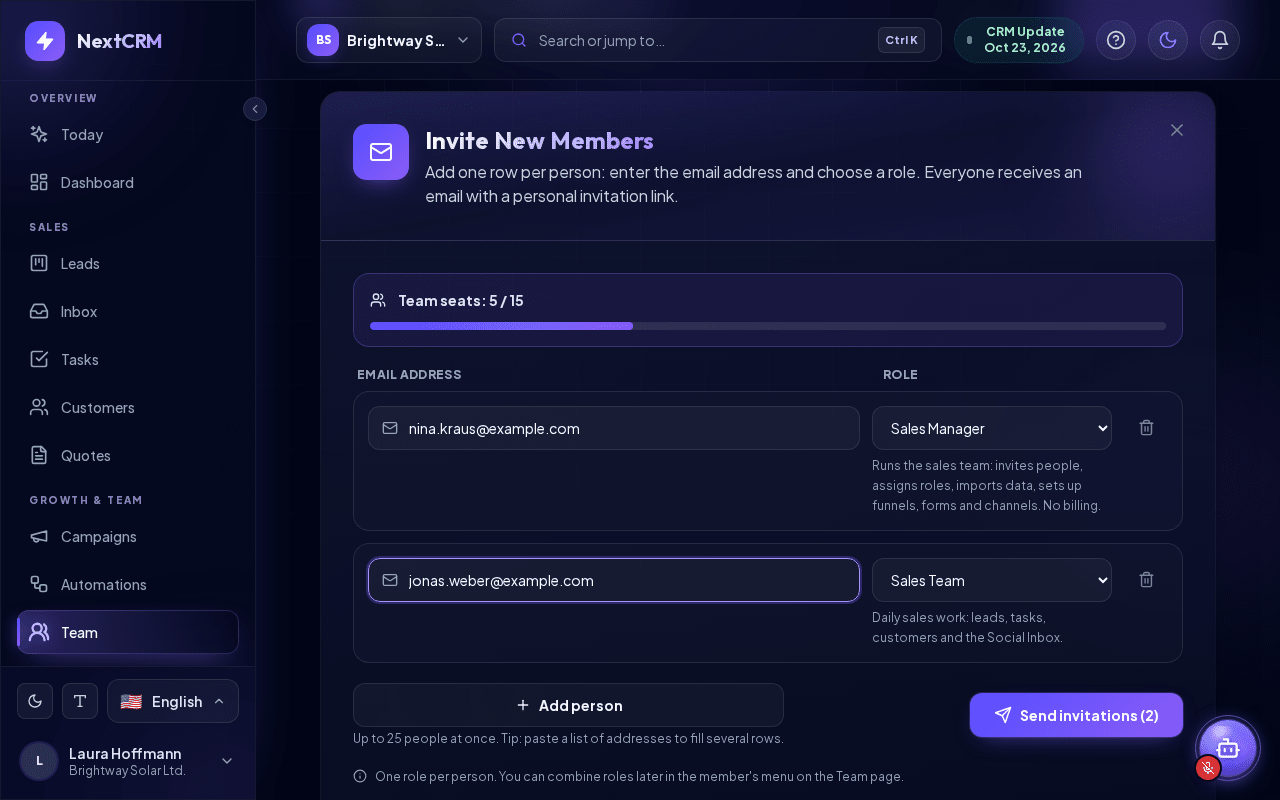
- Under People to invite, add one row per person: enter the Email address and choose the Role: Sales Team, Sales Manager, Marketing or Finances. Below the role you see a short description of what it may do. Each person gets exactly one role; you can combine roles later in the member's ... menu on the Team page.
- Click Add person for another row (up to 25 people at once). Tip: paste a list of addresses into an email field to fill several rows. An address that does not look valid or is already in the list is marked before you send.
- Click Send invitation. With several rows, the button shows the number, for example Send invitations (3).
NextCRM sends each person an email with an Accept Invitation button. The invitation is valid for 7 days.
After sending, every row shows its result, for example Invitation sent, and the list Just invited sums them up. Rows that need your attention (for example no free team seat) stay in the list so you can fix and send them again. If an invitation email could not be delivered, a dialog Invitation created, but the email was not sent opens with the reason. Click Copy invite link and send the link to the person yourself, for example by chat. For security, the link is shown only in this dialog. If you lose it, use Resend to create a new link (the old one stops working).
Note: The Workspace Admin role cannot be given by invitation. Invite the person with another role first. If they need to be a Workspace Admin, contact NextCRM support. See Workspace roles and permissions.
You cannot invite an address that is already a member of the workspace. If an address already has an open invitation, inviting it again replaces that invitation with a new one and a fresh 7-day expiry - the old link stops working, just like with Resend.
Team seats and limits
Your plan includes a number of team seats. Above the invite form you see Team seats: used / limit with a progress bar.
- A seat is used by every member and by every open invitation (pending, resent, or failed but not yet expired). This way, invitations cannot push you over the limit when people accept.
- When all seats are used, the form shows Limit reached and sending is not possible.
To free or add seats:
- Revoke or delete invitations you no longer need.
- Remove a member who has left: open the ... menu on the member card and click Remove. The workspace owner can remove Workspace Admins; Workspace Admins and Sales Managers can remove the roles below them. The dialog shows the member's open work (assigned leads, deals, open tasks, inbox conversations): choose a team member under Transfer all of it to to hand everything over at once, or leave it unassigned and assign it later on the leads board and in Tasks. The removed person loses access immediately; completed tasks keep their history.
- Add extra seats as an add-on in Plan & billing > Add-ons if your plan allows it, or move to a larger plan on the Plan Upgrade tab. Only Workspace Admins can buy add-ons or change the plan. See Billing, plans and add-ons.
Pending invitations: resend, revoke, delete
On the Team List tab, the Pending invitations section lists every invitation until it is accepted, expires, fails or is revoked. Each entry shows the role, when it was sent and when it expires.
- Resend - sends a new email with a new link and a fresh 7-day expiry. The old link stops working. Use this when the person lost the email, the invitation expired or the email could not be delivered.
- Revoke - cancels the invitation. The link stops working immediately and the seat is released.
- Delete Invite - removes only the invitation record from the list. Registered users and team members are not affected.
If you see Email delivery failed, check the address for typos and click Resend. Invitation emails are sent by NextCRM itself, not through your own email settings. If delivery keeps failing, contact NextCRM support.
Tip: Ask new colleagues to check their spam folder if the invitation does not arrive within a few minutes.
What the invited person sees
- They open the email and click Accept Invitation.
- A secure page shows Join and your workspace name, who invited them and the role they will get, plus the expiry date.
- They sign in or register with email and password (a 6-digit code confirms a new address) or with Continue with Google / Continue with Microsoft. If they are already signed in to NextCRM, they can click Continue with current account. See Sign-in, password and email.
- NextCRM adds them to the workspace with the roles from the invitation and shows Welcome Aboard!. Go to Dashboard takes them straight into your workspace.
On their first visit they get a short tour of how NextCRM works.
If the link has expired or was revoked, the page says so. In that case, send a new invitation or click Resend.
Inviting someone who already uses NextCRM
One NextCRM login can belong to several workspaces - for example when a person also runs their own company's workspace or works for several companies. You invite them exactly like anyone else.
- Accepting the invitation adds your workspace to their existing account. Their other workspaces, data and roles stay unchanged.
- They can accept with Accept Invitation in the email, or directly in NextCRM: the workspace switcher in the top bar lists open invitations sent to the email address of their account, with Accept and Decline.
- After accepting, NextCRM opens your workspace. Later they switch between workspaces by clicking the workspace name in the top bar.
- The roles you give them apply only in your workspace, and they use a team seat in your workspace only.
See Working with multiple workspaces.
Change roles later
The Team List tab starts with a row of figures: Members, Open Tasks, Overdue and either Won revenue or Open invitations. When there is won revenue, Top performers ranks the members by it. Each member card shows the email address, up to three role chips and a Profile button. If your search finds nobody, you see "No team member matches".
You can change a member's roles at any time: on the Team List tab, open the ... menu on the member card and tick or untick roles under Workspace access. Changes are saved immediately. Sales Managers cannot change Workspace Admins.
Related articles
Related guides
- Workspace roles and permissions The five workspace roles in NextCRM - Workspace Admin, Sales Manager, Marketing, Finances and Sales Team - what each role sees in the sidebar and what it can change. 5 min read
- Working with multiple workspaces One login for several workspaces: choosing one at sign-in, switching, creating a workspace for another company, invitations, roles per workspace and leaving. 3 min read
- Billing, plans and add-ons How NextCRM plans, add-ons and AI credits work, when upgrades and downgrades take effect, what happens to your data when you cancel, and where to download receipts. 7 min read